



Introduction: Turning Your Instagram Feed into a Sales Channel
Summary
- Connecting a Shopify store to Instagram requires an Instagram Business Account, a connected Facebook Business Page, and a Meta Business Portfolio.
- The integration is managed through the "Facebook & Instagram" sales channel app within the Shopify admin dashboard.
- Once connected, merchants can tag products from their Shopify catalog directly in Instagram posts, Stories, and Reels.
- Successful integration relies on meeting Meta's Commerce Eligibility Requirements and ensuring product data is synced correctly to the Meta Commerce Manager.
- The Meta Pixel and Conversions API are key tools for tracking customer actions and measuring ad performance after the connection is established.
To connect Shopify to Instagram, you need to:
- Switch your Instagram account to a Business profile
- Create and connect a Facebook Business Page to your Instagram account
- Install the "Facebook & Instagram" sales channel from your Shopify admin
- Link your accounts and select your product catalog
- Enable Instagram Shopping and wait for Meta's approval (1-3 business days)
- Start tagging products in your Instagram posts, Stories, and Reels
Instagram is a widely used platform for e-commerce, with over 2 billion monthly active users. For Shopify merchants, this represents a direct sales channel.
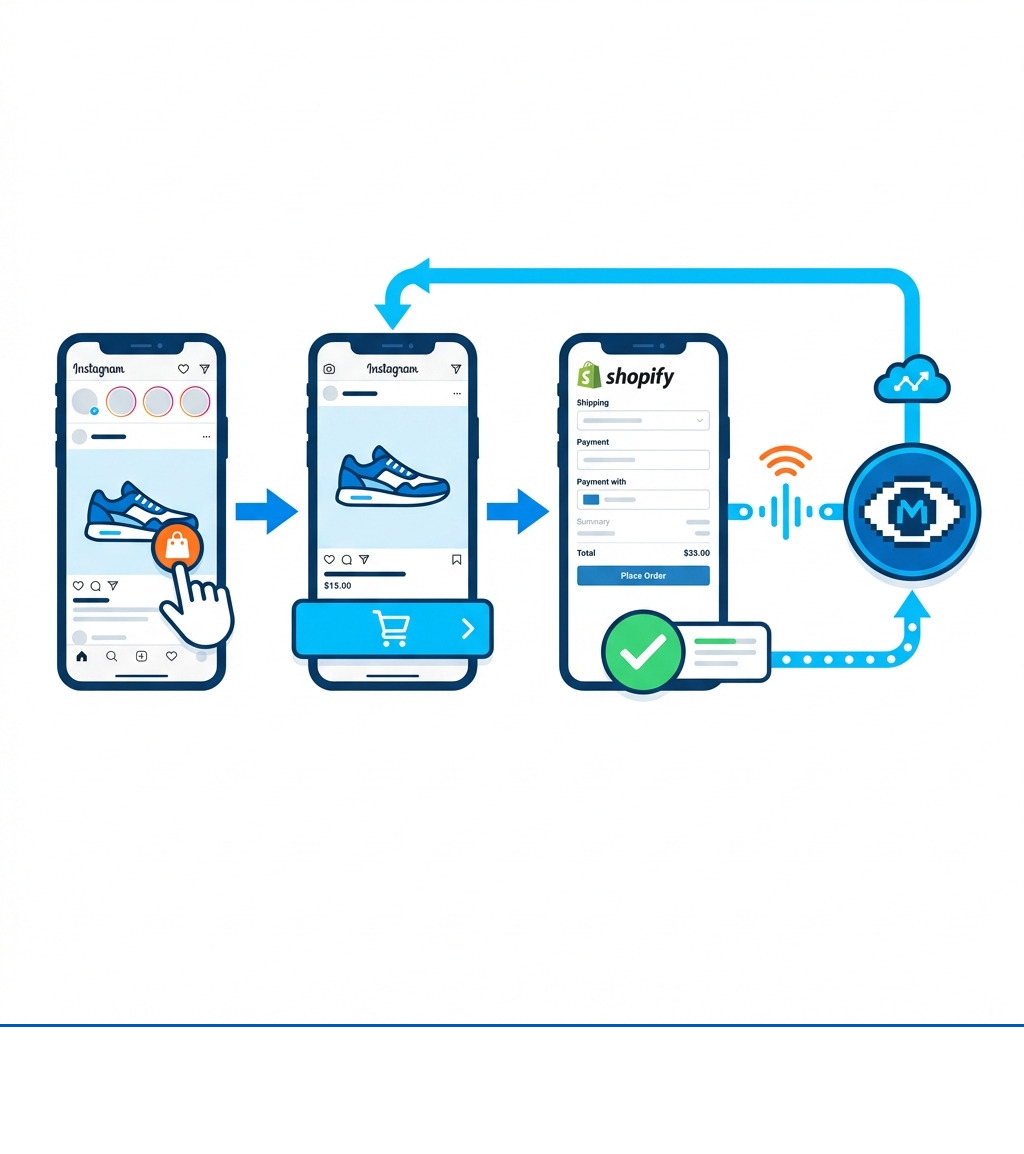
The integration between Shopify and Instagram changes your social media presence from a marketing tool into an actual sales channel. When you tag products in your posts, customers can tap to view details and purchase without leaving the app. This direct path from discovery to checkout can simplify the buying process.
The technical setup involves more than just linking accounts. You'll need to work through Meta's Commerce Manager, set up data sharing through the Meta Pixel and Conversions API, and ensure your product catalog meets Instagram's requirements. Each step matters because any misconfiguration can delay approval or prevent products from syncing correctly.
I'm Steve Pogson, and over the past two decades, I've helped dozens of Shopify merchants connect Shopify to Instagram and build effective social commerce plans. Here at First Pier, we've seen how proper integration and management can increase revenue for brands selling on the platform.
Prerequisites: What You Need Before You Start
Before you can connect Shopify to Instagram and begin selling, you need to have a few key accounts and settings in place. Getting these right from the start will prevent common problems later.
Meta's Commerce Eligibility Requirements
Meta, the parent company of Instagram and Facebook, has specific rules that businesses must follow to use their shopping features. These are known as Meta's Commerce Eligibility Requirements. Failing to meet these can stop your integration process.
First, your business needs to operate in a supported country or region where Instagram Shopping is available. It's always best to check Meta's official list to confirm your location is supported.
Second, your products must comply with Facebook’s Commerce Policies and Instagram Community Guidelines. This means avoiding restricted categories such as weapons, adult content, illegal substances, or anything that violates their terms.
Third, your business needs to be authentic and represent an established entity. This includes having a functional website with clear product listings, pricing, and a secure checkout process. Your Shopify store must be live and publicly accessible, not password-protected.
Setting Up Your Meta and Instagram Accounts
To properly connect Shopify to Instagram, you'll need the right types of accounts and permissions. This is where many businesses encounter initial problems.
How do I set up an Instagram Business Account?
If you're currently using a personal Instagram account, you'll need to switch to a Professional Account. This is a free switch and gives you access to business-specific features like Instagram Shopping, analytics, and advertising tools.
To switch:
- Go to your Instagram profile.
- Tap the three lines in the top right corner to open the menu.
- Go to "Settings and privacy."
- Scroll down and select "Account type and tools."
- Choose "Switch to professional account."
- Select "Business" as your account type, pick your business category, and complete your contact information.
How do I connect my Instagram account to my Facebook Business Page?
Your Instagram Business Account needs to be linked to a Facebook Business Page that represents the same business. This connection is vital for managing your product catalog and running ads.
- From your Instagram profile, tap "Edit Profile."
- Under "Public Business Information," tap "Page."
- Select an existing Facebook Page or create a new one.
Alternatively, you can connect through Facebook Business Manager:
- Go to Facebook Business Manager.
- In Business Settings, go to "Accounts" > "Instagram Accounts" and add your Instagram account.
- Ensure your Facebook Business Page is owned by a Meta business portfolio and that you have admin permissions for it.
Key Differences: Personal vs. Business Instagram Account for Selling
| Feature | Personal Instagram Account | Business Instagram Account |
|---|---|---|
| Instagram Shopping | No | Yes |
| Product Tagging | No | Yes |
| Instagram Ads | No | Yes |
| Insights/Analytics | Basic | Detailed (audience, content performance) |
| Contact Button | No | Yes (email, phone, address) |
| Link in Bio | Yes | Yes (plus Link Stickers in Stories) |
| DM Inbox Features | Basic | Advanced (primary/general, quick replies) |
| Scheduling Tools | Limited | Access to third-party scheduling |
For selling purposes, a Business Account is essential. It provides the tools necessary for selling on Instagram.
Preparing Your Shopify Store
Your Shopify store also needs to meet certain criteria to connect Shopify to Instagram.
- Active Shopify Plan: You need a Shopify online store on the Basic Shopify plan or higher.
- Published Online Store: Your store must be live and not password protected.
- Product Catalog Ready: Ensure all products you want to sell on Instagram are active and properly listed in your Shopify store with high-quality images, accurate descriptions, and pricing.
- Shopify Payments Setup: For in-app checkout features on Instagram (if available in your region), you'll need to have Shopify Payments set up. This helps create a reliable transaction process when customers buy directly through Instagram. Here at First Pier, we help businesses use specific Shopify Features to improve their store's integration with sales channels.
How to Connect Shopify to Instagram: A Step-by-Step Guide
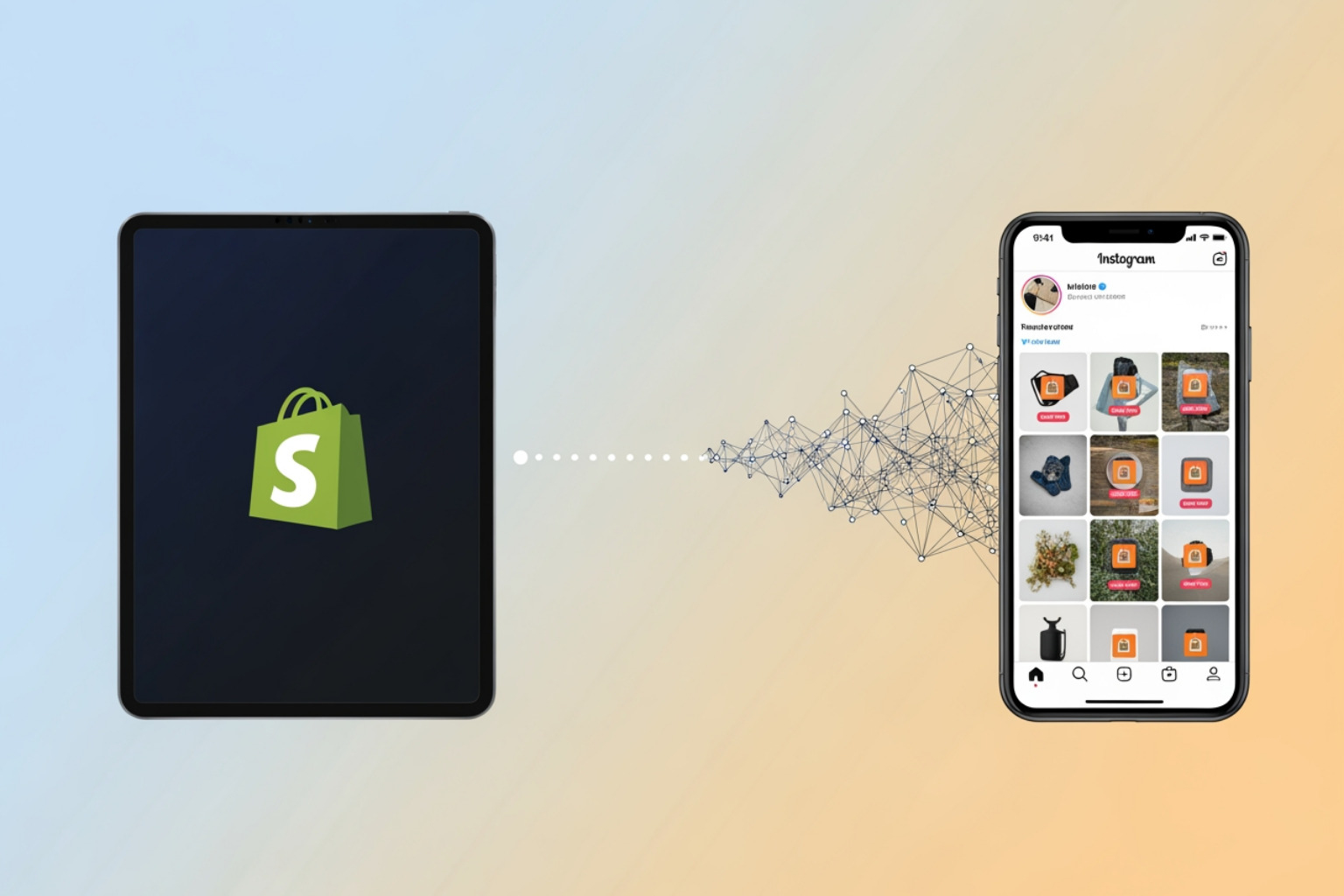
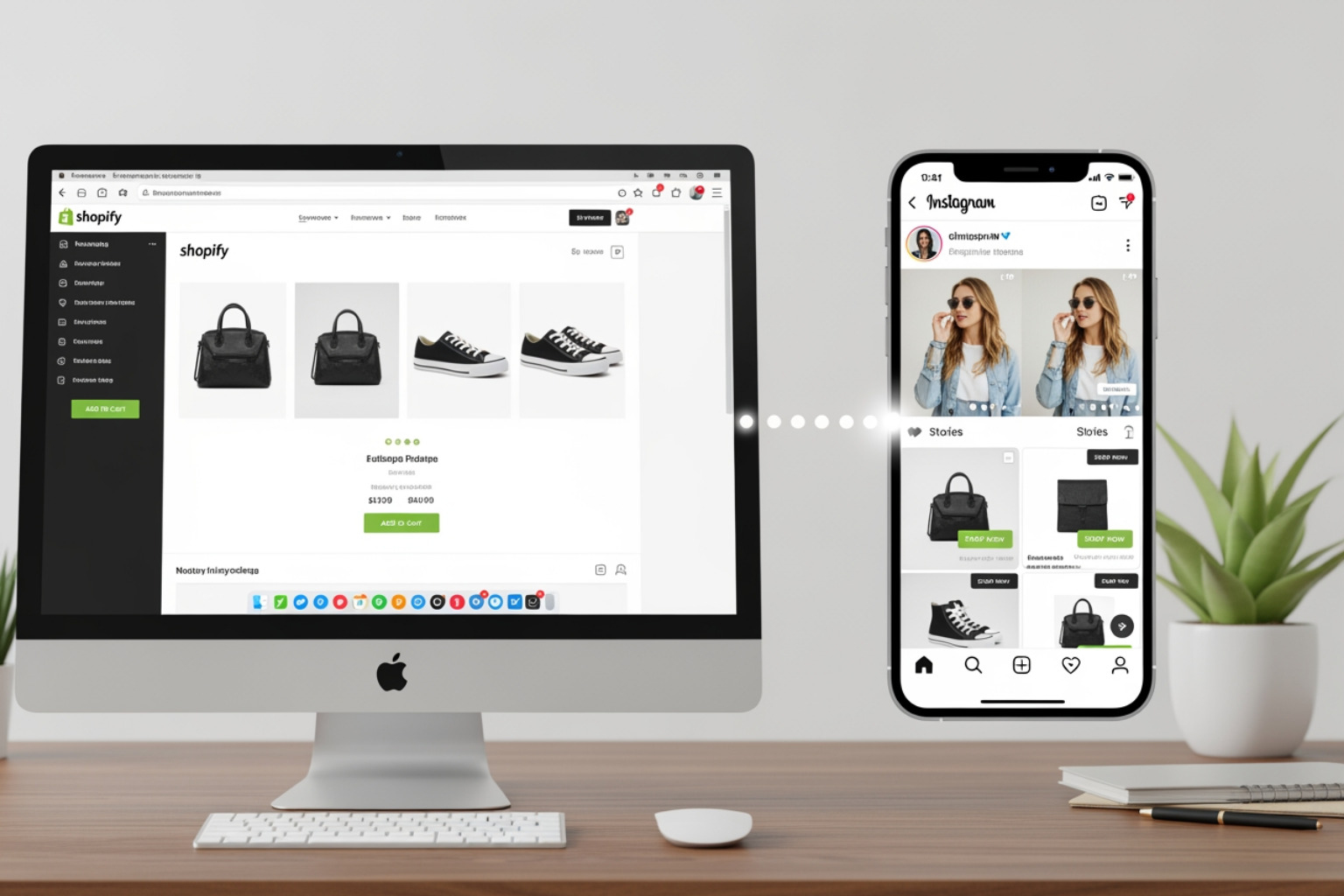
Once all your prerequisites are in order, connecting your Shopify store to Instagram is a straightforward process. This integration happens primarily through the "Facebook & Instagram" sales channel within your Shopify admin.
Step 1: Install and Configure the Facebook & Instagram Sales Channel
This is the central hub for managing your Meta integrations from Shopify.
- Install the App: In your Shopify admin, go to "Sales channels," and click the "+" button. Search for "Facebook & Instagram" and click "Add app."
- Add Sales Channel: Click "Add sales channel" to complete the installation.
- Start Setup: On the Facebook & Instagram sales channel page in your Shopify admin, click "Start setup."
- Connect Facebook Account: Click "Connect account" and log in with your Facebook account that has admin access to your Facebook Business Page and Meta Business Portfolio.
- Follow Prompts: Follow the on-screen prompts to connect the necessary Facebook assets (Business Page, Ad Account, Meta Business Portfolio). This process also helps set up your Facebook Shop, which is a prerequisite for Instagram Shopping. This integration is also key for running effective Facebook Ads for your Shopify Store.
Step 2: Set Up Your Data Sharing and Commerce Account
After connecting your Facebook account, you'll configure data sharing and ensure your product catalog is ready for Meta's platforms.
- Meta Pixel and Conversions API: During the setup, you'll be prompted to set up the Meta Pixel and Conversions API. These tools are crucial for tracking customer behavior on your Shopify store, measuring ad performance, and running retargeting campaigns. The Meta Pixel is a piece of code you place on your website to collect data, while the Conversions API provides a more reliable server-side data connection, which is important with increasing privacy restrictions.
- Data Sharing Settings: In your Shopify admin, go to the Facebook & Instagram sales channel settings and select your data sharing settings. Choosing "Improved" or "Maximum" allows for more comprehensive tracking, which helps with targeted advertising and analyzing customer behavior.
- Meta Commerce Manager: Your Shopify products will automatically sync to your product catalog in Meta Commerce Manager. This catalog is the foundation for both your Facebook Shop and Instagram Shopping. It also enables advanced advertising features like Facebook Catalog Ads.
Step 3: Enable Instagram Shopping and Await Approval
With the sales channel configured and your products synced, the final step is to enable Instagram Shopping within the Instagram app itself.
- Instagram App Settings: Open your Instagram app and go to your profile.
- Business Tools: Tap the three lines in the top right corner, then go to "Settings and privacy" > "Business" (or "Creator" if you chose that account type) > "Shopping."
- Set Up Shopping: Follow the prompts to connect your Instagram account to your Facebook Shop and select the product catalog that was synced from Shopify.
- Account Review Process: Once you've completed these steps, your account will undergo Instagram’s review and approval process. This typically takes 1-3 business days, but in some cases, it can take up to 48 hours for initial approval, while Meta checks your business and products for policy compliance.
Step 4: Verify Product Sync and Start Tagging
After approval, it's time to confirm everything is working and start showing your products.
- Verify Product Sync: Go to Meta Commerce Manager and check your product catalog. Ensure all your Shopify products are listed with correct images, descriptions, and prices. The status should show them as "active" and available for Instagram Shopping.
- Start Tagging: Once approved, you can begin tagging products in your Instagram posts and stories.
- Tagging in Posts: When creating a new post, after adding your image/video and writing your caption, tap "Tag products." Select the products from your catalog that are visible in your media. Customers can then tap these tags to see product details and purchase directly. Learn more about how product tagging works.
- Tagging in Stories: For Instagram Stories, you can use shopping stickers to tag products. These stickers are only available for image story posts, not videos.
- Product Information Updates: If you need to update product information (description, price, etc.) displayed on Instagram, you should edit the product directly in your Shopify admin. Changes will automatically sync to your Meta product catalog and reflect on Instagram.
This step-by-step process helps you set up a solid social selling function. For more detailed information on promoting your products, explore our resources on Social Media Marketing for Ecommerce.
Getting More Sales from Your Integration
Connecting Shopify to Instagram is just the beginning. To increase sales, you need to refine your plan by focusing on high-quality content, accurate tracking, and consistent product information. This approach is a core part of an effective Ecommerce Marketing Strategy.
Best Practices for Shoppable Instagram Content
The content you post is what converts browsers into buyers.
- High-Quality Visuals: Instagram is a visual platform. Use professional, high-resolution images and videos that show your products clearly.
- Lifestyle Photos: Instead of just product shots, show your products in use or in a lifestyle context. This helps customers imagine themselves using your items.
- User-Generated Content (UGC): Encourage customers to share photos of your products and re-share their content (with permission). UGC builds trust and provides authentic social proof.
- Clear Captions: Write clear captions that tell a story, highlight benefits, and include a call to action.
- Relevant Hashtags: Use a mix of broad and niche hashtags to increase findability. Research what your target audience is searching for.
- Use All Features: Don't limit yourself to just feed posts. Use product stickers in Stories, tag products in Reels, and use Instagram Live for product demonstrations. Remember to consider Instagram Ads Specs and Instagram Stories Specs when planning your content.
The Role of Meta Pixel and Conversions API
These tools are not just for setup; they are vital for ongoing sales improvement.
- Customer Behavior Tracking: The Meta Pixel tracks actions visitors take on your Shopify store, such as viewing products, adding to cart, and making purchases. This data helps you analyze the actions visitors take on your site.
- Ad Retargeting: With this data, you can create targeted ad campaigns to reach people who interacted with your products but didn't buy. For example, show an ad for a product to someone who added it to their cart but abandoned the purchase.
- Conversion Events: By tracking conversion events, you can measure the effectiveness of your Instagram efforts and adjust your campaigns accordingly.
- Performance Measurement: These tools provide the data needed for attribution reporting, helping you identify which Instagram activities lead to sales. For more detailed analytics, consider integrating Shopify GA4 to get a comprehensive view of your store's performance.
Keeping Your Product Information Updated
Accuracy is crucial for a good customer experience.
- Automatic Sync: The integration ensures that product information from Shopify automatically syncs to your Meta product catalog. This means less manual work for you.
- Price and Description Updates: If you change a price, update a description, or add a new image in Shopify, these changes should reflect on Instagram automatically after the next sync. This helps maintain consistency and prevents customer confusion.
- Inventory Management: The sync also helps keep your inventory levels accurate across platforms, reducing the risk of selling out-of-stock items.
- Editing in Shopify: Always make product information changes in your Shopify admin. This is the source of truth for your Shopify Product Feed and ensures consistency across all your sales channels.
By consistently applying these practices, you can increase Ecommerce Sales from your Instagram presence.
Troubleshooting Common Integration Issues
Even with a careful setup, you might run into problems when you connect Shopify to Instagram. Many common issues come from Meta's strict policies and the need for consistency across platforms. Here at First Pier, we've helped many clients handle these challenges. For more technical support, you can always refer to the Shopify Help Center Guide on Instagram Shopping.
How to fix problems when you connect Shopify to Instagram
- Inconsistent Business Information: One of the most frequent reasons for delayed approvals or connection failures is inconsistent business data. Ensure your business name, contact details, and website URL are identical across your Shopify store, Facebook Business Page, and Instagram Business Account. Even minor differences can cause issues.
- Disconnected Accounts: If your accounts suddenly stop syncing, check the connection status in your Shopify Facebook & Instagram sales channel. You might need to re-authenticate or reconnect your Facebook account. Sometimes, disconnecting and reconnecting the entire sales channel can resolve the issue.
- Incorrect Permissions: Verify that the Facebook account you're using to connect has admin permissions for your Facebook Business Page and Meta Business Portfolio. Without the correct permissions, the integration cannot function properly. You can review your roles and permissions in Facebook Business Manager.
- Instagram's Image Requirements: Ensure your product images meet Instagram's image requirements. Poor quality, low resolution, or images with excessive text can lead to product rejections.
Resolving "Products Not Approved" or Sync Errors
If your products aren't appearing in your Instagram Shop or are being rejected, here's what to check:
- Checking Compliance: Revisit Meta's Commerce Eligibility Requirements. Are your products in a prohibited category? Do your product descriptions accurately reflect the item without making false claims? Meta's review process is thorough.
- Product Availability Settings: In your Shopify admin, make sure the products you want to appear on Instagram are set to "Active" and are available on the "Facebook & Instagram" sales channel. If a product is hidden or unavailable on this channel, it won't sync.
- Re-syncing Catalog: Sometimes, a manual re-sync can help. In your Shopify Facebook & Instagram sales channel settings, look for an option to re-sync your product catalog. You can also check the status of your catalog directly in the Meta Business Help Center under Commerce Manager to see if there are any specific errors listed for individual products.
- Clear Cache/Cookies: Occasionally, browser cache issues can interfere with the connection process. Clear your browser's cache and cookies, or try connecting from a different browser.
Addressing these common issues systematically will help you get your Shopify and Instagram integration working correctly.
To Sum Up: Integrate and Grow Your Ecommerce Business
Connecting your Shopify store to Instagram is a practical step to place your products in front of a large, active audience. With over 1.4 billion people shopping on Instagram every month, the benefits of this integration are clear: more visibility, a more direct path to purchase, and the potential for sales growth.
By following the steps I've outlined—from setting up your accounts and meeting Meta's eligibility requirements to configuring the Shopify sales channel and improving your content—you create an effective social selling function. The ability to tag products directly in posts and stories, combined with the tracking capabilities of the Meta Pixel and Conversions API, means you're not just marketing; you're actively selling on the platform.
The value of social selling lies in its immediacy and convenience. It removes barriers between discovery and purchase, making it easier for customers to buy the products they see. This direct connection creates a more efficient shopping experience, which helps grow your e-commerce business.
If you find the process complex or need help with your social commerce plan, our team can provide guidance. Here at First Pier, we specialize in Shopify Ecommerce Development and have experience integrating platforms like Instagram for our clients.
If you need expert help, contact our Shopify agency. We can guide you through the setup, improve your product feeds, and develop a content plan that makes your Instagram presence an effective sales channel.





.png)
.png)

