


Why Google Tag Manager Matters for Your Shopify Store
Summary
- Google Tag Manager Shopify integration allows you to manage tracking codes (Google Analytics, Facebook Pixel, Google Ads) from a single platform without editing theme files for every change.
- GTM enables event-based tracking for actions like product views, add-to-cart, and checkout completions, providing data for marketing analysis.
- Installation requires adding two code snippets to your theme.liquid file or using a Shopify app for an automated setup.
- Proper configuration prevents duplicate tracking when used with Shopify's native Google Analytics integration.
- Testing with GTM Preview Mode and Google Tag Assistant confirms tags fire correctly before going live.
Google tag manager shopify integration gives you control over your store's tracking infrastructure without constantly editing code. If you're looking for how to set it up, here's what you need to know:
Quick Answer:
- What it does: GTM acts as a container that manages all your marketing tags (Google Analytics 4, Google Ads, Facebook Pixel) from one interface
- Why use it: Change tracking codes without developer help, test tags before publishing, and maintain version history
- How to install: Add GTM code snippets to your theme.liquid file, or use a Shopify app
- Key benefit: Track custom events (product clicks, cart additions, checkout steps) that Shopify's basic integration misses
Google Tag Manager is not the same as Google Analytics. GA4 collects and reports data about your store. GTM manages when and how tracking codes fire. You need both working together.
The real value shows up when you're running multiple marketing campaigns. Instead of asking your developer to add Facebook's tracking pixel, then Google Ads remarketing, then your email platform's code, you add them all through GTM's interface. You can test changes in preview mode before they go live and roll back if something breaks.
Most Shopify stores leave money on the table because they can't accurately track which marketing channels drive sales. They rely on Shopify's basic analytics, which miss critical events in the customer journey. GTM fills those gaps.
I'm Steve Pogson, and over the past two decades working with e-commerce brands, I've seen how proper google tag manager shopify implementation improves decision-making for store owners who need to understand their true marketing ROI. At First Pier, we implement GTM for Shopify stores that have outgrown basic tracking and need granular visibility into their customer acquisition.
Understanding GTM and GA4 for Shopify
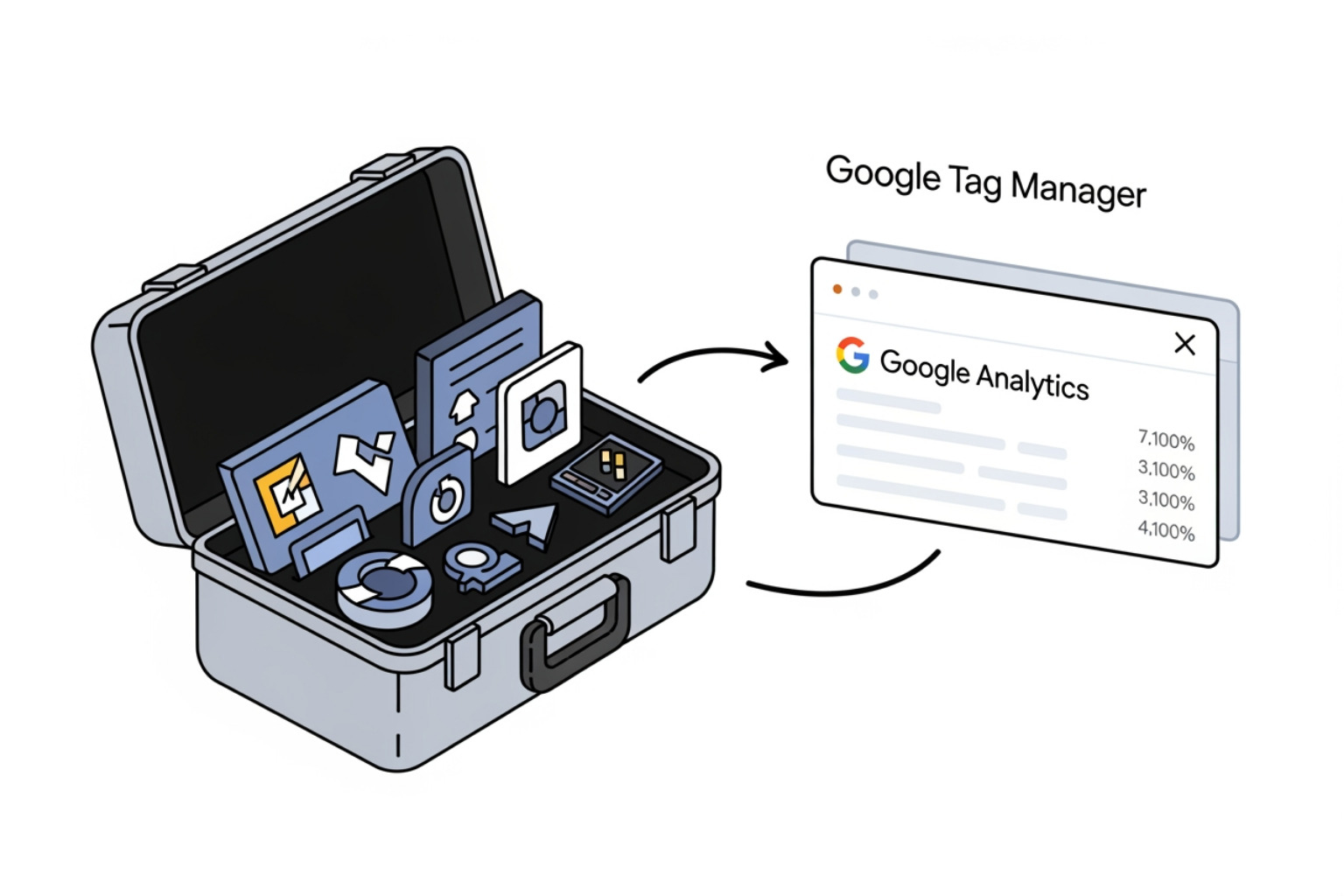
Before the how-to, it's important to clarify the distinct roles of Google Tag Manager (GTM) and Google Analytics 4 (GA4). Many new store owners confuse the two or assume one replaces the other, but they are complementary tools designed to work together. My experience at First Pier has shown me that a clear understanding of their functions is the first step toward effective data collection.
If you want to learn more about these tools, I recommend exploring our resources on Google Tag Manager (GTM) and Shopify GA4.
What is Google Tag Manager vs. Google Analytics 4?
Think of Google Tag Manager as the central hub for all your tracking snippets. It's a free tag management system that allows you to add, update, and manage marketing and analytics tags on your website without directly editing your site's code every time. This means less reliance on developers for minor tracking updates and more agility for your marketing team. GTM is about managing the deployment of code.
| Feature | Google Tag Manager (GTM) | Google Analytics 4 (GA4) |
|---|---|---|
| Primary Function | Manages and deploys tracking codes (tags) | Collects, processes, and analyzes website data |
| Role | A system for triggering tags | A reporting and analytics platform |
| Data Interaction | Sends data to other platforms | Receives and interprets data |
| Code Changes | Minimizes direct website code modifications | Requires code (tag) to be present on the site |
| User Interface | Workspace for tag, trigger, variable setup | Dashboards and reports for data exploration |
| Dependency | Can deploy GA4, Google Ads, Facebook Pixel, etc. | Often deployed via GTM or direct code |
Google Analytics 4 (GA4), on the other hand, is the destination for your data. It's Google's latest analytics platform, designed to collect and report on user behavior. While GTM is a tool for triggering tracking codes based on defined rules, GA4 is the tool that provides reports about activity on your store. It processes the information sent to it by tags and presents it in a way that helps you understand customer journeys, engagement, and conversions. GTM doesn't replace GA4; it's the delivery system for GA4's data collection.
Key Benefits of Integrating GA4 with Shopify
Integrating GA4 with your Shopify store, particularly through GTM, offers a modern, event-driven approach to understanding your customers. This is critical for any e-commerce business that needs specific data.
Here are the key benefits:
- Event-based Model: GA4 is event-driven, meaning every user interaction—from a page view to a button click—is tracked as an event. This allows for more granular analysis of the customer journey than the previous session-based model.
- Comprehensive Customer Journey Insights: GA4 tracks users across different platforms and devices, giving you a more complete view of how customers interact with your brand and their path to purchase.
- Cookie-less Measurement: GA4 offers cookie-less measurement, using machine learning to fill data gaps where user consent limits cookie-based tracking. This makes it more resilient to privacy changes.
- Predictive Metrics: GA4 uses machine learning for predictive metrics, such as churn probability or potential revenue. These can help you make proactive marketing decisions.
- Improved E-commerce Tracking: When configured through GTM, GA4 provides detailed e-commerce data like product views, add-to-cart events, and purchases. This data is vital for understanding your sales funnel.
For more information on how these tools fit into a broader strategy, consider our insights on Digital Marketing Analytics. To understand the full scope of GTM's capabilities, I recommend exploring Your guide to Google Tag Manager.
Why Use Google Tag Manager with Shopify?
For Shopify store owners, the decision to implement google tag manager shopify is often about gaining significant control and flexibility over their marketing and analytics efforts. From my perspective, working with countless e-commerce businesses, GTM becomes indispensable once you move beyond basic traffic monitoring and start working on growth.
Control and Flexibility Over Your Tracking

GTM acts as a centralized control panel for all your tracking needs. Here's why that matters:
- Custom Event Tracking: Shopify's native analytics might give you basic page views and purchases, but what about specific button clicks, video plays, or form submissions? With GTM, you can define and track these custom events to better understand user engagement. This data is crucial for conversion optimization. Learn more about Custom event tracking.
- Trigger Configuration: You decide precisely when a tag should fire. For example, a Google Ads conversion tag might only fire on the thank you page, while a Facebook Pixel event for "Add to Cart" fires when a specific button is clicked. This precision ensures data accuracy.
- Variable Management: GTM allows you to create variables that dynamically pull information from your Shopify store, like product IDs or prices. These variables can then be used in your tags to send rich, contextual data to your analytics and advertising platforms.
- Third-Party Tags: Beyond Google's tools, GTM supports a wide range of third-party platforms. This means you can manage your Facebook Pixel, Pinterest Tag, Hotjar, and many other scripts all from one interface.
This level of control allows marketers to add, edit, or remove tracking tags independently, saving time and reducing reliance on developers for minor updates.
Improved Site Performance and Reliability
One common concern I hear from Shopify store owners is the fear that adding more tracking scripts will slow down their site. This is where GTM's architecture provides an advantage:
- Asynchronous Script Loading: GTM manages scripts asynchronously. This means that tags load independently in the background, minimizing the risk of slowing down your Shopify store. Your site's core content loads first, then the tracking scripts.
- Reduced Code Bloat: Instead of scattering multiple tracking codes directly into your theme files, GTM combines them. This keeps your theme's
theme.liquidfile cleaner and easier to manage. - Safe Testing Environment: GTM includes a preview and debug mode. This allows you to test changes to your tags, triggers, and variables in a live, but private, environment before publishing them. You can see exactly what tags are firing and with what data.
- Version History and Rollback Capability: Every time you publish changes in GTM, a new version is saved. This provides a complete version history, allowing you to easily review past configurations or revert to a previous version if an issue arises.
By centralizing tag management and optimizing script loading, GTM contributes to your site's performance and stability, which is vital for both user experience and your Ecommerce SEO Checklist.
How to Install Google Tag Manager on Shopify
Implementing google tag manager shopify is a crucial step for any serious e-commerce business. You can either manually add the code snippets or use a dedicated Shopify app. Regardless of the method, you'll need an active Shopify account and a Google Tag Manager account with a container set up for your website.
Manual Installation of google tag manager shopify Snippets
This method gives you the most direct control and is often preferred by those with more technical comfort.
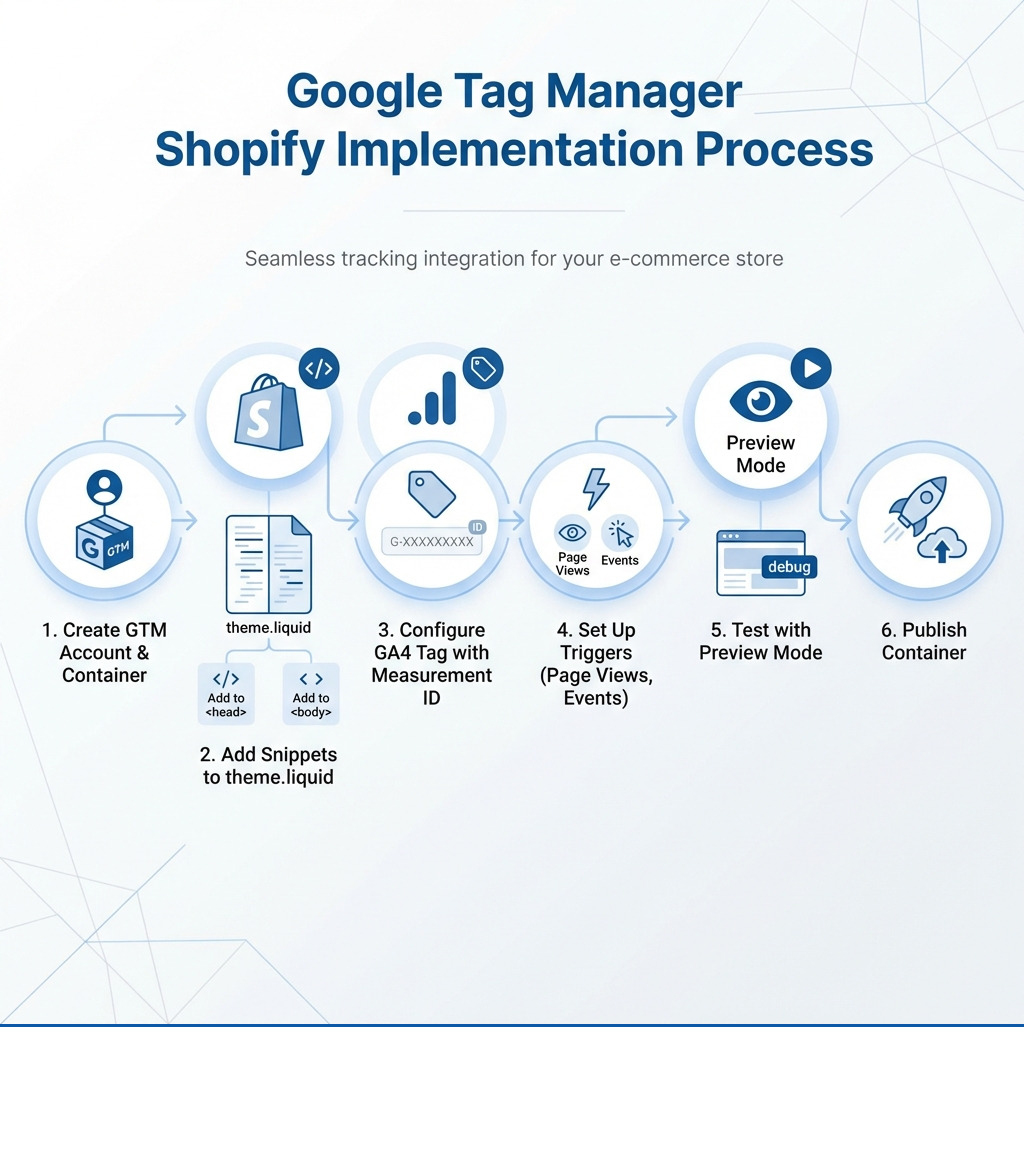
- Create a GTM Account and Container: Go to Google Tag Manager, create an account, and set up a "Web" container for your store. GTM will provide two code snippets.
Access Your Shopify Theme Code: In your Shopify admin, go to Online Store > Themes. Click Actions > Edit Code on your active theme. Open the
theme.liquidfile under the "Layout" directory.Place the First Snippet (HEAD): Copy the first
<script>snippet from GTM. Intheme.liquid, paste this snippet immediately after the opening<head>tag.- Place the Second Snippet (BODY): Copy the second
<noscript>snippet from GTM. Intheme.liquid, paste this snippet immediately after the opening<body>tag. - Save Your Changes: Click Save in the code editor.
A Note on Shopify Plus: Shopify Plus merchants can access the checkout.liquid file. This allows you to implement GTM across the entire checkout funnel for more comprehensive tracking. For detailed instructions, refer to the Google Tag Manager documentation.
Using Apps for a google tag manager shopify Integration
For those who prefer a less hands-on approach, several apps in the Shopify App Store can help with your google tag manager shopify integration. These apps typically install the GTM snippets for you and often come with pre-designed templates for Shopify's e-commerce events.
- Pros of Using an App: No coding required, faster setup, pre-built data layer for e-commerce data, and dedicated app support.
- Cons of Using an App: Most come with a monthly subscription fee, you have less control than a manual setup, potential for app conflicts, and you might be tied to the app's data structure.
When choosing an app, consider its features, reviews, and how well it integrates with your existing Shopify Development setup. Weigh the convenience against the need for customization and control.
Installing GTM on the Shopify Thank You Page
Tracking conversions on the thank you page (order status page) is critical for measuring marketing success.
- Steer to Checkout Settings: In your Shopify admin, go to Settings > Checkout.
- Locate Additional Scripts: Scroll down to the "Order status page" section to find the "Additional scripts" text box.
- Paste GTM Snippets: Paste both your
<script>and<noscript>GTM container snippets into this box. - Save Changes: Click Save.
This ensures GTM loads on your thank you page, allowing you to fire conversion tags accurately. For standard Shopify stores, this is the primary way to add custom code to the checkout, as direct checkout.liquid access is a Shopify Plus only feature.
Configuration, Testing, and Troubleshooting
Once GTM is installed on your Shopify store, the next steps are to configure your tags, test them, and know how to troubleshoot common issues. This is how you manage everything from How to Add Google Ads Conversion Tracking to Shopify to various other Google Ads campaigns.
Testing Your GTM Installation
Testing is non-negotiable to ensure your tags are firing correctly before you rely on the data.
- Use GTM's Preview Mode: In your GTM workspace, click Preview. Enter your store's URL and click Connect. Your store will open in a new tab with the GTM Debugger panel at the bottom, showing which tags fire as you steer.
- Use Google Tag Assistant: Install the Google Tag Assistant Chrome extension. This tool provides real-time feedback on Google tags, confirming if your GTM container is connected and tags are firing as expected.
By combining GTM's Preview mode with the Tag Assistant extension, you can verify that your google tag manager shopify setup is working correctly.
Setting Up a Google Analytics 4 Tag
The most common use for GTM on Shopify is to deploy Google Analytics 4 (GA4) tags. Here’s how to set up the basic GA4 Configuration tag:
- Find Your GA4 Measurement ID: In Google Analytics, go to Admin > Data Streams. Click on your web data stream and copy the Measurement ID (it starts with "G-").
- Create a New Tag in GTM: In your GTM workspace, go to Tags > New. Name your tag something clear, like "GA4 Configuration – All Pages".
- Configure the Tag: Click Tag Configuration and choose Google Analytics: GA4 Configuration. Paste your GA4 Measurement ID into the corresponding field.
- Set the Trigger: Click Triggering and select Initialization - All Pages. This ensures your GA4 tag fires on every page load.
- Save and Test: Save the tag, then use GTM's Preview mode to test if it fires correctly on all pages.
- Submit and Publish: Once confirmed, go back to your GTM workspace and click Submit. Give your version a descriptive name and click Publish to make the changes live.
For more guidance on setting up your Google tag, refer to Shopify: Set up your Google tag.
How to Handle Potential Duplicate Tracking
One of the most critical issues when integrating google tag manager shopify is avoiding duplicate tracking with Google Analytics. Shopify has a built-in GA4 integration. If you use that and deploy GA4 through GTM, you will double-count page views and users, making your data inaccurate.
Here's how to prevent it:
- Choose One Method: If you are using GTM for advanced tracking, you should deploy GA4 solely through GTM.
- Disable Shopify's Native GA Field: To avoid duplicate tracking, go to your Shopify admin: Online Store > Preferences. Find the "Google Analytics" section and remove your GA4 Measurement ID if it is entered there. This leaves GTM as the single source for GA4 data.
- Verify After Disabling: After disabling Shopify's native integration, re-test your GTM setup using Preview mode and Tag Assistant. Ensure your GA4 tags are still firing and that no duplicate pageview hits are being sent.
The Shopify Help Center provides additional guidance on Google Tag Manager - Shopify Help Center, reinforcing the importance of avoiding duplicate tracking.
Frequently Asked Questions about Google Tag Manager and Shopify
I often encounter similar questions from Shopify store owners as they consider or implement GTM. Here are some of the most common ones, based on my experience:
Can GTM slow down my Shopify store?
This is a common concern. However, when configured correctly, GTM is designed to minimize performance impact. It loads scripts asynchronously, meaning they load in the background without blocking your page content from rendering for the user.
The key is proper configuration:
- Asynchronous Loading: GTM's design prevents it from blocking your page from loading.
- Tag Firing Conditions: Use specific triggers to ensure tags only fire when needed, preventing unnecessary script execution.
- Proper Configuration: Avoid deploying redundant or poorly optimized custom HTML tags. Regularly review your GTM container to remove unused tags.
By managing your tags efficiently, GTM can contribute to a better user experience rather than slowing down your Shopify store.
Does GTM work on Shopify Plus checkout pages?
Yes, for Shopify Plus merchants, GTM can be implemented on checkout pages. This is because Shopify Plus provides access to the checkout.liquid file, which allows for custom code to be added throughout the entire checkout funnel. This is a significant advantage for comprehensive tracking.
Standard Shopify plans are restricted in this area. You can only implement GTM on the thank you page (order status page) using the "Additional scripts" box in the checkout settings. This limitation means you can't track every individual step of the checkout process before the final order confirmation.
What is the difference between GTM and the Google & YouTube app on Shopify?
This is another point of confusion. Both involve Google and Shopify, but they serve different purposes:
- Google Tag Manager (GTM): This is a tag management system. It's a flexible tool designed to manage all your marketing and analytics tags (Google, Facebook, Pinterest, etc.) from a single interface. It gives you granular control over when and how your tags fire and is essential for advanced custom event tracking.
- Google & YouTube App on Shopify: This is a specific Shopify app developed by Google. Its primary purpose is to simplify the direct integration of Google Ads and Google Analytics (GA4) with your Shopify store. It's a streamlined, code-free way to connect your store to these specific Google services and is a good choice for beginners or those who only need basic tracking for Google products.
In short, the Google & YouTube app is a simplified, direct integration for specific Google services. GTM is a comprehensive, flexible platform for managing all your tags, offering a much broader scope of control and customization.
Take Control of Your Shopify Data
Implementing google tag manager shopify is more than just adding code; it's about taking control of your data plan. It helps you move beyond basic analytics to understand customer behaviors, adjust your marketing spend, and drive more sales.
At First Pier, we believe that informed decisions stem from accurate data. My team and I in Portland, ME, specialize in helping brands and boutiques build high-performance online businesses, and a solid tracking infrastructure is fundamental to that success. If you're ready to use GTM and improve your Ecommerce Analytics Analysis, we're here to help you implement a solution that provides clear, actionable insights for your Shopify store.





.png)
.png)

