



Summary
- Shopify organizes native reporting into six categories -- Sales, Finance, Customer, Marketing, Behavior, and Inventory -- before you ever touch a custom report.
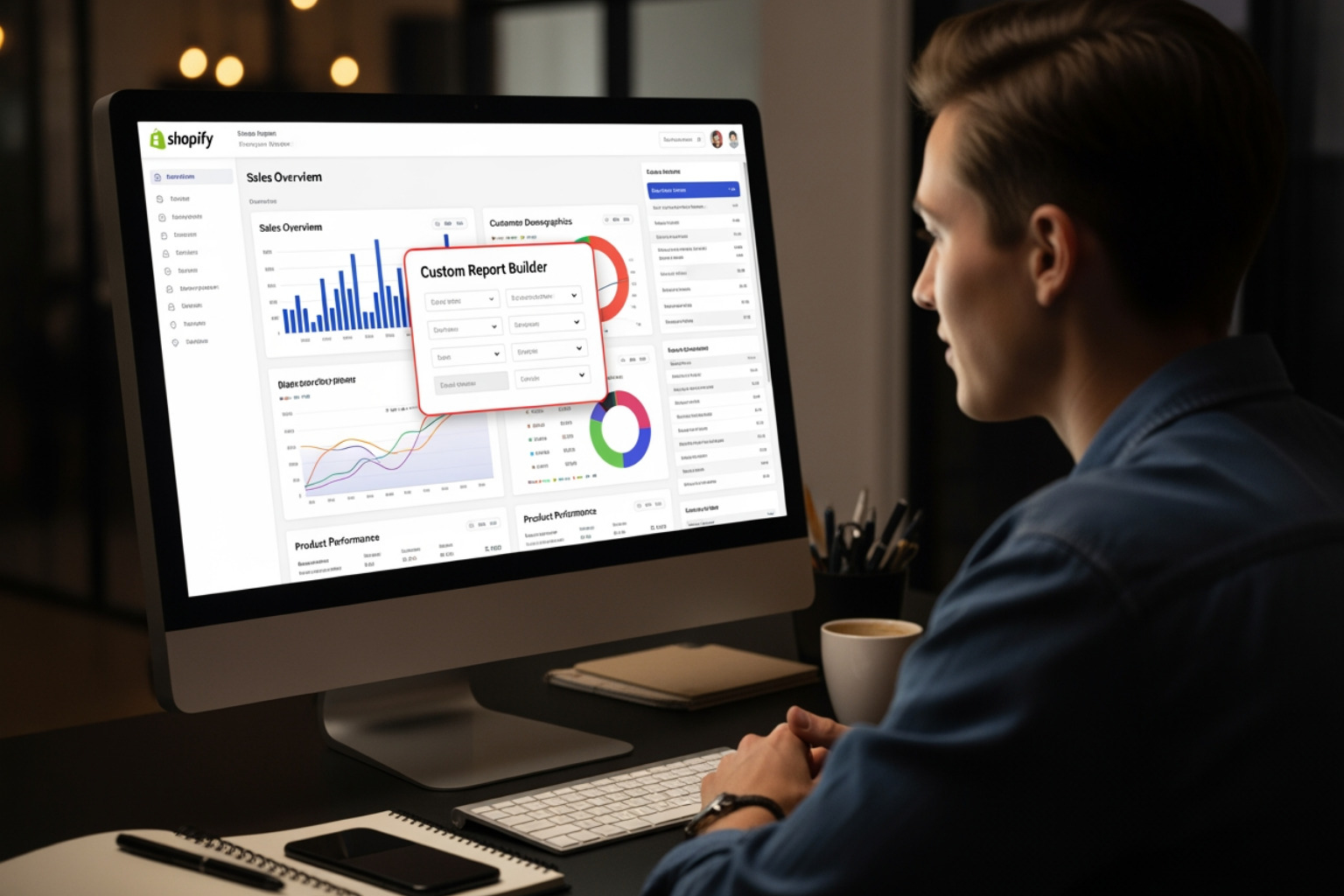
- Shopify custom reports allow merchants to modify existing reports or create new ones for specific business analysis.
- Reports are built by adding filters and columns to default reports, from scratch using selected metrics and dimensions, or with a ShopifyQL query -- which Shopify's AI assistant, Sidekick, can now generate from a plain-language request.
- Key applications include tracking product profitability, marketing campaign effectiveness, customer value, and inventory details.
- Shopify's built-in reporting has limitations; advanced needs may require third-party apps, broader analytics platforms, or custom development -- and Shopify Plus adds automation, higher API limits, and multi-store reporting.
- Custom reports are used to analyze sales, customer, and inventory data to inform business decisions.
Why You Need Custom Reporting for Your Store
Shopify custom reports are available through these methods:
- Modify existing reports - Filter, add columns, and adjust time ranges on default reports, then save as a custom report
- Build from scratch - Use the "New exploration" feature to select specific metrics and dimensions
- Use ShopifyQL - Write queries in Shopify's query language for advanced users
- Third-party apps - Tools like Report Pundit (2000+ data fields) or Mipler (60+ templates) for more complex needs
Your store generates thousands of data points every day. Standard Shopify reports show you the basics: total sales, top products, traffic sources. But they can't answer questions like "Which discount code actually drove profit after returns?" or "What's my inventory sell-through rate by vendor?"
Shopify custom reports fill that gap. They let you pull specific data, combine it in ways that matter to your business, and track the metrics that actually move the needle. You're not limited to what Shopify thinks you should see. You decide what to measure.
The built-in analytics dashboard gives you about 50 preset data fields. That works for basic tracking, but it breaks down when you need deeper analysis. You can't compare customer retention across product categories. You can't calculate profit margins by sales channel. You can't filter returns by referrer source.
Custom reports change that. You can add filters to narrow down data, include new columns for context, and save configurations you use repeatedly. Some merchants modify existing reports. Others build new ones from scratch using Shopify's Freeform or Cohorts methods. The approach depends on your question.
Here's what matters: your reporting should match your business model. A store selling subscription boxes needs different data than one running flash sales. A multi-location retailer tracks different metrics than a direct-to-consumer brand. Custom reports adapt to your reality, not the other way around.
At First Pier, we've seen how the right reporting setup separates growing stores from stagnant ones.
The Six Types of Native Shopify Reports
Before you build anything custom, it helps to know what Shopify already gives you. Every store's reporting library is organized into six categories, each built to answer a specific set of business questions. Knowing where the built-in reports stop is exactly what tells you when it's time to customize.
Sales Reports
Sales reports track revenue by product, time period, and channel: total sales over time, sales by product, variant, or vendor, sales by discount code, sales by channel or referrer, and Average Order Value (AOV). One nuance worth knowing: sales reports track order value based on the order date, not the date payment was captured -- that's what Finance reports track separately, and it's why the two occasionally differ.
Finance Reports
Finance reports give you the numbers behind your bookkeeping: a Finance Summary of sales, payments, gift cards, tips, and gross profit; total sales breakdowns (gross sales, net sales, discounts, taxes); a taxes report by state and jurisdiction; and payments and gift card reports. Gift cards are recorded as a liability when sold and only count as sales once redeemed -- a common source of confusion when your sales and finance numbers don't match.
Customer Reports
Customer reports answer who your customers are and how they behave: first-time versus repeat customers, Customer Lifetime Value (LTV), purchase frequency, geographic distribution, and cohort analysis on higher plans. This is where retention problems show up early -- a dip in 90-day cohort repurchase rate is your cue to bring in retention email or a loyalty program before the trend compounds.
Marketing Reports
Marketing reports show sales attributed to campaigns, sessions by source, and conversion rate by campaign, with Customer Acquisition Cost (CAC) and Return on Ad Spend (ROAS) available with the right setup. This is where budget decisions get made -- a channel driving plenty of traffic but converting below your average is a signal to rework targeting rather than keep spending.
Behavior Reports
Behavior reports track how visitors move through your store: landing pages and product views, cart additions and abandonment, on-site search terms, and checkout behavior. They're especially good at surfacing friction -- a high bounce rate paired with search terms for a product that isn't clearly displayed tells you to fix the page, not the ad.
Inventory Reports
Inventory reports track stock on hand by SKU, bestsellers versus slow movers, days of inventory remaining, and stockouts. If a hero product keeps stocking out, this is where you'll see it first -- and it's your cue to adjust safety stock or stagger promotions around supply.
Each category comes with default reports you can view as-is. But the moment your question doesn't match one of those defaults -- "which vendor has the best margin after returns" or "what's my repurchase rate by acquisition channel" -- you're in custom report territory.
Why Standard Shopify Reports Aren't Enough
When you first open your Shopify admin, you're greeted by the Shopify Analytics dashboard. It offers a quick look at your store's performance with metrics like net sales by channel or sessions by device type. This dashboard is a collection of data cards, each offering a quick sum or value about a particular business indicator. From each card, you can directly access a corresponding report for more detail.
Shopify's default reports within each of those six categories include options like "Total sales over time" or "Total sales by product," shown in both graph and table formats. They're a solid starting point.
However, these built-in reports have their limits. While they offer a general overview, they often fall short when you need very specific data to answer unique business questions. For example, if you want to understand the exact profit margin for a specific product line after factoring in returns and discounts, a standard report might not give you that answer directly. This is where the deeper report categories and custom reporting covered below become necessary.
Understanding the Built-in Tools
Shopify provides a suite of analytics tools, accessible from your admin under Analytics > Reports. The Analytics section offers an overview, while Reports gives you deeper, richer data. These tools are available to merchants on any Shopify plan, including a live view of online store traffic.
When you examine reports, you'll find options for "data exploration." This is where you begin to tailor your view. Shopify's native reporting system offers around 50 preset data fields. While this covers many common needs, it's not enough for detailed analysis. You might want to see how a particular marketing campaign influenced sales of a specific product variant, or compare customer retention across different acquisition channels. The default reports simply don't offer that level of detail or customization.
I find that many merchants initially use the pre-set metrics and dimensions. These are useful for quick checks, but they don't provide a complete picture of your business. The need to go beyond these pre-set views is why we use Ecommerce Analytics.
The Importance of Granular Data
Making smart business decisions means relying on solid data, not just intuition. Granular data lets you spot trends, identify opportunities, and address problems before they grow. For instance, understanding your true profit per product after all costs helps you decide which items to promote. Analyzing customer behavior in detail can show you why some customers make repeat purchases and others don't.
Ecommerce Data Analytics goes beyond simple sales figures. It helps you answer questions like:
- Which of my products are truly profitable?
- Are my marketing efforts reaching the right customers?
- How effective are my discount codes?
- Am I managing my inventory efficiently?
Without the ability to analyze these specifics, you're essentially flying blind. Custom reports give you the flashlight you need to navigate the data and make choices that grow your business here in Portland, ME.
How to Create Shopify Custom Reports: A Step-by-Step Guide
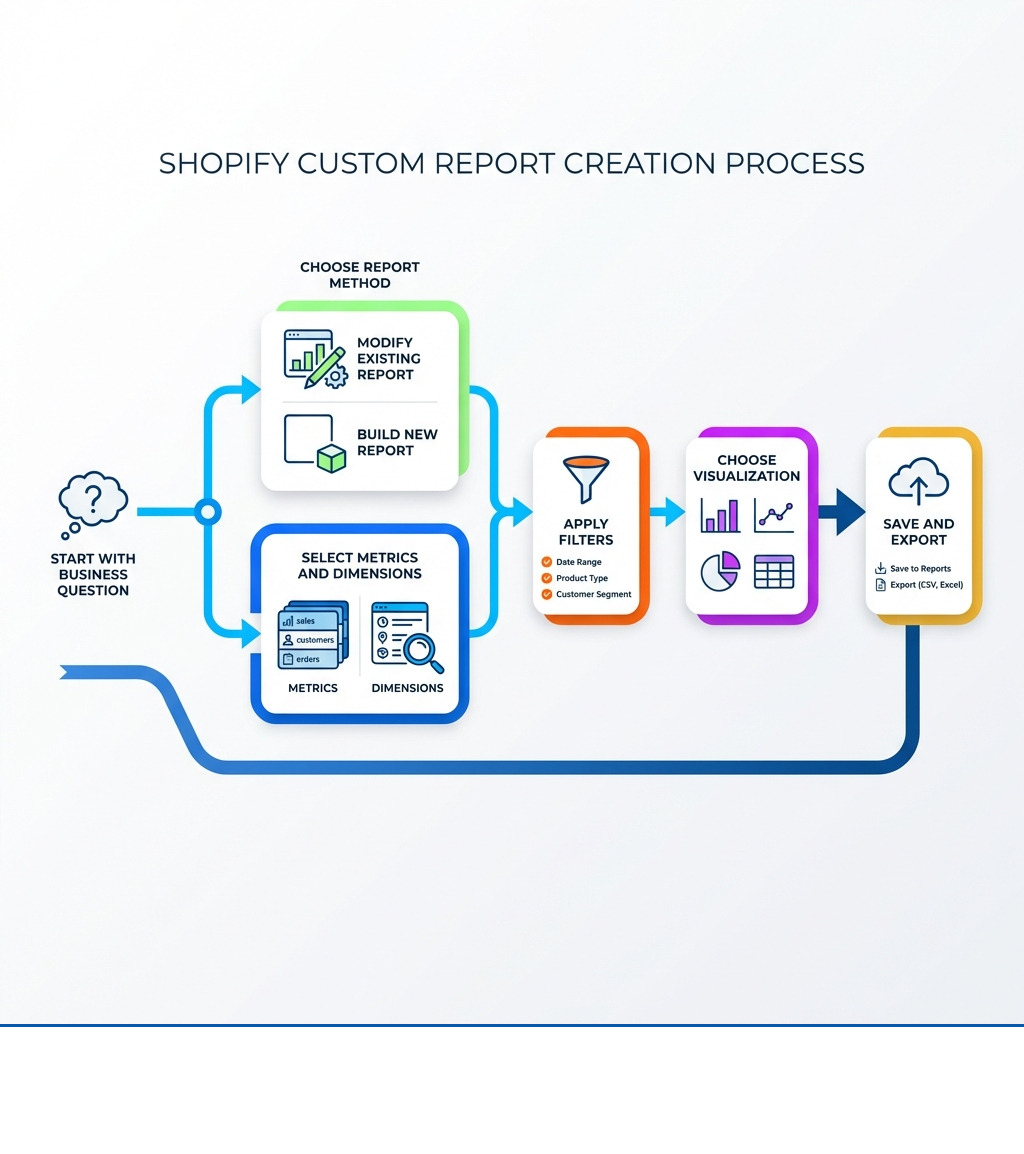
Creating Shopify custom reports allows you to tailor your data view to your specific business questions. You can either start by modifying an existing report or build an entirely new one from scratch. Both methods use the configuration panel in Shopify Analytics, where you select Metrics (what you measure), Dimensions (how you group the data), Filters (to narrow the data), and Visualizations (how the data looks). For advanced users, there's also the ShopifyQL query editor, where you can write queries directly.
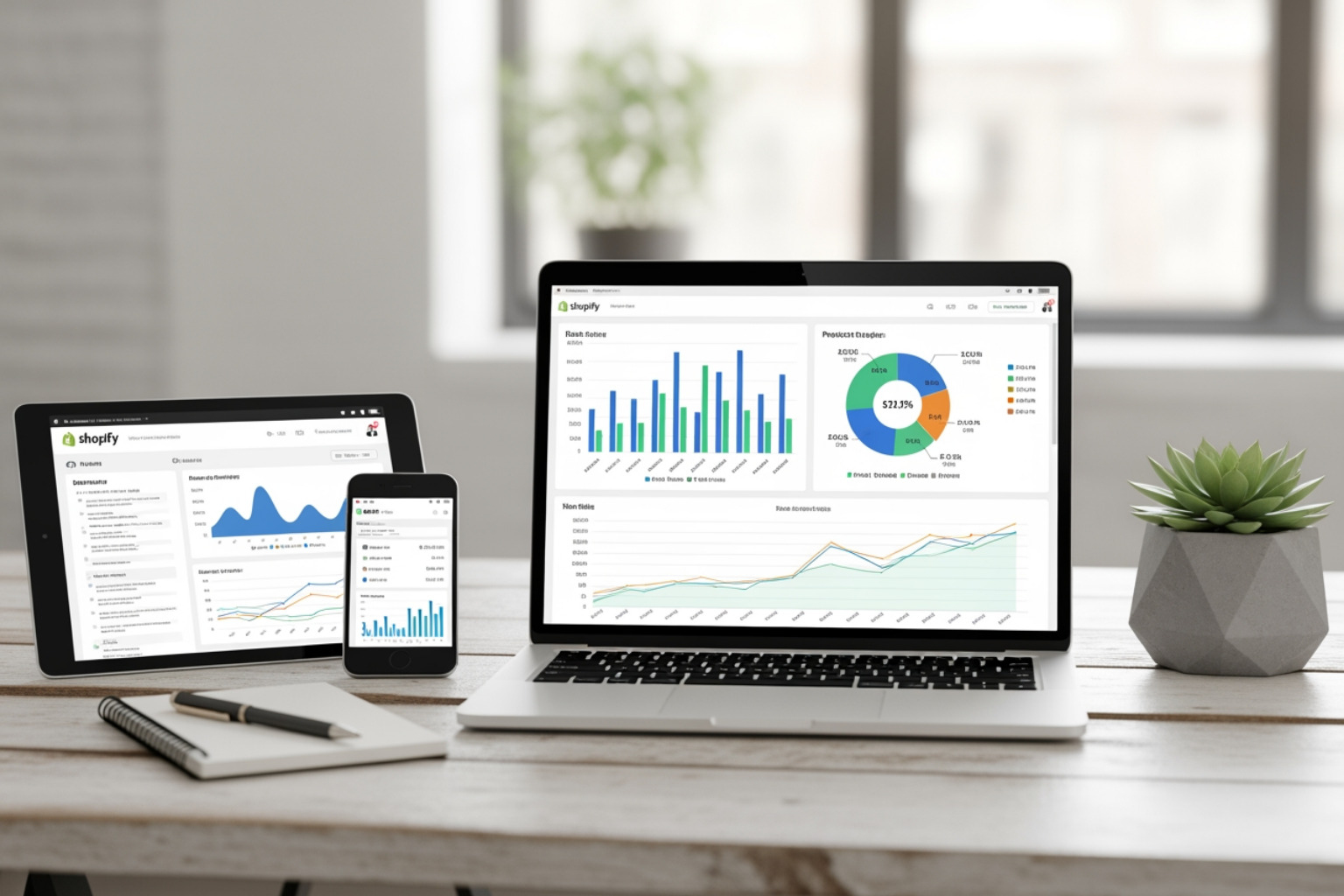
The process is designed to be flexible, letting you control what data points you see and how they are presented. For more detailed guidance, the Customizing and managing reports - Shopify Help Center is a useful resource.
Method 1: Modifying an Existing Shopify Report
This is often the easiest way to create a custom report, as you start with a pre-built structure and adjust it.
- Pick a default report: Go to
Analytics > Reportsin your Shopify admin and click on the name of any default report you want to customize, like "Total sales over time." - Add filters: In the
configuration panel, find theFiltersmenu. Click+to add a filter. You can select a filter (e.g., "Sales channel"), choose an operator (e.g., "is," "is not," "one of"), and specify a value (e.g., "Online Store"). You can apply multiple filters. For detailed instructions, refer to Filtering and editing your reports. - Edit columns: Use the
MetricsandDimensionsmenus in theconfiguration panelto add or remove columns. Click+to add a column (e.g., "Product vendor") or the trashcan icon to remove an existing one. Shopify limits the available options to ensure compatibility. - Change time ranges: At the top of the report, you can select predefined time ranges (e.g., "Last 30 days," "This year") or set a custom range. You can also compare the current period to a previous one.
- Save as a custom report: Once you're happy with your modifications, click
Save asat the top of the report, give it a descriptive name, and clickSave. Your new custom report will now appear in yourReportslist.
Method 2: Building New Shopify Custom Reports from Scratch
For more specific analysis, you can build a report from an empty state using the "New exploration" feature. Availability depends on your plan -- every plan gets the core dashboard and default reports, but full custom explorations and ShopifyQL access are generally reserved for Advanced Shopify and Shopify Plus.
- Start a new exploration: From your Shopify admin, go to
Analytics > Reports. ClickNew exploration. This gives you a blank canvas. For more detail on this, see Create a new data exploration. - Choose a method:
- Freeform method: This is the default. It's for exploring trends and comparing data across dimensions you select. It's perfect for general sales analysis or traffic breakdown.
- Cohorts method: This method focuses on customer retention and behavior over time. It groups customers based on a shared characteristic (like their first purchase date) and tracks their activity. This is useful for understanding Customer Cohort Analysis Shopify.
- Choose main metrics: In the
configuration panel, click+in theMetricsmenu. You must select at least one metric (e.g., "Net sales," "Orders") to begin your exploration. - Add dimensions for context: Click
+in theDimensionsmenu to add ways to segment your metric (e.g., "Product title," "Sales channel," "Billing city"). The order of dimensions matters, especially for nested tables. - Apply filters and comparisons: Just like modifying existing reports, you can add filters to narrow your data. You can also use the
Comparisonfeature to see how your chosen metrics perform against a previous period or even against industry benchmarks.
Key Components for Building Your Shopify Custom Reports
Understanding the core building blocks makes custom reporting much easier:
- Metrics vs. Dimensions:
- A metric is a quantitative value, something you can measure or count. Think "Net sales," "Average order value," "Number of orders," or "Total sessions."
- A dimension is a qualitative attribute that describes or categorizes your data. It's how you slice and dice your metrics. Examples include "Product title," "Sales channel," "Billing country," "Time," or "Referrer site." You can add multiple metrics and dimensions to a single report. Reporting KPIs often involve both.
- Filter operators: When you add a filter, you choose an
operatorto define the condition. Common operators include "is," "is not," "one of," "is greater than," etc. This lets you be very precise with what data is included or excluded. - Comparison feature: This lets you compare your current report data against a previous period (e.g., "Previous period," "Previous year") or, for some metrics, against industry Benchmarks in reports. Benchmarks help you see how your store stacks up against similar businesses.
- Visualization types: Shopify automatically selects a suitable visualization (e.g., line graph, bar chart) based on your selected metrics and dimensions.
- Line graphs are great for showing trends over time, but they only appear if "Time" is one of your dimensions.
- Bar charts work well for comparing discrete categories, like sales by product or channel.
- Data tables display the raw numbers and can be "flat" (one row per data point) or "nested" (grouped hierarchically by dimensions). You can also customize the number of items shown in visualizations, or group smaller items into an "Other" category.
Using ShopifyQL -- and Letting Sidekick Write It For You
For advanced users, ShopifyQL is Shopify's purpose-built query language for commerce data. Instead of clicking through the configuration panel, you write a query directly against your store's sales, customer, and inventory data -- useful when your logic is more complex than the point-and-click builder supports.
If writing queries isn't your thing, Shopify's AI assistant, Sidekick, can generate a ShopifyQL query for you from a plain-language request. Ask it something like "show me net sales by product vendor for the last 90 days," and Sidekick reads the context of whatever report you're in and builds a matching query automatically. It's made ShopifyQL considerably more accessible for merchants who want the power of a custom query without learning the syntax.
Full ShopifyQL access is generally reserved for Advanced Shopify and Shopify Plus -- worth checking your current plan's reporting page if you're not sure what you have access to.
5 Examples of Custom Reports to Build Today
Now that you know how to build them, let's look at some practical Shopify custom reports that can make a real difference for your business. These reports help you track your Top Ten Shopify KPIs and get more specific information.

1. Profit Margin by Product or Vendor
This report helps you understand which products are truly making you money and which vendors are providing the best value.
- Metrics: Gross sales, Cost of goods sold, Net sales, and a custom calculated field for Profit Margin.
- Dimensions: Product title, Product variant, Product vendor.
- Filters: Time range (e.g., "Last 90 days"), Order status ("Paid").
By combining these, you can calculate the actual profit for each product or from each vendor. This is crucial for making smart decisions about purchasing, pricing, and promotions. You might find that your top-selling item isn't your most profitable, or that a particular vendor consistently offers better margins.
2. Sales Performance by Discount Code
Don't just offer discounts; measure their impact. This report helps you evaluate the effectiveness of your promotions.
- Metrics: Net sales, Orders, Discounts, and a custom calculated field for Average Order Value (AOV) with discount.
- Dimensions: Discount code name.
- Filters: Time range (e.g., "Last 60 days"), Discount type ("Specific code").
The Sales by discount codes report is a good starting point. You can add columns to see how many times each code was used, the total discount applied, and the resulting net sales. This helps you understand which promotions generate actual revenue and a good return on ad spend (ROAS), not just cart abandonment reductions.
3. First-Time vs. Returning Customer Sales
Understanding your customer base is key to growth. This report segments your sales by customer type, giving you insights into acquisition versus retention.
- Metrics: Net sales, Orders, Average Order Value.
- Dimensions: Customer type ("First-time," "Returning").
- Filters: Time range (e.g., "This year").
This report helps you measure customer lifetime value (CLV) and plan your retention strategies. Are you getting enough repeat business? Are your marketing efforts bringing in valuable new customers? This data is vital for Digital Campaign Performance Reporting and balancing your marketing spend.
4. Inventory Sell-Through Rate
For any physical product business, efficient inventory management is critical. This report helps identify fast-moving and slow-moving stock.
- Metrics: Units sold, Stock on hand, and a custom calculated field for Sell-Through Rate (Units Sold / (Units Sold + Stock on Hand)).
- Dimensions: Product title, Product type, Vendor.
- Filters: Time range (e.g., "Last 30 days").
A high sell-through rate means products are moving quickly, while a low rate indicates potential overstock. This report aids in demand planning, ensuring you're not tying up capital in inventory that isn't selling, and helps you avoid stockouts for popular items.
5. Sales by Traffic Referrer
Where are your paying customers coming from? This report helps attribute sales to specific marketing channels and campaigns.
- Metrics: Net sales, Orders, Conversion rate.
- Dimensions: Referrer site, Sales channel.
- Filters: Time range (e.g., "Last 90 days").
The Sessions by referrer report is a great starting point. By adding sales metrics, you can see which traffic sources aren't just bringing visitors, but actual paying customers. This helps you allocate your marketing budget more effectively, focusing on channels that deliver results. It's also a key component of Klaviyo Reporting if you're tracking email marketing performance.
Beyond the Basics: Advanced Reporting with Custom Solutions
While Shopify's built-in tools for Shopify custom reports are useful, they do have limits. For businesses with complex needs--multiple stores, intricate loyalty programs, or highly specific data analysis--you might need to look beyond the native features. This is especially true for enterprise-level brands that require deep integration with other business systems.
Shopify's native system offers around 50 data fields for reporting. That's a good start, but some businesses need far more. For example, third-party apps like Report Pundit boast access to over 2000 data fields, compared to Shopify's limited 50. This allows for significantly more detailed and customizable reports, helping you automate reports and make data-backed decisions. Other tools, like Mipler, offer over 60 pre-made report templates and the ability to create entirely new reports from scratch. They also provide customizable dashboards and have been used to create over 20,000 reports by ecommerce leaders.
These advanced solutions can offer:
- More data fields: Access to a broader range of raw data points.
- Advanced calculations: The ability to create complex formulas and custom metrics not available natively.
- Report scheduling and delivery: Automated generation and email delivery of reports to specific stakeholders.
- Multi-store reporting: Combining data from several Shopify stores into a single, unified view.
For larger operations, integrating Shopify with an Enterprise Resource Planning (ERP) system is common. This involves custom integration work to ensure data flows smoothly between Shopify and the ERP for inventory, orders, and customer data. This type of integration can streamline operations, improve data accuracy, and improve efficiency, as we've done for various clients. For more on this, see Shopify Plus Reporting.
Third-Party Analytics Platforms for Benchmarking and Multi-Source Data
Report Pundit and Mipler are built for extending Shopify's own reports -- more fields, more templates, scheduled delivery. A different category of tool exists for merchants who want to see how they stack up against the industry or pull data from more than just Shopify into one view.
Better Reports sits closest to Shopify's native reporting -- it's built specifically for Shopify merchants, with pre-built and custom reports across sales, payments, inventory, and customers, plus POS support and Google Sheets integration. Google Analytics is free and not Shopify-specific, but it fills in on-site behavior and traffic-source detail that Shopify's own analytics don't fully cover. For businesses that want everything in one place, Triple Whale and Polar Analytics aggregate data from Shopify, ad platforms, and email marketing into a single dashboard, which makes them useful for blended CAC and cross-channel ROAS -- numbers that are hard to piece together from Shopify's reports alone.
None of these replace custom reports inside Shopify. They solve a different problem: seeing your store's performance next to the rest of the market, or in the same view as your ad spend and email data.
Shopify Plus Advantages for Reporting
We do a lot of Shopify Plus development work at First Pier, and the platform's reporting advantages go beyond just more data fields. Shopify Plus adds Shopify Flow, an automation tool that can trigger actions -- tagging orders, alerting a channel, kicking off a workflow -- based on the same data your reports are built from, so reporting stops being purely retrospective. Plus also brings materially higher API rate limits, which matter if you're pulling data into a custom dashboard or BI tool on any kind of frequency, and dedicated wholesale/B2B functionality with password-protected storefronts and wholesale-only pricing that needs its own reporting slice separate from your DTC numbers.
For merchants running more than one store, Plus also supports consolidated reporting across locations, so you're not stitching together exports from separate admin panels to see the whole business. If your store has outgrown single-store, DTC-only reporting, this is usually where we start the conversation.
When to Consider Custom Development or Expert Help
You know it's time to seek custom development or expert help when the built-in tools can no longer answer your critical business questions. This often happens when you need:
- More data fields: If you find yourself wishing for data points not available in Shopify's native 50 fields, a custom solution can provide access to hundreds or even thousands more.
- Report scheduling and email delivery: If you need reports automatically generated and sent to your team or partners daily, weekly, or monthly, this requires external tools or custom development, as Shopify's native tools don't offer this.
- Custom dashboards: Beyond Shopify's standard dashboard, you might want a bespoke dashboard that combines data from Shopify with other sources (like advertising platforms or email marketing tools).
- Complex filtering and data manipulation: If your data analysis requires intricate logic, nested filters, or combining data in ways that Shopify's interface doesn't support, it's a sign you need more robust tools.
Here at First Pier, we've guided many businesses through this transition, helping them implement solutions that fit their unique needs. It's about finding the right tools and expertise to make your data work for you. We focus on Ecommerce Reporting that drives real business outcomes.
Comparing Native Reports vs. Custom Solutions
Understanding the differences between Shopify's native reporting and custom solutions helps you decide which path is right for your business.
| Feature | Shopify Native Reporting | Custom-Built Solutions (e.g., via Apps or Development) |
|---|---|---|
| Data Fields | Limited (approx. 50 fields) | Extensive (e.g., 2000+ fields with Report Pundit) |
| Automation | Manual export only | Automated scheduling and delivery (e.g., email, Google Sheets) |
| Templates | Pre-set reports, some customization | Many pre-made templates (e.g., 60+ with Mipler), or build from scratch |
| Custom Calculations | Basic filtering and column addition | Complex formulas, custom metrics, business-specific logic |
| Visualizations | Standard graphs and tables | Advanced data visualization options, customizable dashboards |
| Multi-Store | Per-store reporting only | Combined reporting across multiple stores |
| Cost | Included with Shopify plan | Additional app subscriptions or development costs |
While native reports are a great starting point, custom solutions allow for more detailed analysis of your data. They offer access to more data fields, allowing for more detailed and specific analysis. For businesses that rely heavily on data for strategic decisions, investing in a custom reporting solution can provide a significant advantage. This is why many businesses look into dedicated Ecommerce Analytics Software.
Frequently Asked Questions about Shopify Custom Reports
Can I automate Shopify custom reports?
Shopify's built-in tools allow you to save custom reports, but they do not offer native automation for report generation or delivery. If you need reports scheduled to run automatically or delivered to your inbox or a shared drive regularly, you will need to use a third-party app or a custom development solution. These external tools can handle tasks like scheduling, exporting, and distributing your custom reports.
What's the difference between a metric and a dimension?
Think of it this way: a metric is what you measure--a number. Examples include "Net sales," "Orders," "Page views," or "Average order value." It tells you "how much" or "how many."
A dimension is how you categorize or group that metric--it provides context. Examples include "Product title," "Sales channel," "Billing city," or "Referrer site."
So, you might look at "Net sales" (metric) by "Product title" (dimension) to see which products generate the most revenue.
Are there any Shopify reports that cannot be customized?
Yes, some Shopify reports are not designed for customization. Generally, reports in the Finance category (with the exception of "United States sales tax" reports), the Fraud category, and specific Orders reports (except "Shipping labels" and "Shipping labels over time") cannot be filtered or edited. The "Web Performance" report also falls into this non-customizable category. This means for these specific reports, you'll view the data as presented by Shopify without the option to add filters, change columns, or modify time ranges beyond their default settings.
Can Shopify's AI assistant write ShopifyQL queries for me?
Yes. Sidekick, Shopify's built-in AI assistant, can generate a ShopifyQL query from a plain-language request -- for example, asking it to break down net sales by vendor for the last quarter. It reads the report you're currently in and builds a matching query, which makes ShopifyQL usable even if you've never written a query before. It's still worth understanding the basics of metrics, dimensions, and filters covered above, since that's what lets you sanity-check what Sidekick generates.
Take Control of Your Ecommerce Data
Mastering your data is not just about crunching numbers; it's about making informed decisions that drive growth. Shopify custom reports move you beyond basic sales figures, giving you the detailed information you need to understand your business. From optimizing product profitability to fine-tuning marketing campaigns and managing inventory efficiently, the ability to create and tailor your reports makes a significant difference.
Start by using Shopify's built-in tools to modify existing reports or build new ones from scratch. As your business grows and your data needs become more complex, consider advanced solutions or expert help. Here at First Pier, we specialize in helping businesses like yours in Portland, ME, make sense of their data. Our team can help you implement Ecommerce Data Analytics strategies that are custom to your unique business model, ensuring you have the information to make smart decisions.
Ready to gain a clearer view of your store's performance? Explore our services for Ecommerce Data Analytics, or connect with us to discuss how we can help you with Shopify development and eCommerce UX design to build a high-performance online business.





.png)
.png)

