
Why Accurate GA4 Setup Matters for Growing Shopify Stores
Summary
- Google Analytics 4 (GA4) is the current standard for web analytics, replacing Universal Analytics (UA) with an event-based data model crucial for e-commerce.
- Shopify store owners can set up GA4 using several methods: the native Google & YouTube channel, Google Tag Manager (GTM), manual code (gtag.js), or dedicated Shopify apps.
- Shopify's move to Checkout Extensibility, with deadlines in 2024 and 2025, impacts tracking and requires setup methods that are compatible with the new checkout environment.
- The native Shopify integration automatically tracks key events like
view_item,add_to_cart, andpurchase, but lacks the customization and flexibility of GTM or dedicated apps. - Accurate tracking requires choosing the right setup method for your technical needs, verifying data with GA4's DebugView, and understanding the limitations of each approach.
Shopify GA4 integration is the foundation for understanding customer behavior and measuring revenue on your online store. Google Analytics 4 replaced Universal Analytics in July 2023, bringing an event-based tracking system designed specifically for e-commerce. Here's what you need to know:
Quick Setup Overview:
- Native Integration: Install the Google & YouTube Sales Channel app for automatic tracking of core events (
view_item,add_to_cart,purchase) - Google Tag Manager: Implement for advanced customization and multi-platform tracking
- Shopify Apps: Use dedicated solutions for managed setup with improved features
- Critical Deadline: Ensure your method supports Checkout Extensibility (August 2025 deadline for all checkout pages)
Getting GA4 right on Shopify isn't just about connecting a tracking code. The difference between a basic setup and a proper implementation can be the difference between seeing 67% of your actual revenue or 100% of it. Many merchants find months after launch that their native integration is missing 20-30% of their transactions because tracking scripts are blocked by ad blockers or fail during checkout.
The stakes are higher than they were with Universal Analytics. GA4's event-based model can provide granular insights into customer journeys, from first product view through purchase completion. But Shopify's new Checkout Extensibility system has changed how tracking works. Methods that relied on direct code injection into checkout.liquid no longer function after the 2024-2025 migration deadlines.
The choice between Shopify's native integration, Google Tag Manager, or a dedicated app isn't just about technical preference. It's about matching your implementation to your business needs. A store doing $50,000 per month needs different tracking capabilities than one doing $5 million. The native integration might work fine for basic reporting, but it won't give you the custom event tracking or cross-platform data you need to optimize ad spend.
I'm Steve Pogson, and over two decades of building and scaling e-commerce businesses, I've implemented Shopify GA4 tracking for stores ranging from startup boutiques to multi-million dollar operations. At First Pier, we've seen how proper analytics implementation becomes the backbone of every growth decision a merchant makes.
Related content about shopify ga4:
Understanding GA4: Key Differences from Universal Analytics
GA4 was built with e-commerce at its core, unlike Universal Analytics (UA) where it was an add-on. This change brings a new data structure and reporting interface. Understanding these differences is key to using the platform effectively.
- Data Model: UA grouped data into sessions and pageviews; GA4 tracks everything as events and parameters, offering a more granular view of user actions. This event-based model is more flexible, allowing for comprehensive tracking across websites and apps. It means that every interaction, from a page view to a purchase, is considered an event.
- E-commerce Tracking: E-commerce reporting is a default feature in GA4's Monetization section. In UA, it was an optional setting that required manual activation and specific setup. This change highlights GA4's fundamental design for online businesses. GA4 uses the term 'item' instead of 'product' to include services, memberships, or app upgrades, making it more versatile.
- Reporting Interface: UA provided many pre-built reports. GA4 focuses on a streamlined set of standard reports and a powerful "Explore" section for building custom analyses and funnels. This gives you more freedom to dig into your data and understand specific customer journeys, like the instructions for creating a typical ecommerce funnel.
- Cross-Device Tracking: GA4 uses Google Signals, User-ID, and device ID to create a more unified view of a single user across multiple devices and platforms. This helps you understand the complete customer journey, regardless of how they interact with your store.
The shift from UA to GA4 was significant, with UA officially ceasing to process data on July 1, 2023. This means that for continued analytics, migrating to GA4 is not just recommended, it's essential. GA4's emphasis on machine learning for modeled insights and predictive capabilities also helps bridge data gaps and anticipate user behavior, which can be invaluable for your Digital Marketing Strategy.
Comparing Shopify GA4 Integration Methods
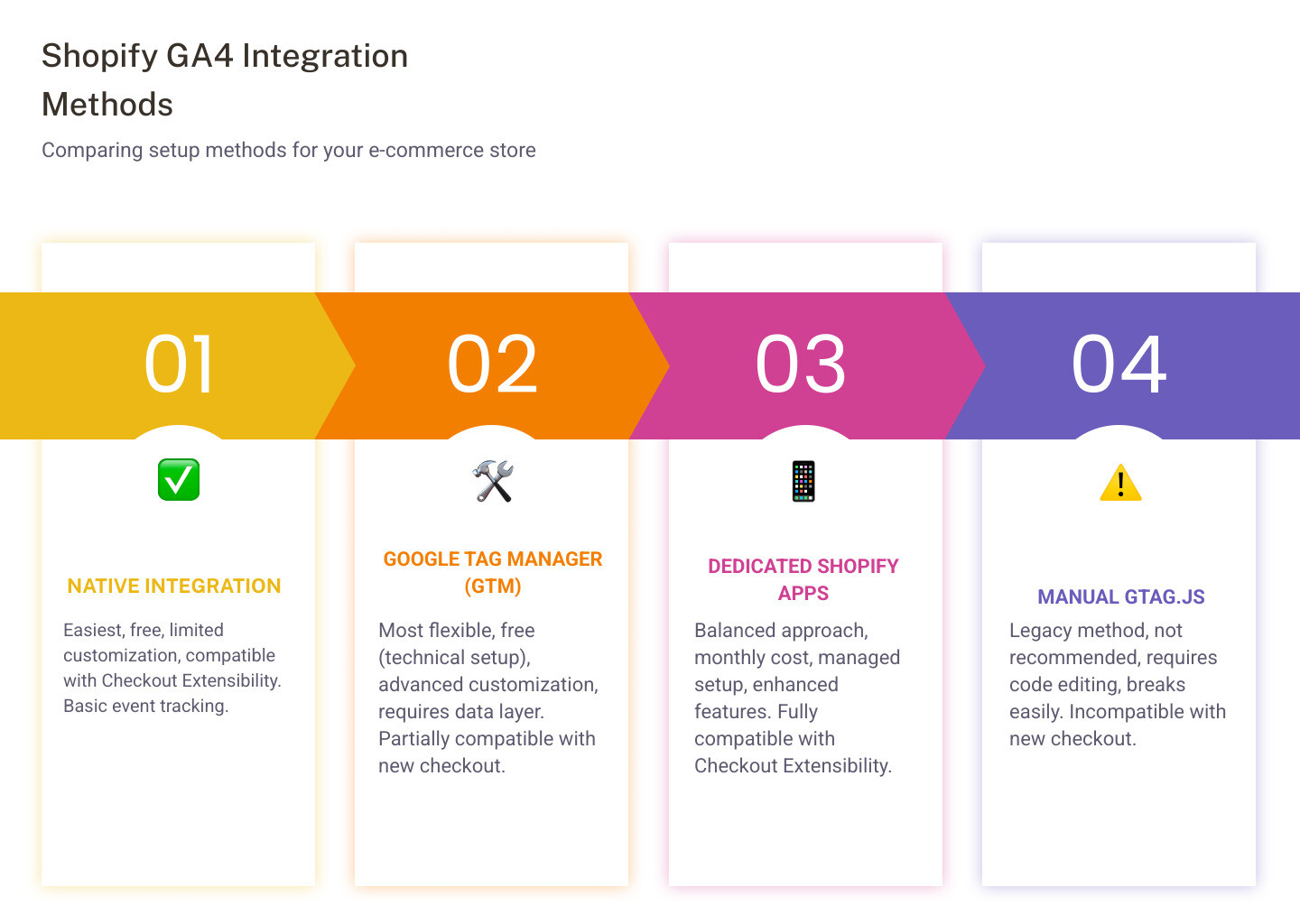
There are several ways to connect GA4 to your Shopify store. The right choice depends on your technical comfort, budget, and need for custom tracking. Each method has trade-offs in terms of simplicity, flexibility, and cost.
| Method | Ease of Setup | Cost | Flexibility/Customization | Checkout Extensibility Compatibility |
|---|---|---|---|---|
| Native Google & YouTube Channel App | Easy | Free | Low | Yes |
| Google Tag Manager (GTM) | Medium-Hard | Free (tool) | High | Partial (requires custom pixels) |
| Dedicated Shopify Apps | Easy-Medium | Paid (monthly) | Medium-High | Yes |
| Manual GTAG.js Implementation | Medium | Free | Medium | No (not recommended) |
Method 1: Native Google & YouTube Channel Integration
This is Shopify's official, one-click solution, available since March 2023. It's the most straightforward way to get started and is suitable for merchants who need basic Ecommerce Analytics.
To set it up, you simply install the Google & YouTube sales channel app from the Shopify App Store. Then, you connect your Google account and select your existing GA4 property or create a new one. Shopify was the first to offer such an automated, one-click solution for setting up GA4 e-commerce tracking.
The native integration automatically tracks key e-commerce behaviors like page_views, site_searches, product_views, add_to_carts, checkouts, adding_payment_info, and purchases. This provides a simple GA4 integration that covers the most common actions.
Pros:
- Straightforward Setup: Requires minimal technical knowledge.
- No Cost: The app itself is free to install and use.
- Automatic Tracking: It handles the tracking of essential e-commerce events automatically.
Cons:
- Limited Customization: You have little to no control over the events tracked or their parameters. This means you can't easily add custom events or modify existing ones to fit unique business needs.
- Potential Data Accuracy Issues: Research indicates that this integration might not capture all transactions, with some reports showing around 20% of transactions and revenue not being tracked. One audit found GA4 captured only 67.23% of total revenue compared to Shopify's records over a 7-day period. This is often due to GA4's reliance on browser-side JavaScript, which can be blocked.
- Incomplete Event Tracking: While it tracks common events, it doesn't track every possible e-commerce event, such as
remove_from_cart,view_cart, orrefund.
Method 2: Google Tag Manager (GTM) for Advanced Control
Google Tag Manager (GTM) is a flexible tool for managing all your tracking scripts from one place. It offers the most flexibility but requires a more technical setup. With GTM, you can implement GA4 and other marketing tags (like Facebook Pixel, Google Ads conversion tracking) without directly editing your store's code for each tag.
The core of GTM for Shopify GA4 is setting up a data layer. This JavaScript object passes specific information about user interactions and transactions from your Shopify store to GTM. You then configure GTM to read this data and send it to GA4 as events and parameters. This method allows for precise control over what data is sent and how it's structured.
Pros:
- High Flexibility: You have full control over event naming, parameters, and triggers. This is ideal for implementing custom events, advanced e-commerce tracking, and sending data to multiple platforms.
- Manages Multiple Marketing Tags: GTM centralizes all your tracking scripts, reducing code clutter and potential conflicts on your Shopify store.
- Precise Control: You can define exactly when and how events fire, which helps in debugging and ensures data accuracy.
- Faster Page Load: GTM can load tags asynchronously, which can contribute to faster page loads compared to hard-coding many scripts directly.
Cons:
- Steep Learning Curve: Setting up GTM and configuring it for advanced e-commerce tracking on Shopify requires a good understanding of its interface, data layers, and GA4 event structure.
- Complex Setup: Implementing a robust GTM setup for Shopify, especially with data layers for e-commerce, can be time-consuming and prone to errors if not done correctly.
- Impacted by Checkout Extensibility: While GTM can be made compatible using Shopify's Custom Pixels, its preview mode will not work within the sandboxed environment of the new checkout, making debugging more challenging.
I often recommend GTM for merchants who are serious about their Online Marketing Strategy and need detailed data for advanced segmentation, retargeting, and performance analysis. It's a foundational tool for any growing e-commerce business. If you need more info about Shopify Development, GTM is a key component we often discuss.
Method 3: Dedicated Shopify Apps
Several apps on the Shopify App Store are built for GA4 integration, often combining the straightforward setup of the native method with the flexibility of GTM. These apps typically offer a "done-for-you" setup, handling the technical complexities of data layers and event configurations.
Many of these apps aim to provide comprehensive GA4 tracking, including events not covered by Shopify's native integration, like remove_from_cart or view_cart. They often use GTM in the backend but present a user-friendly interface. For example, apps like Analyzify are designed as all-in-one data analytics solutions custom for Shopify merchants, simplifying GA4 installation and tracking for over 10 major marketing platforms.
Pros:
- Straightforward Setup with Advanced Features: These apps typically offer one-click installation and configuration, while providing a broader range of tracked e-commerce events and parameters than the native integration.
- Customer Support: Most paid apps come with dedicated support, which can be very helpful if you encounter issues or need help customizing your tracking.
- Managed Solution: The app developer handles updates and compatibility, reducing your technical burden.
- Checkout Extensibility Compatibility: Reputable apps are designed to work with Shopify's Checkout Extensibility, ensuring continuous tracking through the entire purchase funnel.
Cons:
- Recurring Monthly Fees: These apps come with a cost, adding to your monthly operational expenses.
- Reliance on a Third Party: You are dependent on the app developer for functionality, updates, and support.
- Less Control than Raw GTM: While they offer more features than native integration, they may still not provide the absolute granular control that a fully custom GTM setup does.
Method 4: Manual GTAG.js Implementation (Not Recommended)
This involves manually adding the GA4 tracking code (gtag.js) directly into your Shopify theme files. This method was more common in the early days of GA4 or for simpler setups, but it is now largely outdated and has significant limitations, especially with Shopify's new checkout.
To implement this, you would typically copy your GA4 Measurement ID and embed the gtag.js snippet into your theme.liquid file. For purchase tracking, you would also need to add specific JavaScript code to the order status page to send transaction details to GA4.
Pros:
- No App Cost: You don't incur any additional monthly fees for an app.
- Direct Control (Limited): You directly control the code, which can be appealing for developers.
Cons:
- Requires Code Editing: You need to be comfortable editing Shopify's Liquid code, which can be risky if you're not experienced. Incorrect code can break your store.
- Breaks Easily with Theme Updates: Any changes or updates to your Shopify theme can overwrite your manual code, requiring you to re-implement it.
- Poor Compatibility with Shopify's New Checkout: With Checkout Extensibility, directly injecting scripts into the
checkout.liquidfile is being phased out. This means manual gtag.js implementation will cease to function correctly on critical checkout pages. - Limited for Non-Google Pixels: GTAG is primarily for Google products. If you need to send data to other platforms (like Facebook, TikTok), you'll still need GTM or separate code for each.
Given the complexities and the impending changes with Checkout Extensibility, I do not recommend this method for new Shopify GA4 implementations. It's a legacy approach that will only become more problematic over time.

Key E-commerce Events and Migration
A proper Shopify GA4 setup ensures you capture the most important user interactions that lead to a sale. If you're moving from UA, you'll also need to migrate your existing audiences and conversion goals.
Essential E-commerce Events for your Shopify GA4 Setup
The native Shopify integration automatically tracks a core set of events. More advanced setups can add others for deeper insight.
Automatically tracked events by Shopify's native integration:
page_view: When a user views any page on your store.view_item: When a user views a product detail page.add_to_cart: When a user adds an item to their shopping cart.begin_checkout: When a user starts the checkout process.add_payment_info: When a user adds payment information during checkout.purchase: When a user completes a purchase.site_search: When a user performs a search on your store.
While these are good starting points, for truly comprehensive Ecommerce Reporting and analysis, you'll want to ensure you're tracking Google's recommended events for online sales. These include events like view_item_list (viewing a category page), select_item (clicking a product from a list), view_cart, and remove_from_cart.
Custom events are crucial for filling the gaps not covered by automatic or recommended events. For example, if you want to track specific interactions like newsletter sign-ups on a non-standard form, video plays, or clicks on promotional banners, you would implement custom events.
Each event should also include relevant parameters to provide context. For a purchase event, parameters might include transaction_id, value, currency, tax, shipping, and items (details about each product purchased). These parameters are vital for calculating Ecommerce KPIs like average order value and product revenue.
Migrating from Universal Analytics: Audiences and Conversions
Your historical UA data cannot be moved to GA4. The data models are fundamentally different. However, you can recreate your audiences and conversion tracking setups in GA4 to continue your marketing efforts effectively.
- Audience Migration: If you previously used Universal Analytics audiences for remarketing or segmentation, you need to migrate audiences to your GA4 property. This involves identifying the same user groups based on your new GA4 data and recreating them. Once migrated, you can export these audiences to linked Google Ads accounts for targeted campaigns.
- Conversion Migration: In UA, conversions were tracked using Goals. GA4 uses events to track and measure conversions. To migrate your conversion tracking:
- Set up events and mark them as conversions in Google Analytics. This means deciding which GA4 events (e.g.,
purchase,generate_lead) represent a successful conversion for your business and then toggling them as "conversions" in the GA4 interface. - Link your Google Ads account to your Google Analytics account. This connection is necessary for passing conversion data back to Google Ads for campaign optimization.
- Import conversions into Google Ads. This allows your Google Ads campaigns to bid more effectively based on the actual conversions reported by GA4.
- Set up events and mark them as conversions in Google Analytics. This means deciding which GA4 events (e.g.,
This migration process ensures that your advertising platforms continue to receive accurate data for Performance Marketing Attribution and campaign optimization.
Future-Proofing Your Analytics: Shopify Checkout Extensibility
Shopify is phasing out checkout.liquid customizations in favor of Checkout Extensibility. This change improves security and performance but significantly impacts how tracking scripts work during checkout. As an e-commerce agency specializing in Shopify, we know this is a big deal for merchants.
- What is Checkout Extensibility?: It's Shopify's modern approach to customizing the checkout process. Instead of editing Liquid files, which could introduce security vulnerabilities and break with platform updates, merchants now use apps and custom pixels within a sandboxed environment. This provides improved performance and a more stable, app-based customization experience.
- Deadlines: Shopify has set clear deadlines for this transition:
- August 13, 2024: Merchants must upgrade their Information, Shipping, and Payment pages to Checkout Extensibility.
- August 28, 2025: The Thank You and Order Status pages must also be upgraded.
- Impact on Tracking: The sandboxed environment of Checkout Extensibility means that traditional methods of injecting JavaScript directly into
checkout.liquidor using GTM's preview mode won't work as they once did.- Manual GTAG and some GTM methods that rely on direct code insertion will no longer work effectively on checkout pages.
- The native Google & YouTube channel and updated Shopify apps are being built to be compatible with Checkout Extensibility.
- For GTM, you'll need to use Shopify's Custom Pixels feature to inject scripts, which operates differently than standard GTM implementation.
Choosing a GA4 implementation method that is compatible with Checkout Extensibility is essential for uninterrupted Attribution Reporting and accurate tracking of your sales funnel. Ignoring these deadlines means risking a complete loss of crucial checkout and purchase data.

Ensuring Data Accuracy and Getting Value
Setting up GA4 is only the first step. You must also verify that the data is accurate and use it to make better business decisions.
Verifying Your Setup
Once you've implemented Shopify GA4, the next critical step is to verify that it's collecting data correctly. This is where the real work begins.
- Use GA4's Realtime report and DebugView: The Realtime report in GA4 shows you what's happening on your site right now. DebugView is even more granular, displaying events as they are triggered. To use DebugView effectively, you'll need the Google Analytics Debugger Chrome Extension. Install the extension, activate it, and then browse your site. You should see events populating in GA4's DebugView.
- Place test orders to confirm purchase tracking: The most important event for any e-commerce store is
purchase. Conduct a few test purchases on your Shopify store and verify that thepurchaseevent, along with all its parameters (value, currency, items, etc.), appears correctly in DebugView and then in your standard GA4 reports. - Compare GA4 data with Shopify's sales records: After your GA4 is live for a week or two, compare the purchase data in GA4 with your actual sales records in Shopify. While a 100% match is rare due to various factors (ad blockers, cookie consent, browser-side blocking), a good custom tracking implementation should result in total purchase data in GA4 being no more than 10% different from your sales records in a given week. Significant discrepancies indicate a problem that needs fixing.
Common Challenges
Even with careful setup, you might encounter challenges:
- Data discrepancies between Shopify and GA4: As mentioned, GA4's reliance on browser-side JavaScript means it's susceptible to ad blockers and privacy settings, which can lead to underreporting compared to Shopify's server-side data. This is a common issue, and it's why some merchants look into server-side tracking solutions.
- Bot traffic: Automated bots can inflate your data. GA4 has some built-in bot filtering, but it's important to monitor for unusual spikes in traffic from unknown sources.
- Consent management implementation: With increasing privacy regulations, implementing a Consent Management Platform (CMP) is important. Ensure your GA4 tags only fire after a user has given consent, and that your CMP is correctly integrated with your GA4 setup.
Using the Data
Once you have accurate data flowing into GA4, it's time to put it to work to improve your store's performance.
- Analyze customer paths in funnel exploration reports: Use GA4's "Explore" tab to build funnel reports. This helps you visualize the steps users take before converting and identify where they drop off. For example, you can see how many users view a product, add it to cart, and then abandon the checkout.
- Identify drop-off points in the checkout process: By focusing on the
begin_checkout,add_shipping_info,add_payment_info, andpurchaseevents, you can pinpoint exactly where customers are leaving your checkout flow and then work to fix those issues. - Measure marketing ROI by connecting campaign data to purchase events: Link your GA4 to Google Ads and other platforms to understand which campaigns, channels, and keywords are driving actual revenue. This allows for smarter budget allocation and improved Digital Marketing efforts.
- Improve your Ecommerce Marketing Strategy: Use insights from GA4 to tailor your content, product offerings, and user experience. For example, if a particular product page has a high
view_itemrate but a lowadd_to_cartrate, it might indicate issues with pricing, product descriptions, or imagery.
Get Expert Help with Your Shopify GA4 Setup
Choosing and implementing the right GA4 setup for your Shopify store is critical for gathering accurate data you can trust. With the ongoing changes like Checkout Extensibility, ensuring your analytics are correctly configured and future-proof can be a complex task. Here at First Pier, our team specializes in Ecommerce Analytics Analysis and Shopify development, helping you build a solid data foundation to grow your business.