



Why Integrating Shopify and QuickBooks Matters for Your Business
Summary
- Shopify QuickBooks integration automates the transfer of sales, fees, refunds, and payout data from your Shopify store to your QuickBooks accounting software.
- Three main integration methods exist: manual data entry, data-syncing apps that move individual orders, and accounting automation tools that summarize payouts.
- Integration saves businesses an average of 30 hours per month on bookkeeping tasks and reduces accounting errors.
- Regional tax considerations (GST, VAT, sales tax) and inventory management settings require careful configuration during setup.
- A2X is a top-rated accounting automation tool specifically designed for e-commerce, with over 300 five-star reviews in the Shopify App Store.
Shopify QuickBooks integration is essential for e-commerce businesses that want accurate financial records without spending hours on manual data entry. When your Shopify store processes sales, refunds, fees, and payouts, all of that financial data needs to flow into your accounting system. Without integration, you're left copying numbers from Shopify reports into QuickBooks by hand—a process that's both time-consuming and prone to errors.
The stakes are high. When you're seeking investment, applying for a loan, or preparing for an acquisition, inaccurate financial statements can derail the entire process. According to QuickBooks data, 88% of customers say the software makes it easier to run their business, and users save over 30 hours per month on average by automating their accounting workflows.
But integration isn't as simple as flipping a switch. You need to choose between different methods—manual entry, data-syncing apps, or specialized accounting automation tools. Each approach has trade-offs in terms of cost, accuracy, time investment, and scalability. You also need to configure how your integration handles inventory tracking, sales tax mapping, and the reconciliation of Shopify payouts, which often include sales from multiple days bundled into a single deposit.
The right integration approach depends on your business volume and growth plans. A small store just starting out might manage with manual entry or a basic data-syncing app. But if you're processing hundreds or thousands of transactions per month, you'll quickly find that individual order syncing overwhelms QuickBooks and makes reconciliation nearly impossible. That's where payout-based accounting automation tools become critical for maintaining clean books as your business grows.
I'm Steve Pogson, and here at First Pier, we've helped numerous e-commerce brands implement Shopify QuickBooks integrations that support their growth without creating accounting headaches. Over two decades of building and optimizing Shopify stores has taught me that your financial infrastructure needs to support your business's size—and the right integration is the foundation of that infrastructure.
The Core Benefits of Integrating Shopify and QuickBooks
Integrating your Shopify store with QuickBooks isn't just about moving data; it's about creating a reliable financial system for your e-commerce business. From my experience, the primary benefits boil down to three critical areas: saving time, reducing errors, and improving financial visibility.
First, consider the sheer time savings. Imagine manually entering every Shopify sale, every refund, every shipping charge, and every fee into QuickBooks. For a growing business, this quickly becomes a full-time job. Automated integration can save you an average of 30 hours per month. That's time you can invest in growth, marketing, or product development, rather than tedious data entry.
Next, there's the significant reduction in errors. Human error is inevitable, especially when dealing with repetitive tasks and large volumes of numbers. A single misplaced decimal or transposed digit can throw off your entire financial picture. Integration systems are designed to transfer data accurately, minimizing discrepancies and ensuring your books are clean. This accuracy is crucial for daily operations and for crucial moments, like when you're looking for a loan, investment, or acquisition. Accurate numbers are important to potential investors and lenders.
Finally, integration improves your financial visibility. With real-time or near real-time data flow, you get an up-to-date picture of your business's health. You can see your true profit margins, track sales trends, and understand your cash flow without waiting for manual updates. This clarity allows for better decision-making, helping you respond quickly to market changes or inventory needs. QuickBooks itself states that 88% of its customers find it easier to run their business with their software, and a core part of that ease comes from having integrated data.
To better understand your e-commerce performance, I often recommend exploring specialized analytics services. You can find more info about e-commerce analytics services that can help you interpret your integrated financial data.
Choosing Your Integration Method: A Comparison
When it comes to connecting Shopify and QuickBooks, you generally have three paths: manual data entry, using data-syncing apps, or employing specialized e-commerce accounting automation tools. Each method has distinct characteristics that affect cost, accuracy, time, and scalability. I've found that the best choice depends heavily on your business's current volume and future growth aspirations.
Let's look at a quick comparison:
| Feature | Manual Data Entry | Data-Syncing Apps | E-commerce Accounting Automation Tools |
|---|---|---|---|
| Cost | Low (labor-intensive) | Medium | Higher |
| Accuracy | Prone to human error | Moderate (can miss nuances) | High (designed for e-commerce complexity) |
| Time | Very High | Medium | Low |
| Scalability | Poor | Limited (can overwhelm) | High |
| Effort | Significant | Moderate | Low |
| Reporting | Basic | Transactional | Comprehensive, reconciled |
Manual Data Entry from Shopify Reports
For a very new Shopify store with minimal transaction volume, manual data entry might seem like a good, low-cost option initially. This involves logging into your Shopify admin, navigating to reports, and then manually transferring that information into QuickBooks.
Typically, you'd export Shopify reports, such as a sales report or a finance summary, and then create journal entries in QuickBooks to reflect your daily, weekly, or monthly sales, refunds, and fees. This process requires a solid understanding of your Chart of Accounts in QuickBooks to ensure transactions are categorized correctly.
However, the limitations of this method quickly become apparent. It's incredibly time-consuming and highly susceptible to human error. As your order volume increases, the task becomes overwhelming, making month-end reconciliation a nightmare. It's easy to miss a transaction, miscategorize an expense, or incorrectly calculate sales tax. While it might save you the cost of an app subscription, the hidden cost in terms of time and potential financial inaccuracies is often far greater.
Data-Syncing Apps
Data-syncing apps, often found in the Shopify App Store, serve as a bridge between your Shopify store and QuickBooks. These apps typically focus on a one-to-one synchronization of individual orders, customer data, and product data. For example, when a sale occurs in Shopify, the app creates a corresponding sales receipt or invoice in QuickBooks.
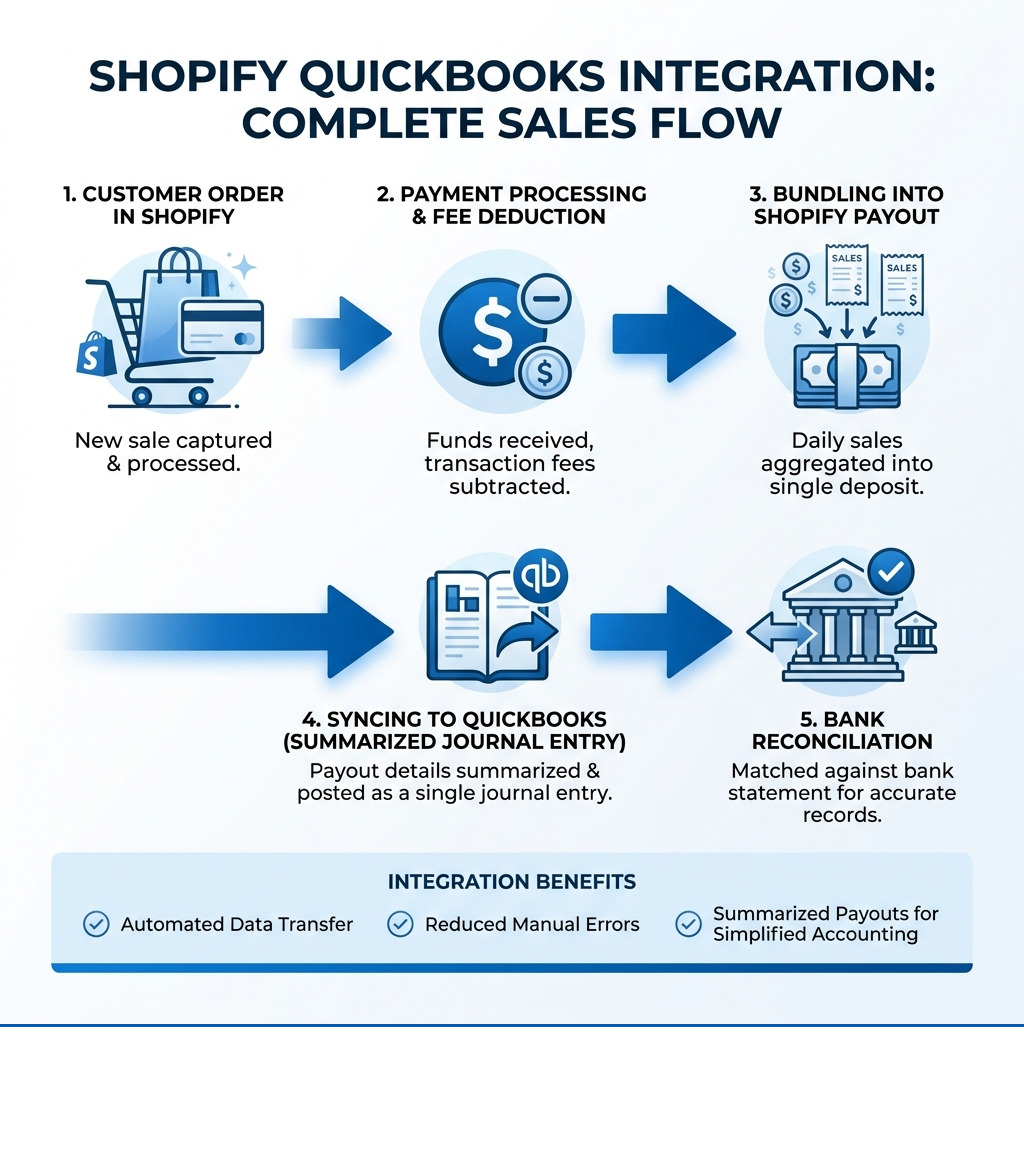
While these apps automate the transfer of individual transactions, they often come with their own set of challenges. My biggest concern with many data-syncing apps is their potential for overwhelming QuickBooks. If you process hundreds or thousands of orders a month, syncing each one individually can clog your QuickBooks account with excessive data. This can slow down your accounting software and make it incredibly difficult to reconcile your bank feed, as QuickBooks sees individual sales transactions but your bank statement shows a single Shopify payout that bundles many sales, refunds, and fees together.
For instance, the QuickBooks Online Global app from Intuit is an example of a data-syncing app that allows you to sync product, customer, and order information. While useful for basic needs, it's crucial to understand how it handles the volume and complexity of e-commerce transactions, especially regarding payouts.
E-commerce Accounting Automation Tools
This category represents the most reliable and scalable solution for Shopify QuickBooks integration, especially for growing e-commerce businesses. Tools in this category are specifically designed to address the unique complexities of online retail accounting, primarily payout reconciliation.
Instead of syncing every individual order, these tools summarize your Shopify payouts into single, accurate journal entries for QuickBooks. A Shopify payout is not just sales; it includes sales, refunds, discounts, shipping income, and various Shopify fees (transaction fees, processing fees, app fees). Automation tools accurately break down these components and categorize them into the correct QuickBooks accounts.
This approach prevents QuickBooks from being overwhelmed, making bank reconciliation straightforward. It also ensures that Shopify fees and refunds are correctly recorded as expenses and adjustments, providing a much clearer picture of your net income. For growing businesses that want to avoid accounting headaches, these tools are essential.
If you're interested in making your e-commerce operations more efficient beyond just accounting, here at First Pier, we offer more info about Shopify automation services that can help you implement various efficiencies.
How to Set Up Your Shopify QuickBooks Integration
Setting up your Shopify QuickBooks integration involves a series of steps that typically include installing an app, mapping your accounts, and configuring how data syncs. While the specifics vary depending on whether you're using QuickBooks Online or Desktop, and which integration app you choose, the general process ensures your financial data flows accurately.
Integrating with QuickBooks Online (QBO)
For most modern e-commerce businesses, QuickBooks Online (QBO) is the go-to accounting solution. Integrating Shopify with QBO is generally straightforward, often done through an app available in the Shopify App Store.
The official QuickBooks Online app from Intuit provides a direct connection. This app allows you to sync your orders, customer information, and payouts directly into your QBO account. During the setup, you'll configure how sales are recorded (e.g., as individual sales receipts or summarized entries), how payouts are handled (often as deposits into your bank account), and how various Shopify fees are categorized.
One key feature to consider during QBO integration is inventory tracking. You'll usually have the option to enable or disable inventory tracking. If you already manage inventory in QBO, you'll want to ensure that product SKUs match between Shopify and QuickBooks to avoid duplicates or discrepancies. Be cautious: turning on inventory sync from Shopify can overwrite existing QBO inventory data if not configured correctly.
For a comprehensive walkthrough, Intuit provides a detailed Shopify and QuickBooks Online Integration Guide that I often refer clients to.
If you're just starting your Shopify store or looking to refine your existing setup, here at First Pier, we provide more info about Shopify setup services to help you get things right from the start.
Integrating with QuickBooks Desktop
Integrating Shopify with QuickBooks Desktop (QBD) is a bit different from QBO, primarily because QBD is a desktop-based software. This means the integration often requires a dedicated connector application that runs on your local machine.
The primary tool for this is the QuickBooks Desktop Connector app, which you install in your Shopify admin. However, the actual synchronization process happens through the QuickBooks Desktop software on your computer. This means you need to ensure you have the newest version of the QuickBooks Desktop app installed and that you initiate the integration on the same desktop device where your QuickBooks Desktop is located.
During setup, you'll generate an app token from within QuickBooks Desktop, which securely links it to the Shopify Connector. A critical decision point in QBD integration is choosing your sync mode: Summary vs. Detailed.
- Summary mode sends summarized data, which is recommended if you have a high volume of transactions, especially if you're using QuickBooks Desktop Pro or Premier and your combined data exceeds 14,500 rows. This helps prevent your QuickBooks file from becoming too large and slow.
- Detailed mode sends full details of entities like names and descriptions for each transaction.
This choice is typically made during the initial integration and cannot be changed later, so choose wisely based on your transaction volume and reporting needs. For complete guidance, Shopify offers a detailed guide on Integrating QuickBooks Desktop accounting software with Shopify.
Using A2X for Shopify QuickBooks Automation
When I work with growing Shopify businesses, especially those with significant transaction volumes, I often recommend specialized e-commerce accounting automation tools like A2X. It addresses the core challenge of reconciling Shopify payouts in a way that generic data-syncing apps simply don't.
A2X is particularly effective because it focuses on payout-based summaries. Shopify deposits funds into your bank account as a single "payout" amount, but this payout represents many transactions: sales, refunds, shipping charges, discounts, and various Shopify fees, potentially spanning several days. A2X breaks down each payout into its constituent parts, creating a clean, summarized journal entry that perfectly matches the deposit amount in your bank account. This makes bank feed matching in QuickBooks straightforward.
It also generates a Shopify Reconciliation Report that helps you verify every detail and quickly identify any discrepancies between Shopify's data and the A2X summary. This level of detail and accuracy is invaluable for confident bookkeeping. A2X has earned over 300 five-star reviews in the Shopify App Store and more than 550 five-star reviews in the QuickBooks App Store, which shows its effectiveness and user satisfaction.
How A2X Helps with the Shopify QuickBooks Integration
Integrating your Shopify QuickBooks setup with A2X follows a logical, step-by-step process designed for accuracy:
- Connect A2X to Shopify: You start by granting A2X permission to access your Shopify store's data. This allows it to pull in all your sales, refund, and fee information.
- Connect A2X to QuickBooks: Next, you connect A2X to your QuickBooks Online account, giving it permission to post journal entries.
- Map Accounts: This is a crucial step. A2X helps you map each component of a Shopify payout (e.g., product sales, shipping income, Shopify Payments fees, app fees, refunds) to the correct accounts in your QuickBooks Chart of Accounts. A2X can even assist with an "Assisted setup" to help automate Chart of Accounts creation and tax configurations.
- Post Journal Entries: Once the mapping is done, A2X automatically generates a summarized journal entry for each Shopify payout. This entry includes all the revenue, expenses, and liabilities associated with that payout, ensuring your books reflect the true financial picture.
- Reconcile Payouts: In QuickBooks, when the Shopify payout hits your bank feed, you simply match it to the corresponding journal entry A2X has already posted. This process is quick, accurate, and eliminates the guesswork of traditional reconciliation. A2X even offers an Auto-posting feature to automate this step further.
You can find A2X in the Shopify App Store and the QuickBooks App Store.
What Makes A2X a Recommended Solution
From my perspective, A2X stands out for several reasons that make it a highly recommended solution for Shopify QuickBooks integration:
- Accuracy: Its payout-based accounting model ensures that your QuickBooks entries precisely match the deposits received in your bank account, making reconciliation straightforward and reducing errors.
- Comprehensive Transaction Handling: A2X captures all transaction types, including sales, refunds, discounts, shipping fees, gift cards, and even complex payment gateway data, ensuring every financial detail is accounted for.
- Prevents QuickBooks Overload: By posting summarized journal entries rather than individual orders, A2X keeps your QuickBooks file clean and performant, even with high transaction volumes.
- Customizability: It offers extensive options for mapping transactions to your specific Chart of Accounts, allowing for custom financial reporting.
- Strong Support: A2X provides excellent customer support, including a detailed A2X support center, online chat, and dedicated staff, which is crucial for any integration solution. Users frequently praise their proactive help in setup and troubleshooting.
Key Considerations for a Smooth Integration
Integrating Shopify with QuickBooks is a significant step toward financial clarity, but it's not without its nuances. To ensure a smooth integration, I always advise clients to consider how the system will handle taxes, refunds, and payouts, its impact on inventory, and how to troubleshoot common issues.
Handling Tax, Refunds, and Payouts
One of the most complex aspects of e-commerce accounting is managing sales tax, refunds, and the unique nature of Shopify payouts.
- Sales Tax Mapping: In the US, sales tax rules vary significantly by state and even locality. Your integration needs to accurately map the sales tax collected in Shopify to the corresponding sales tax codes in QuickBooks Online. The tax configuration details provided by Intuit offer guidance on this. For businesses operating out of Portland, ME, understanding Maine's sales tax regulations and how they apply to your e-commerce sales is critical. A good integration tool will ensure these amounts are correctly recorded, whether as a liability or directly to an income account, depending on your setup.
- Refund Processing: When a customer returns an item, the refund needs to be accurately reflected in your accounting. This involves reducing sales revenue, adjusting sales tax liability, and often recording a payment out. Automation tools are particularly good at breaking down these refund transactions within a payout.
- Shopify Payouts: As I've mentioned, Shopify typically groups multiple sales, refunds, and fees into a single payout that gets deposited into your bank account. This can make reconciliation challenging if your accounting software isn't set up to handle it. You can refer to the Shopify support guide for a detailed explanation of how these payouts work. The integration must correctly parse these payouts into their individual components before posting to QuickBooks to ensure your books match your bank statement.
Impact on Inventory Management and Reporting
A well-integrated system can profoundly impact your inventory management and reporting, offering a single source of truth for your stock levels and costs.
- Inventory Level Sync: The ability to sync inventory levels between Shopify and QuickBooks is a valuable feature. You can manage your stock in one place (often QuickBooks, as it handles purchasing and cost tracking better) and have those levels automatically update in Shopify. However, this must be set up with care. As the Inventory control process guide warns, if you enable inventory level updates from QuickBooks to Shopify without first having accurate inventory levels set up in QuickBooks, you risk wiping out your Shopify stock levels.
- Cost of Goods Sold (COGS): Accurately tracking COGS is essential for understanding your true profitability. While some connectors can assign a COGS account for products upon creation in QuickBooks, they may not sync the actual COGS price. This often requires careful manual entry or a more advanced ERP integration to ensure your cost data is precise.
- Product Matching: For accurate inventory and COGS tracking, product matching is essential. Consistent product identification across both platforms is key to avoiding duplicate records and ensuring accurate reporting.
Here at First Pier, we have extensive experience with complex inventory and ERP integrations for Shopify. You can find more info about Shopify ERP services that can help you manage these advanced needs.
Troubleshooting Your shopify quickbooks Connection
Even with the best planning, integration issues can arise. Knowing how to troubleshoot common problems is vital.
- Common Sync Errors: These might include transactions failing to transfer, duplicate entries appearing, or data mismatches (e.g., an order amount in Shopify not matching the amount in QuickBooks). Often, these stem from incorrect account mapping or changes in product SKUs.
- Mismatched Data: If your bank feed doesn't reconcile with your QuickBooks entries, or your Shopify reports don't match your QuickBooks sales figures, you likely have a data mismatch. This is where detailed reports from your integration tool can help pinpoint the exact discrepancy.
- Verifying App Settings: Always start troubleshooting by reviewing your integration app's settings. Confirm that account mappings are correct, filters are set as intended, and the sync schedule is active. Sometimes, a simple refresh or re-sync within the app can resolve minor glitches.
- Reaching out to Support: Don't hesitate to use the support resources provided by the app developer. Most reputable integration apps have dedicated support teams ready to assist. For example, many apps provide a link to their Support team directly within the app or documentation.
Frequently Asked Questions about Shopify & QuickBooks
How do I link QuickBooks Online with Shopify?
Linking QuickBooks Online with Shopify typically involves installing an integration app from the Shopify App Store. First, you'll go to the Shopify App Store and search for "QuickBooks." You'll then choose an app that fits your business needs, such as the official QuickBooks Online app or a third-party solution like A2X. Once installed, you'll follow the app-specific instructions provided to connect your Shopify store and authorize the data transfer. This usually involves logging into both your Shopify and QuickBooks accounts within the app's setup wizard and mapping your accounts.
How does the integration handle Shopify fees and sales tax?
A good integration app is designed to break down Shopify payouts into their individual components, including fees and sales tax. The app will typically categorize Shopify fees (e.g., transaction fees, payment processing fees) as expenses in your QuickBooks account. For sales tax, the integration maps the tax collected in Shopify to the corresponding sales tax codes or liability accounts you've set up in QuickBooks. Proper configuration during the initial setup is key to ensuring these amounts are accurately recorded and reported, especially for US sales tax where rules can be complex.
Should I sync every order or use summarized payouts?
This is a critical decision that depends on your business's transaction volume and accounting preferences.
- Syncing every order individually (common with basic data-syncing apps) might work for very low-volume stores. However, for high-volume stores, this approach can quickly overwhelm QuickBooks with thousands of individual entries. This makes bank reconciliation very difficult because your bank statements show large, combined Shopify payouts, not individual sales.
- Using summarized payouts (as offered by e-commerce accounting automation tools like A2X) is generally the recommended best practice for most growing Shopify businesses. This method combines all the sales, refunds, fees, and other transactions within a single Shopify payout into one accurate journal entry in QuickBooks. This approach keeps your QuickBooks file clean, makes bank reconciliation simple, and provides a clearer, more manageable financial overview.
I always recommend summarized payouts for any business anticipating growth or already processing a significant number of orders.
Get Your Shopify and QuickBooks Integration Right
Establishing a solid Shopify QuickBooks integration is more than just a technical task; it's an important step for your e-commerce business. The key takeaways I emphasize to my clients are the importance of accurate bookkeeping, the need to choose the right integration method for their specific business, and the value of expert guidance.
Accurate financial data is the foundation of a successful business. It helps you make informed decisions, understand your true profitability, and present a clear financial picture to stakeholders. Whether you opt for a data-syncing app or a specialized accounting automation tool, the goal remains the same: to make your financial operations more efficient and free up your time to focus on growth.
Choosing the right method, configuring it correctly, and understanding its impact on your inventory and tax reporting can be complex. That's where expertise makes a real difference. Here at First Pier, we pride ourselves on helping brands manage these challenges. If you're looking for expert assistance to ensure your Shopify QuickBooks integration is set up for success, I invite you to contact our award-winning Shopify e-commerce agency. We're here to help you build a reliable financial foundation that supports your business.





.png)
.png)

