


Your Store, Your Brand: An Introduction to Theme Customization
Shopify theme customization help turns a generic online store into a branded experience that boosts conversions and builds customer loyalty. Here's what you need to know:
Quick Customization Options:
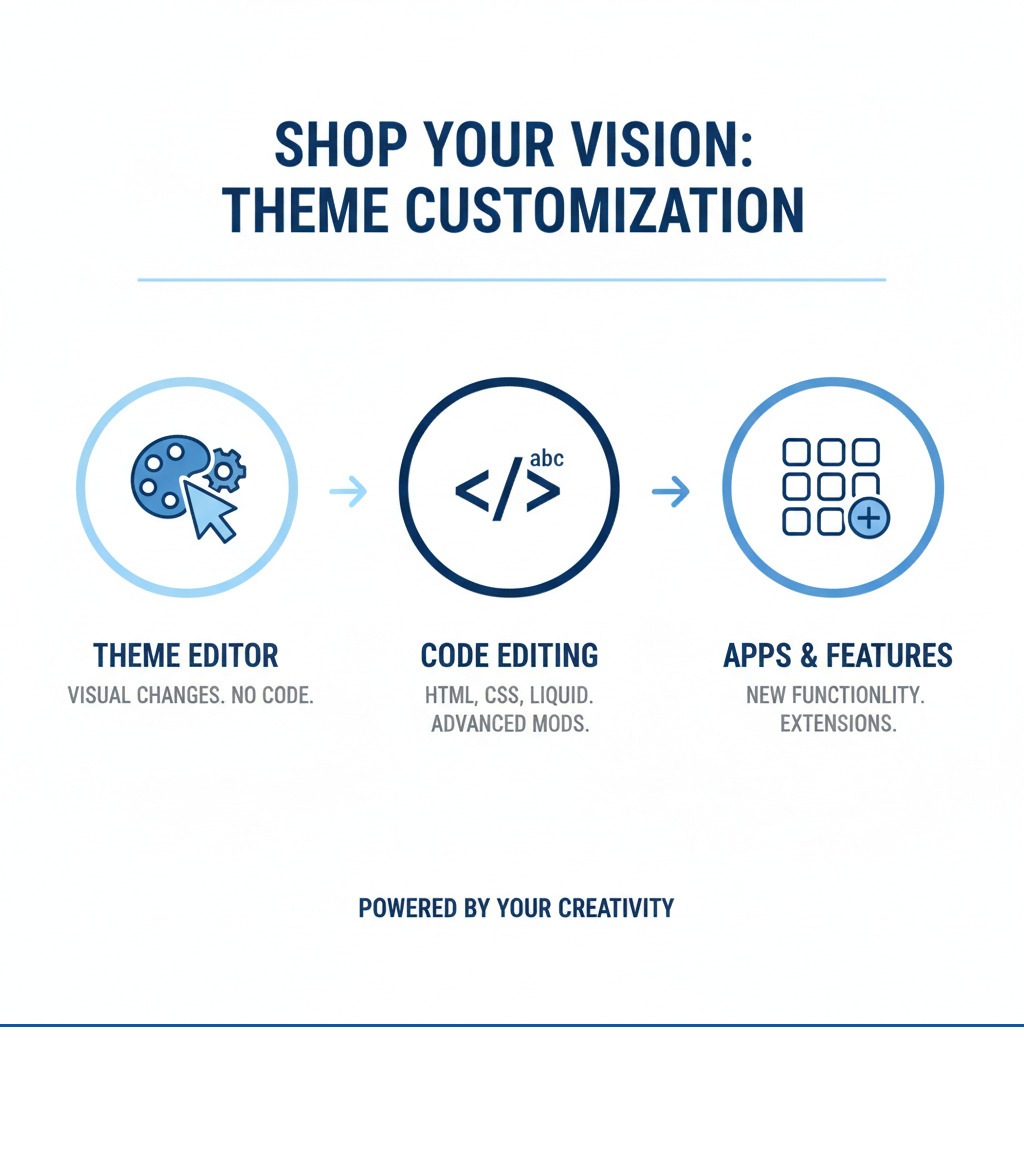
- Theme Editor - No-code customization using Shopify's built-in tools
- Code Editing - Direct HTML, CSS, and Liquid modifications for advanced changes
- Apps & Page Builders - Third-party tools for added functionality and design flexibility
- Professional Help - Shopify Partners and developers for complex customizations
Your theme is how customers experience your brand. Customizing it creates a unique shopping environment that reflects your brand identity and guides customers to purchase.
Why Theme Customization Matters:
A default Shopify theme rarely matches a brand perfectly. Customization lets you arrange colors, fonts, and layouts with your brand guidelines and improve the user experience for your audience.
A consistent visual identity increases revenue. Your theme customization impacts conversion rates by building trust, reducing friction in the buying process, and making your products more appealing.
Most store owners start with the theme editor, a powerful visual tool that requires no coding. Later, you can move on to code editing or use apps to add features not in your base theme.
We've helped leading brands optimize their stores for peak performance. My two decades in e-commerce have taught me that effective Shopify theme customization help begins with understanding your options and choosing the right approach for your goals.
Know your Shopify theme customization help terms:
First Steps: Your Pre-Customization Checklist
Before changing your Shopify theme, a few key steps can save you time and stress. These preparations act as a safety net, protecting your store and setting you up for successful Shopify theme customization help.
The most important rule is to always work on a theme copy, not your live one. I've seen many owners break their site while making a simple change. Let's avoid that.
How to Create a Theme Backup
A backup is an insurance policy for your design. If something goes wrong, you can quickly restore the original theme without losing sales or upsetting customers.
To make a backup of your theme, go to Online Store > Themes in your Shopify admin. Find your current theme, click the Actions menu (three dots), and select Duplicate theme. Shopify creates an exact copy instantly.
This duplicate is your safe testing environment. Make and test all changes here. Only publish the new theme when you're completely satisfied.

Pro tip: Name your duplicate clearly, like "Testing - Dec 2024," so you know its purpose. You can create multiple backups for different design ideas.
If you need help with the bigger picture of setting up your store properly, check out More info about our Shopify setup services.
Understanding Your Theme's Support Level
Theme support levels vary, and knowing what to expect helps guide your customization plan, especially for complex changes.
Free Shopify themes (e.g., Dawn, Craft) include basic support from Shopify. On the Basic plan or higher, you get 60 minutes of free design help, used in 15-minute blocks for small tweaks.
For paid third-party themes, support comes from the developer, not Shopify. Find their contact info and documentation under Online Store > Themes > Customize by looking for a support link.
Both free and paid themes have support limits. Shopify's Theme support policy explains what they cover. They'll generally help with basic customizations but not complex code changes or app conflicts.
Knowing these limits helps you plan. For simple changes like colors or section layouts, support can likely help. For custom functions or a full redesign, you'll probably need a developer or to learn code yourself.
Be realistic about your Shopify theme customization help needs. A support ticket might be enough, but sometimes professional help saves time and yields better results.
The No-Code Method: Using the Shopify Theme Editor
The Shopify theme editor is the best starting point for Shopify theme customization help. It's a powerful and intuitive visual tool that lets you change your store's look without any code.
Its instant preview feature is a major plus. Changes appear immediately, showing you exactly how your store will look to customers.
The editor controls store-wide theme settings and lets you arrange content with sections. With Sections Everywhere, you can add dynamic blocks to any page template—not just the homepage—for unique layouts on product, collection, and contact pages.
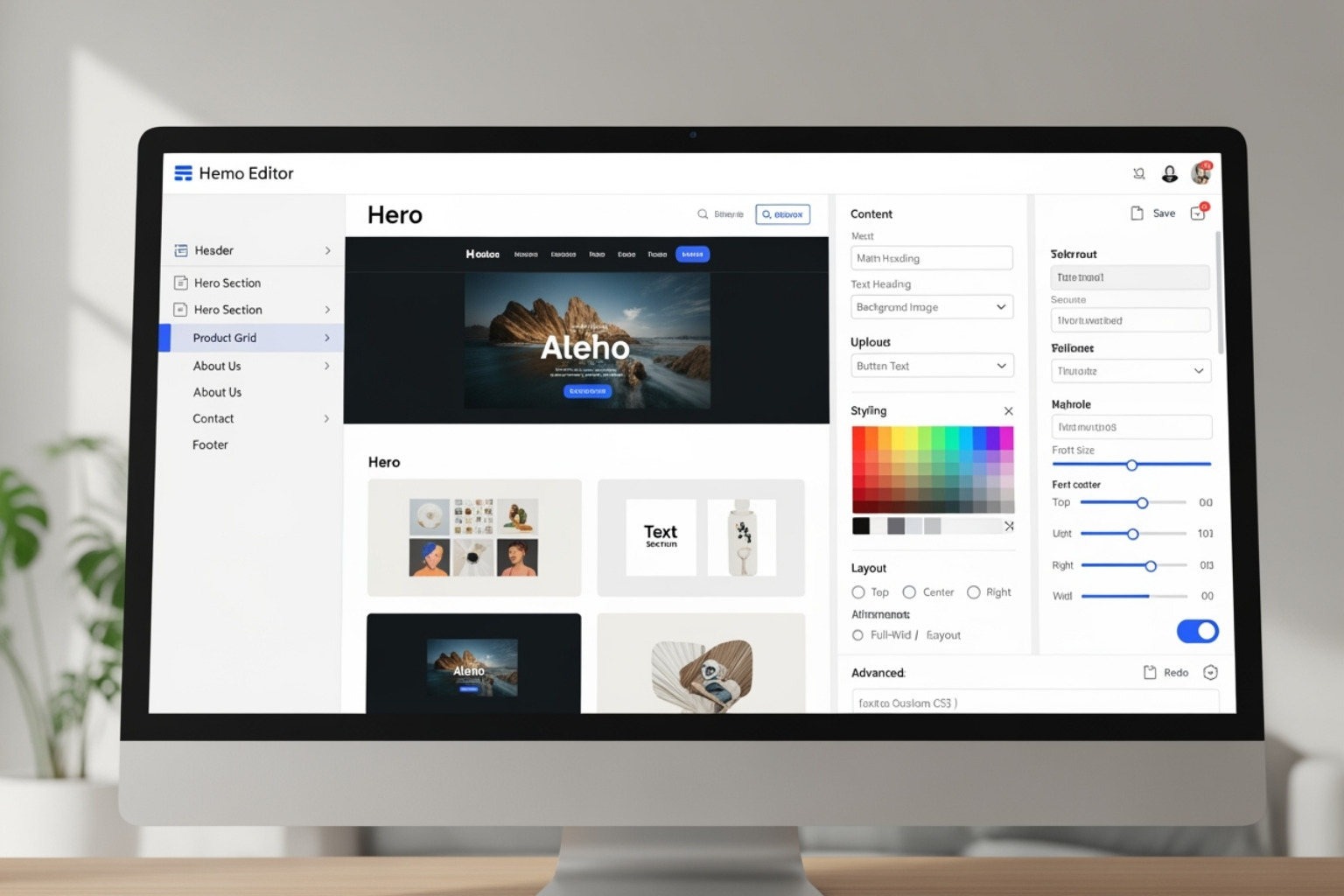
The editor has limitations: you can't create new section types or add functionality not already in your theme. However, the built-in options are usually flexible enough for most merchants to create a unique brand experience.
For detailed guidance on using these tools, Shopify provides a complete guide on Customizing themes.
Customizing Global Theme Settings
Global theme settings are your store's personality controls. These changes apply everywhere, creating a consistent brand experience that builds trust.
Colors and schemes: Modern themes let you create up to 21 color combinations and apply them to different sections. This allows for variety while keeping your brand consistent. The color picker is simple; I recommend having your brand's hex codes from color names and values ready.
Typography and fonts: Your font choices shape brand perception (e.g., professional, playful). You can select and size different fonts for headings and body text. System fonts are a good choice as they load quickly.
Layout and spacing: These controls add breathing room. Adjust the page width and space between sections. Clean, uncluttered designs tend to convert better.
Social media links and cart style: Social links usually go in the footer. The cart can be a slide-out drawer, a separate page, or a popup, each offering a different experience.
If you need help defining your visual identity, we offer complete branding and identity services.
Arranging Content with Sections and Blocks
Shopify's sections and blocks system is like digital building blocks. You can mix, match, and rearrange them to create unique page layouts.
Sections are larger content areas (e.g., "Featured Collection"), while Blocks are the individual elements within them (e.g., images, headlines, buttons).
Adding and removing sections is easy. Click "Add section" in the sidebar to see available types. To remove one, just select and delete it.
When editing content blocks, you can click any element to change text, images, button colors, or links. You can also move sections by dragging and dropping them to alter the page flow.
This modular approach lets you build a story-driven homepage, product pages that emphasize key features, and collection pages that direct customers to buy—all without code. Updates to a section apply everywhere it's used, ensuring consistency.
This system grows with you. As you learn what your customers like, you can easily test new layouts, add seasonal content, or refresh your store's look for promotions.
A Deeper Look: Editing Theme Code and Using Shopify CLI
Sometimes, the theme editor isn't enough for what you're imagining. For a custom product display or a unique interactive element, you'll need to edit code. This is where Shopify theme customization help gets more advanced, but it's not as intimidating as it sounds.
Many store owners think code editing is only for tech experts. But with patience and a willingness to learn, you can handle basic code changes. The key is to understand the components.
Shopify themes use four main languages: HTML for page structure, CSS for visual styling (colors, fonts), JavaScript for interactive features, and Liquid, Shopify's language that connects your store's data to the design.
A good grasp of HTML, CSS, and basic Liquid opens up customization possibilities unavailable in the visual editor.

For more control, Shopify CLI (Command Line Interface) is a professional toolkit for local theme development. It enables faster testing and a more efficient process.
This level of customization might be what your business needs to stand out. If you're interested, I'd love to share more info about our Shopify development services. You can also learn the technical details about editing theme code from Shopify.
Best Practices for Editing Theme Code
When editing theme code, follow a few best practices to avoid costly mistakes.
Use a collaborator account for client work. Request an account with "Manage themes" permission for secure access that doesn't count against their staff limit.
Version control and backups are your safety net. Always duplicate your theme before editing code. Shopify's editor also lets you roll back changes to individual files.
Comment your code. Leave clear notes explaining your changes. This makes it much easier for you or another developer to maintain the code later.
Test on a duplicate theme. Never edit your live theme directly. Make all code changes on a copy first so customers don't see broken or unfinished work.
Using Shopify CLI for a Pro Workflow
Shopify CLI makes theme development a smooth, professional process. Here’s how it works:
Install Shopify CLI: This tool connects your local computer to your Shopify store.
Pull a theme: Use
shopify theme pullto download the theme code to your computer.Preview changes: Run
shopify theme devto start a local server. It provides a live preview that automatically refreshes as you save changes.Push changes: Use
shopify theme pushto upload your local changes back to the store.Share a preview: The
pushcommand gives you a preview link to share for feedback before going live.
Where to Find Shopify Theme Customization Help
Even confident store owners sometimes need help. Knowing where to find Shopify theme customization help can save you frustration and help you get the store you imagined.

Shopify Support: This is your first stop for basic questions about free Shopify themes. Their team knows the platform well and can guide you.
Shopify Partner Directory: For specialized help, this directory lists certified experts, agencies, and developers. They can handle anything from small tweaks to full redesigns. Find them in the Shopify Partner Directory.
Community Forums: The Shopify Design forum and "Feedback On My Store" section are great resources. Helpful owners and developers share advice and feedback.
Theme Developers: For paid themes, contact the developer for issues related to their theme. Most provide documentation and support.
Using Shopify's Free Design Support
A little-known perk for stores on the Basic plan or higher is 60 minutes of free design support from Shopify. This is hands-on help for small customizations on free themes.
The time is used in 15-minute blocks for tasks like displaying variant inventory, changing badge positions, or adding social media icons. Each request is reviewed individually, so it's always worth asking. This free help can be a great budget-saver.
Limitations of Shopify Theme Support
Shopify's support has important boundaries. These limits exist to maintain platform security, performance, and consistency.
- Checkout customization: This is mostly off-limits for security reasons.
- Heavily modified themes: Extensive code changes may put you outside their support scope.
- Third-party apps & custom code: Support for these comes from the app developer or original coder, not Shopify.
- New fonts: Adding fonts not in Shopify's library usually requires a developer.
When you hit these limits or need a redesign with specific functions, it's time to hire a professional. Agencies like First Pier specialize in complex Shopify theme customization help and can build custom solutions for your brand.
Adding New Features with Apps and Page Builders
Shopify's large app ecosystem is a major benefit. When your theme lacks a feature, an app can often fill the gap. This method of Shopify theme customization help lets you add powerful functions without coding.
The Shopify App Store has thousands of tools to extend your store's capabilities, from design tweaks to marketing automation.

How Apps Can Improve Your Theme
Apps can significantly improve your store. I've seen stores boost conversions just by adding the right apps for their Shopify theme customization help needs.
Product reviews: Apps like Okendo and Judge.me build trust. Shoppers seeing authentic reviews are more likely to buy. These apps integrate easily, adding review displays to product pages.
Search and filtering: Better search improves the shopping experience. If customers can't find products, they'll leave. Apps like Shopify Search & Discovery add smart recommendations and advanced filtering.
Landing pages: Specialized apps make it easy to create high-converting landing pages for specific campaigns, going beyond basic theme templates.
Upsells and cross-sells: These apps can boost your average order value by suggesting related products or upgrades during the shopping experience.
Many apps also use app embeds, which add features like a chat bubble to your storefront without cluttering the design.
Getting Shopify theme customization help with page builders
Page builders are a middle ground between the simple theme editor and complex custom code. They offer intuitive drag-and-drop editing.
These tools are great for building custom pages that surpass standard theme templates, allowing for unique product and landing page layouts.
Their no-code flexibility is a major draw. You can create professional pages by dragging elements like text, images, and buttons exactly where you want them.
A page builder is a good choice if you're frustrated by the theme editor's limits but not ready to hire a developer. It's great for creating unique layouts for promotions or key pages. Page builders replace default page templates with your custom designs, giving you full control over the look and function of those pages while keeping your theme's main structure.
Frequently Asked Questions about Theme Customization
Here are answers to common questions about Shopify theme customization help.
What's the difference between customizing a theme and building a new one?
Customizing a theme means modifying an existing theme. You might change colors and fonts with the theme editor or edit the code for specific adjustments. It's like renovating a house: you work with the existing structure.
Building a new theme is like constructing a house from scratch. You design and code everything, creating custom functions as you imagine them. This offers complete creative freedom but requires a large budget and specialized skills.
For most small businesses, customizing an existing theme is the best choice. It provides professional design without a huge investment. Building a custom theme is usually for established brands with very specific needs.
How can I preview my theme customizations before they go live?
Shopify provides several ways to test changes safely without breaking your live store.
The theme editor's live preview is the most convenient. As you make changes, a real-time preview on the right side of your screen updates instantly.
A duplicate theme is your best friend for testing. Make all your changes on this copy and preview it before publishing. It's a risk-free sandbox for experimenting.
When using Shopify CLI, the
shopify theme devcommand creates a local server to preview changes instantly. It also generates a preview link to share for feedback before going live.
What browsers do Shopify themes support?
Shopify themes are built to work reliably on the many devices and browsers your customers use.
Desktop: Themes support the last two versions of Safari and the last three of Chrome, Firefox, and Edge.
Mobile: Themes support the last two versions of Mobile Safari and Samsung Internet, and the last three of Chrome Mobile.
Themes also work in webviews (the in-app browsers of social media apps like Instagram), which is important since many customers come from social media. This broad support ensures your store works well for nearly all customers, so you don't have to test every browser.
Ready to Build Your Perfect Store?
After reviewing these options for Shopify theme customization help, you should feel more confident about making your store special. Every successful online business starts with the same basics; customization is what sets you apart.
Customization enables your brand to do more than just look good. When your store reflects your personality, customers notice, trust you more, and are more likely to buy. We've seen this happen many times at First Pier.
Start with the theme editor. Its built-in tools are powerful, and you can achieve a lot without code. Experiment with colors, fonts, and sections to see what fits your brand.
When you're ready for more, apps and page builders can add features your editor lacks. For truly custom work, consider code editing or hiring a developer.
Ask for help when you need it. Shopify Support, community forums, and Shopify Partners like us are here to assist. The Shopify community is very supportive.
A final reminder: always back up your work before major changes. Duplicating your theme takes seconds and can save you hours of stress. It's a step many people forget.
At First Pier in Portland, Maine, we help brands create stores that drive results. We understand every business is unique and enjoy working with passionate entrepreneurs.
If you need expert Shopify theme customization help beyond the basics, we'd love to chat. Whether you need a redesign, custom features, or a review of your current setup, we're here to help. Contact our award-winning Shopify ecommerce agency for expert help and let's build something great together.
Your perfect store is within reach; sometimes, you just need the right team to help.





.png)
.png)

