




Why Your Shopify Product Feed Drives Revenue
Summary
- A Shopify product feed is a structured file with product data (titles, prices, images) for listing items on external channels like Google Shopping.
- Feeds can be created with Shopify's Google & YouTube app, third-party apps, Google Sheets, or the Content API.
- Key attributes for a product feed include titles, descriptions, images, and unique identifiers (GTIN, MPN, Brand).
- Google requires specific, accurate data for product approval, including pricing, shipping, and image compliance.
- Regularly checking the feed in Google Merchant Center for errors is necessary to keep product listings active.
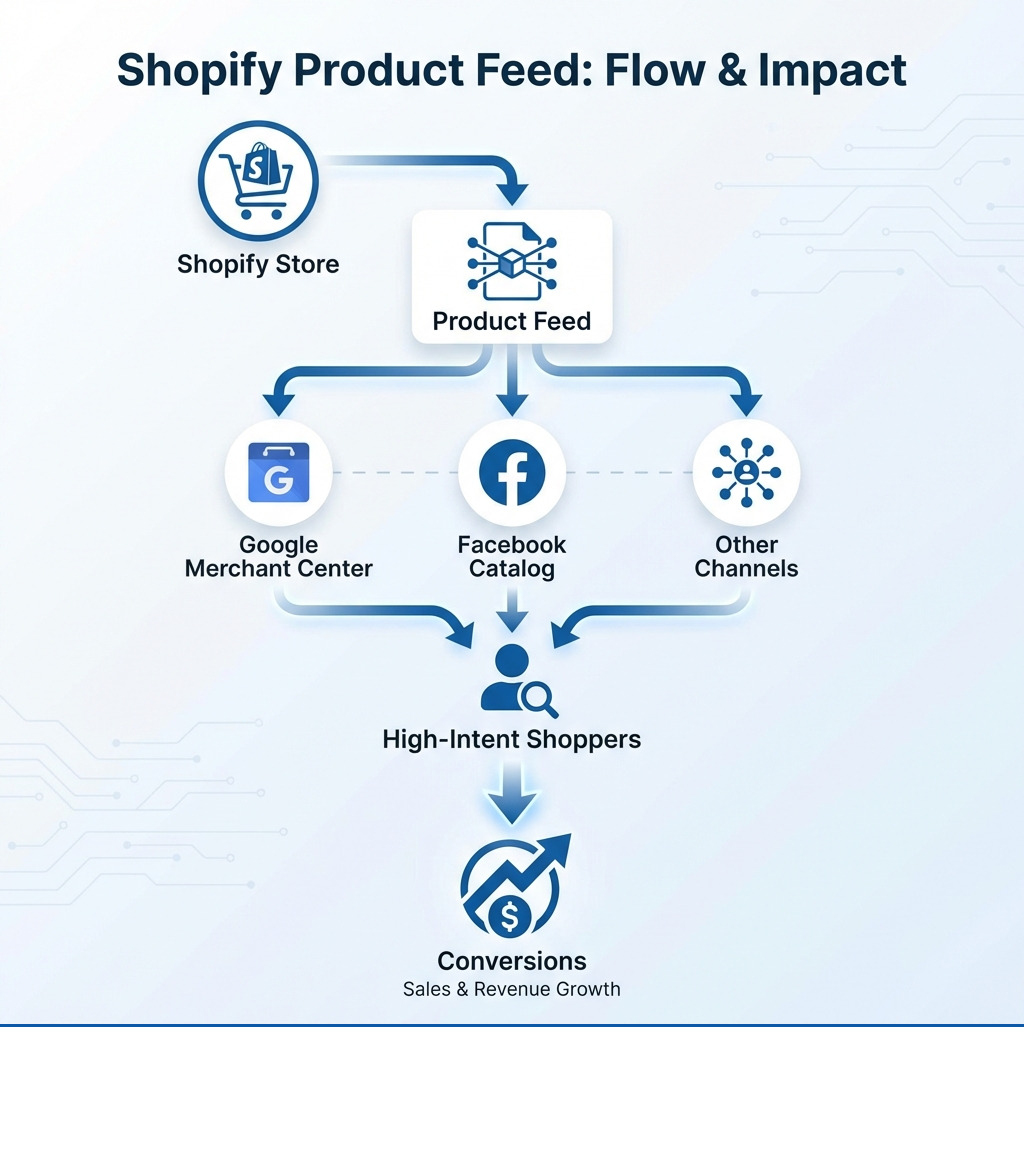
A Shopify product feed is a file that organizes your product data—titles, prices, images, availability—which external platforms like Google Shopping and Facebook use to display your products to potential customers. It places your products in front of high-intent shoppers actively searching for what you sell.
Most merchants treat their product feed as a technical requirement—something to set up once and forget. That's a mistake. Next to searching directly through Amazon, the most common way shoppers look for products online is searching for them on Google. When you Google search for a product, one of the first things you'll notice is the Shopping feed displaying relevant items with prices, images, and ratings.
Your feed isn't just a list of products. It's the bridge between your inventory and customers who are ready to buy. A well-managed feed improves visibility, brings interested shoppers to your store, and increases conversions. A poorly managed one wastes ad spend and loses sales to competitors who got the details right.
I'm Steve Pogson, and I've spent over two decades helping e-commerce businesses with data management and channel optimization. This includes building and refining Shopify product feeds that lead to sales. The difference between a feed that performs and one that doesn't often comes down to understanding what the data actually does.
Why a Shopify product feed is essential for sales
For an e-commerce business, a Shopify product feed is a necessary tool for reaching customers. The data in your feed powers product listings across various platforms, especially Google Shopping. When a shopper searches for a product on Google, the Shopping feed appears prominently, often at the top of the search results. This places your products directly in front of someone with high purchase intent. They are actively looking for something you sell.
This approach offers contextual advertising, which is becoming increasingly important. As Google phases out third-party cookies, the ability to show ads based on what someone is actively searching for, rather than their past browsing behavior, becomes more valuable. Your product feed makes this possible. It allows you to show specific products to specific searches, making your advertising highly relevant and effective.
A strong feed brings interested shoppers to your Shopify store. These aren't just random visitors; these are people who have seen your product image, title, and price directly on Google and clicked through because they're interested. This focused traffic has a much higher potential to convert into sales. If you are looking to improve how your paid search campaigns bring in customers, getting your product feed right is a core step.
The core benefits of a well-managed feed
A well-managed Shopify product feed brings clear benefits that directly impact your store's performance. First, it ensures data accuracy. Your product listings on external channels precisely reflect what's available on your Shopify store, including current prices, stock levels, and product details. This prevents customer frustration and reduces bounce rates. A statistic shows that more than half of shoppers who check out your product page leave without making a purchase. Ensuring they find what they are looking for starts with accurate information.
Second, a quality feed helps with better ad targeting. Platforms like Google can use the detailed information in your feed to match your products with the most relevant search queries. This means your ads appear for the right audience, which makes your advertising budget go further.
Third, you will see higher click-through rates (CTR). When your product listings are rich, accurate, and appealing with strong images and clear titles, shoppers are more likely to click on them. This increased engagement translates directly into more visitors to your store.
Finally, all these factors lead to increased conversions. Interested shoppers, accurate product information, and relevant ads combine to make it more likely that visitors complete a purchase. Regularly reviewing your e-commerce analytics helps you understand which products and feed attributes are performing best, allowing for continuous improvements.
The Foundation: Connecting Shopify to Google Merchant Center
Connecting your Shopify store to Google Merchant Center is the first concrete step toward getting your products seen across Google. Google Merchant Center acts as the central hub where all your product data lives for Google Shopping ads and other Google surfaces.
Step 1: Setting up your Google Merchant Center account
To begin, you need a Google Merchant Center account. I recommend you go to the Merchant Center webpage and select "Get Started." The setup process is straightforward, guiding you through providing your business information, including your store name and headquarters location. For merchants here in Portland, ME, ensure your local business details are correct.
A key part of this initial setup is verifying and claiming your website. This confirms that you own your store's domain and allows Google to associate your product data with your website. You'll also configure essential settings like sales tax and shipping information. For sales tax, you typically set up rules based on the destination. For shipping, you define your services, rates (free, flat-rate, carrier-calculated), and delivery times. Accurate sales tax and shipping details are crucial for product approval and a good customer experience.
Step 2: Connecting your account with the Google & YouTube app
Once your Google Merchant Center account is ready, the easiest way to link it with your Shopify store is by using Shopify's official Google & YouTube app. I always tell my clients to install this app directly from the Shopify App Store.
After installing, the app will walk you through connecting your existing Google account to your Shopify store. This integration is designed to be direct and automatic. The app provides a checklist of configuration tasks to ensure everything is set up correctly before your products start appearing on Google. This includes things like agreeing to Google's terms, ensuring your product pages have all the necessary information, and setting up your first product feed. The Google & YouTube app then handles the initial product status sync, pushing your Shopify product data into Merchant Center. This direct connection simplifies product updates and management, ensuring your product listings on Google stay current.
How to Create and Manage Your Shopify Product Feed
Creating and managing your Shopify product feed involves choosing the right method for your business size and technical comfort. There are several ways to get your product data from Shopify into platforms like Google Merchant Center, each with its own advantages.
Choosing a method to create your Shopify product feed
Shopify's Google & YouTube App: This is the most integrated and often the simplest method for many Shopify merchants. As we just covered, it connects directly to Google Merchant Center and typically handles the basic feed creation and updates automatically. It's excellent for stores that don't require highly complex feed customizations.
Third-party feed management apps: For more control and advanced features, I often recommend exploring third-party apps available in the Shopify App Store. These apps specialize in feed generation and offer specific functions like custom rules, attribute mapping, and multi-channel support (e.g., for Facebook, Amazon, Bing, Pinterest, TikTok). They are useful for larger catalogs or when you need to tailor your feed data extensively for different platforms.
Manual upload with Google Sheets: For smaller product catalogs or for merchants who prefer direct, hands-on control, using Google Sheets can be a viable option. You can export your product data from Shopify as a CSV, then format it in Google Sheets according to Google's product data specifications. This sheet can then be scheduled to sync with Google Merchant Center. While it offers direct control, it can become cumbersome for large inventories or frequent updates.
Content API for Shopping: For developers and businesses with very large or complex accounts requiring frequent, programmatic updates, the Content API for Shopping is the most direct and flexible method. It allows apps to interact directly with Google Merchant Center, providing granular control over product data. This method is best for those with the technical resources to implement and maintain an API integration.
| Method | Ease of Setup | Customization | Automation | Best For |
|---|---|---|---|---|
| Shopify's Google & YouTube App | High | Low | High | Small to medium stores, basic Google Shopping integration |
| Third-Party Feed Apps | Medium | High | High | Medium to large stores, multi-channel selling, advanced optimization |
| Manual Upload (Google Sheets) | Medium | Medium | Medium (scheduled) | Small catalogs, specific manual control, budget-conscious |
| Content API for Shopping | Low | High | High | Large, complex catalogs, frequent updates, in-house technical teams |
Understanding primary vs. supplemental feeds
When we talk about Google Shopping feeds, it's important to understand the role of both primary and supplemental feeds.
The primary feed is the core of your product data. It contains all the essential information about your products: ID, title, description, link, image link, price, availability, and brand. This is the main feed that Google uses to create your product listings.
Supplemental feeds are used to provide additional data that can't be easily included in the primary feed, or to update specific attributes without needing to resubmit your entire catalog. They are useful for fine-tuning your product information.
Here are some common types of supplemental feeds:
- Product inventory update feeds: These are used to quickly update price and availability data. If prices or stock levels change frequently on your Shopify store, a supplemental feed can ensure these critical details are always current on Google.
- Promotions feeds: If you run sales or special offers, a promotions feed allows you to highlight these directly in your Google Shopping listings. This can include discounts, free shipping, or other incentives.
- Local inventory ads feeds: For businesses in Portland, ME, that also have a physical storefront, a local inventory ads feed is incredibly useful. It shows nearby shoppers what products are available in your local store, including in-store pricing and pickup options.
- Product ratings feeds: This feed allows you to display aggregated customer reviews and star ratings directly on your Google Shopping listings. These social proofs build trust and can improve click-through rates.
Critical Feed Attributes and How to Optimize Them
Improving your Shopify product feed goes beyond just getting the data into Google Merchant Center. It means refining each key component so your products stand out and perform well. This is how your feed contributes directly to sales.
Product titles and descriptions
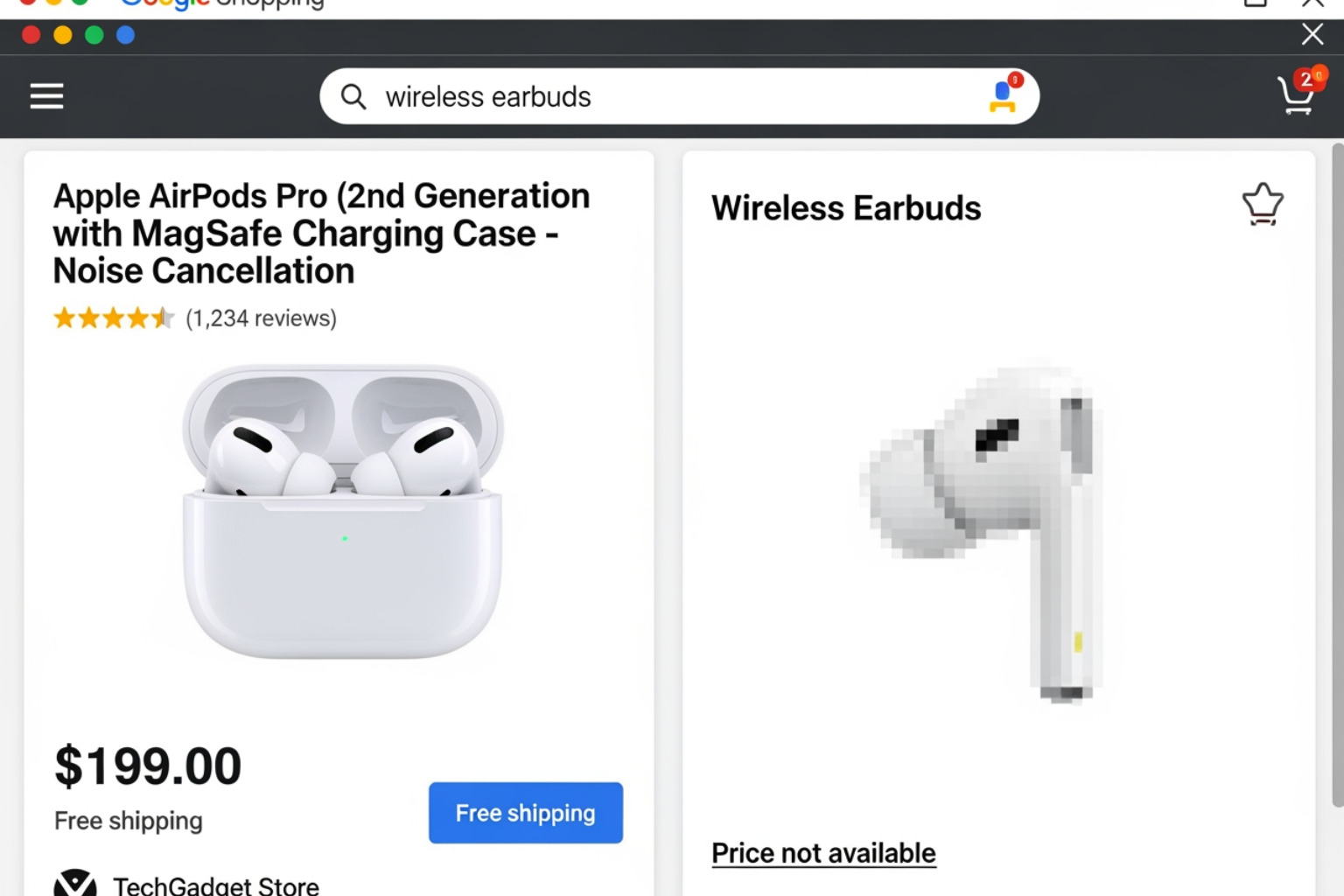
The product title is arguably the most important element of your feed, similar to a title tag in SEO. It's the first thing shoppers see and often determines if they click. My best practices for titles include:
- Keyword relevance: Start with your most important keywords. Think about what a customer would type into Google.
- Front-loading information: Put the most critical details at the beginning, as titles can be truncated on different devices.
- A clear formula: A good structure is often "Brand + Product Type + Key Attributes (e.g., color, size, material)." For example, instead of "Red Dress," try "BrandX Women's Maxi Dress - Red - Size M."
- Avoiding promotional text: Do not include phrases like "Free Shipping" or "Best Deal" in your title. Google will disapprove this.
Product descriptions, while not as prominent as titles, are still crucial. They provide the detail that helps shoppers make a decision. I advise making them:
- Concise and accurate: Clearly describe the product's features and benefits.
- Keyword-rich: Naturally integrate relevant keywords that describe your product.
- Front-load important information: Just like titles, put key details early. Focus on what a buyer needs to know to make a purchase, not vague or poetic language.
Unique Product Identifiers: Brand, GTIN, and MPN
Unique product identifiers are non-negotiable for most products in your feed. Google uses these to understand exactly what you're selling and to match your products with relevant queries. I've seen many disapprovals happen because these are missing or incorrect.
Google has a rule: it requires two out of these three for all products in your feed: brand, MPN, and GTIN.
- Brand: Always indicate the brand for every product. If your product doesn't have a specific brand, you can use your store's name.
- GTIN (Global Trade Item Number): This includes UPCs (Universal Product Codes), EANs (European Article Numbers), and ISBNs (International Standard Book Numbers). These are globally recognized identifiers found on product packaging.
- MPN (Manufacturer Part Number): This is a unique identifier assigned by the manufacturer to a product.
If your products are custom-made or don't have these identifiers (e.g., handmade crafts), you must use the identifier_exists attribute and set it to FALSE. Providing correct identifiers improves visibility and helps avoid disapprovals, ensuring your products are shown for relevant searches.
Google Product Category vs. Product Type
Understanding the difference between Google Product Category (GPC) and Product Type is key for feed performance.
- Google Product Category (GPC): This is Google's predefined taxonomy for classifying products. It's a hierarchical list, and you must choose the most specific category possible. Google has created a fairly exhaustive list of categories and subcategories that your products might fall under. There are currently 6,215 categories and subcategories to choose from. Selecting the right GPC helps Google understand your product and show it in the most relevant shopping results. For example, instead of just "Apparel," choose "Apparel & Accessories > Clothing > Dresses > Maxi Dresses."
- Product Type: This is your own internal product categorization from your Shopify store. It's not seen by shoppers on Google Shopping ads but is used internally by Google for product matching and by you for organizing your campaigns. You can use your site's taxonomy or breadcrumbs for this. For example, "Women's > Dresses > Summer > Maxi." This attribute is very useful for structuring your Google Ads campaigns and setting bids. For more details on how this can fit into your plan for selling on different marketplaces, I recommend exploring our services related to marketplace feed management.
Product image requirements
Your product images are critical. They are often the first visual a customer has of your product, and they need to be professional and compliant with Google's rules. I always advise my clients to:
- Use high-resolution images: Clear, crisp images make your products look good.
- White background rule: For your main image, Google strictly requires a plain white or transparent background. This creates a clean, consistent look across Google Shopping.
- No watermarks or text: Your main image should not contain watermarks, logos, or promotional text unless it's an integral part of the product itself.
- Multiple angles: Provide additional images showing different views of the product, close-ups, or even lifestyle shots (for supplemental images, not the main one). Good additional images can increase engagement.
Apparel-specific attributes
For apparel products, Google has specific requirements to help shoppers find exactly what they're looking for. This is where detailed attributes become essential for specific ad targeting.
- Gender: Specify if the product is for 'male', 'female', or 'unisex'.
- Age group: Use 'newborn', 'infant', 'toddler', 'kids', or 'adult'.
- Color: Provide the exact color name. If a product has multiple colors, list the primary one first, separated by '/'.
- Size: The product's size (e.g., "S," "M," "L," "XL").
- Size type: Indicates the cut of the apparel, such as 'regular', 'petite', 'maternity', 'big', 'tall', or 'plus'.
- Size system: Specify the country's size system, like 'US', 'UK', or 'EU'.
Crucially, for apparel variants (e.g., the same t-shirt in different colors and sizes), you must use the item_group_id attribute. All variants of a single product (e.g., a "Men's Classic T-Shirt") should share the same item_group_id, while differentiating attributes (color, size, gender) should be unique for each variant. This groups related products together in Google Shopping, providing a better user experience.
Advanced Tactics: Monitoring, Troubleshooting, and Customization
A Shopify product feed isn't a "set it and forget it" task. To get the most from it, you need continuous monitoring, effective troubleshooting, and smart customization.
Using custom labels for campaign management
Custom labels are a useful feature within Google Merchant Center that I often use with clients to better manage your campaigns. They are attributes that you define yourself, allowing you to segment your products for bidding and reporting purposes in Google Ads. Google does not use custom labels for search query matching; they are purely for your internal campaign management.
You can create up to five custom labels (custom_label_0 to custom_label_4). Here are some ways I've seen them used to manage campaign performance:
- Bidding strategies: Group products by margin, seasonality, or price point (e.g., "high-margin," "low-margin," "under-$50," "seasonal-summer"). This allows you to set different bids for these groups in Google Ads, focusing your budget on the most profitable or timely items.
- Segmenting by price point: Easily create ad groups for products within certain price ranges.
- Grouping seasonal items: Mark products as "Holiday2024" or "SummerSale" to activate specific campaigns during relevant periods.
- Best sellers: Identify and group your top-performing products to give them more aggressive bids.
To use custom labels, you first need to set up custom attributes to use in attribute rules within Google Merchant Center. This allows you to apply these labels based on existing product data, like categories or product types, making the process dynamic.
Monitoring performance and fixing disapprovals
Maintaining a healthy Shopify product feed requires regular checks. Google Merchant Center's Diagnostics tab is your best friend here. It provides a comprehensive overview of your feed health, flagging any product errors or disapprovals.
Common errors I frequently encounter include:
- GTIN issues: Missing or incorrect GTINs are a frequent cause for disapproval. Always double-check these unique identifiers.
- Price mismatch: If the price in your feed doesn't match the price on your landing page, Google will flag it. This is why automated updates are so important.
- Image disapprovals: Images that don't meet Google's quality or background requirements are common.
- Missing required attributes: Google has specific attributes required for certain product types or countries.
When you see a disapproval, don't panic. The Diagnostics tab usually provides a clear reason. Address the underlying issue in your Shopify store or within your feed management app, then resubmit the products. Depending on your Shopify development setup, you might need to adjust how your product data is structured or pushed.
Recommended Shopify apps for your Shopify product feed
While the Google & YouTube app is a great starting point, many Shopify merchants, especially those looking to sell across multiple channels or requiring more specific control, benefit from third-party product feed apps. When I evaluate apps for clients, I look for several key features:
- Multi-channel support: Can it generate feeds for Google Shopping, Facebook Catalog, Bing, Amazon, Pinterest, and others?
- Feed rule creation: Does it allow you to create custom rules to modify product data (e.g., adding keywords to titles, excluding certain products)?
- Error reporting: Does it clearly identify feed errors and offer solutions?
- Ease of use: Is the interface intuitive, even for complex tasks?
- "Built for Shopify" badge: This indicates an app meets Shopify's highest standards for performance, design, and integration.
Two apps that often come up in discussions about Google Shopping feeds are Simprosys and Nabu. While there are many options available, researching user reviews and features is always a good practice. The right app can automate much of the manual work involved in managing your feed, freeing you up to focus on other aspects of your business.
Conclusion
Your Shopify product feed is more than a technical file; it is a direct link between your products and the customers searching for them. A feed that is correctly set up, with well-chosen attributes and regular monitoring, will perform better than one that is ignored. My experience has shown that consistent attention to the details in the feed is what improves results. Here at First Pier, we work with businesses on their e-commerce operations, making sure that every piece of data, including the product feed, is accurate and effective. If you need help with your store's product data and advertising performance, I encourage you to see how our e-commerce services can help.




