


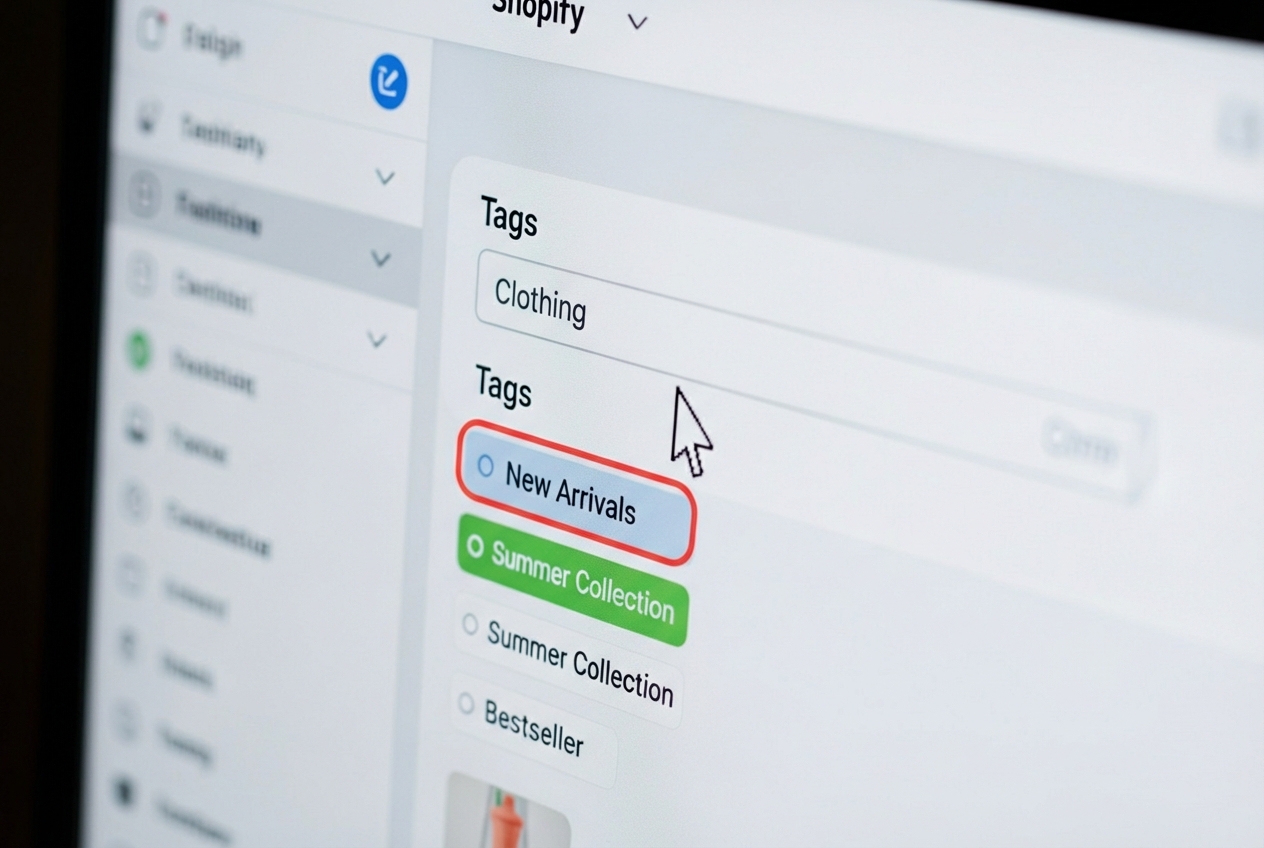

Why a Strong Tagging System Is Critical for Store Growth
Summary
- Shopify tags are internal labels for organizing products, orders, and customers.
- Tags are used for bulk actions, creating automated collections, and improving internal store search.
- While not a direct SEO ranking factor, a good tagging system improves user experience, which can indirectly support SEO.
- Shopify allows up to 250 tags per item on standard plans.
- A consistent naming convention for tags is necessary for effective store management.
Using tags in Shopify allows you to organize and manage your store's products, customers, orders, and content through internal labels. Here's what you need to know:
Quick Answer: How Tags Work in Shopify
- Add tags by navigating to any item (product, order, customer), typing a tag name in the 'Tags' field, and clicking 'Save'
- Remove tags by clicking the 'x' next to the tag name on the item's detail page
- Use tags for automation by creating automated collections based on tag conditions
- Manage in bulk by selecting multiple items and using the 'Add tags' or 'Remove tags' bulk action
- Search and filter by typing a tag name in the search bar or using the 'Tagged with' filter option
As your Shopify store expands, managing a growing inventory of products, orders, and customers becomes increasingly complex. Without a proper system, finding specific items, running targeted promotions, or analyzing data can become a significant operational bottleneck. Using tags in Shopify is a fundamental tool designed to solve this problem, acting as a flexible labeling system to bring order to your backend operations.
While tags aren't visible to customers by default, they're the backbone of efficient store management. They allow you to group similar items, create automated collections, segment customers for targeted marketing, and streamline order fulfillment. According to research, 97% of consumers say their favorite retail websites are ones where they can quickly find products they're looking for—and a solid tagging structure is what makes that possible behind the scenes.
I'm Steve Pogson, founder of First Pier, and over two decades I've seen how a planned approach to using tags in Shopify changes chaotic stores into efficient operations. Whether working with brands like Wyman's or Hyperlite Mountain Gear, the difference between a struggling store and a growing one often comes down to how well they've organized their data.
Learn more about using tags in shopify:
What Are Shopify Tags and Why Do They Matter?
Shopify tags are descriptive labels you can add to different parts of your store to group and organize them. Think of them as internal keywords for your business. While they are not typically visible to customers, their impact on your store's efficiency and the customer's shopping experience is substantial. According to a Google Cloud Study, 97% of consumers favor retail sites where they can quickly find what they're looking for, a task made much easier with a solid tagging structure.
From my experience, tags are the workhorses of a well-run Shopify store. They allow me to quickly sort through hundreds or thousands of products, pinpoint specific customer segments, and prioritize orders. This internal organization translates directly into a smoother customer journey because our team can respond faster, fulfill orders more accurately, and offer more relevant product suggestions. Without a clear tagging system, managing even a moderately sized store can quickly become a tangled mess.
The Different Types of Shopify Tags
Tags are not universal across your Shopify admin; a tag created for a product won't appear in the order section. This specificity allows for custom organization across all facets of your business. Each type of tag serves a distinct purpose, helping to categorize and manage different aspects of your store's data.
Here are the main tag types in Shopify:
- Product Tags: These are perhaps the most common. I use product tags to describe specific product attributes like color (
red,blue), material (cotton,linen), style (vintage,modern), or seasonal relevance (summer,holiday). They are essential for creating automated collections and can power customer-facing filters on your storefront. - Customer Tags: I use customer tags to segment my customer base. Examples include
VIP,wholesale-buyer,newsletter-subscriber, orfirst-time-purchase. These tags are valuable for targeted marketing campaigns, loyalty programs, or providing special customer service. - Order Tags: These tags help me streamline my fulfillment process and track order specifics. I might use tags like
fragile,rush-order,backordered,gift-wrap, orfraud-riskto ensure orders receive the correct handling and prioritization. - Blog Post Tags: For content organization, blog post tags are useful. I use them to categorize articles by topic (
how-to,product-review,company-news) or by publication year (2024-content), making it easier for customers to find related information and for my team to manage content updates. - Transfer Tags: If you manage inventory across multiple locations, transfer tags are great for tracking stock movement. I use tags like
urgent-restock,warehouse-A, orreturn-to-vendorto keep tabs on incoming and outgoing inventory. - Draft Order Tags: These tags help organize unfinalized orders. I use them for
quote-request,custom-order-pending, orinvoice-sent, allowing me to easily manage my sales pipeline before orders are confirmed.
Understanding and using these distinct tag types is a core part of using Shopify Features for complete store management.
How to Use Tags in Shopify
Managing tags is a straightforward process within the Shopify admin. Whether you're tagging a single new product or updating hundreds at once, the platform provides the tools to do it efficiently.
How to Add, Remove, and Manage Individual Tags
For individual items, tags can be managed directly on their respective detail pages. This is the most common way I add tags when creating a new product or processing a new order.
Adding tags and removing tags in the Shopify admin is simple:
- From your Shopify admin, steer to the item you wish to tag (e.g., Products, Customers, Orders).
- In the 'Organization' section (often found on the right sidebar), find the 'Tags' field.
- Type your desired tag name. If it's a new tag, Shopify will create it. If it's an existing tag, it will appear as a suggestion.
- Press the comma key or Enter to add the tag. You can add multiple tags this way.
- To remove a tag, simply click the 'x' beside its name in the 'Tags' field.
- Click 'Save' at the top or bottom of the page to apply your changes.
This individual management is perfect for day-to-day operations and ensuring each item is correctly classified. If you're just getting started with your store, our Shopify Store Setup Services can help you establish a solid foundation, including a tagging strategy.
How to Efficiently Manage Tags in Bulk
For larger catalogs or when I need to apply or remove a tag from many items at once, Shopify's bulk editor is essential for managing tags across many items. This saves me a significant amount of time and helps maintain consistency across my store.
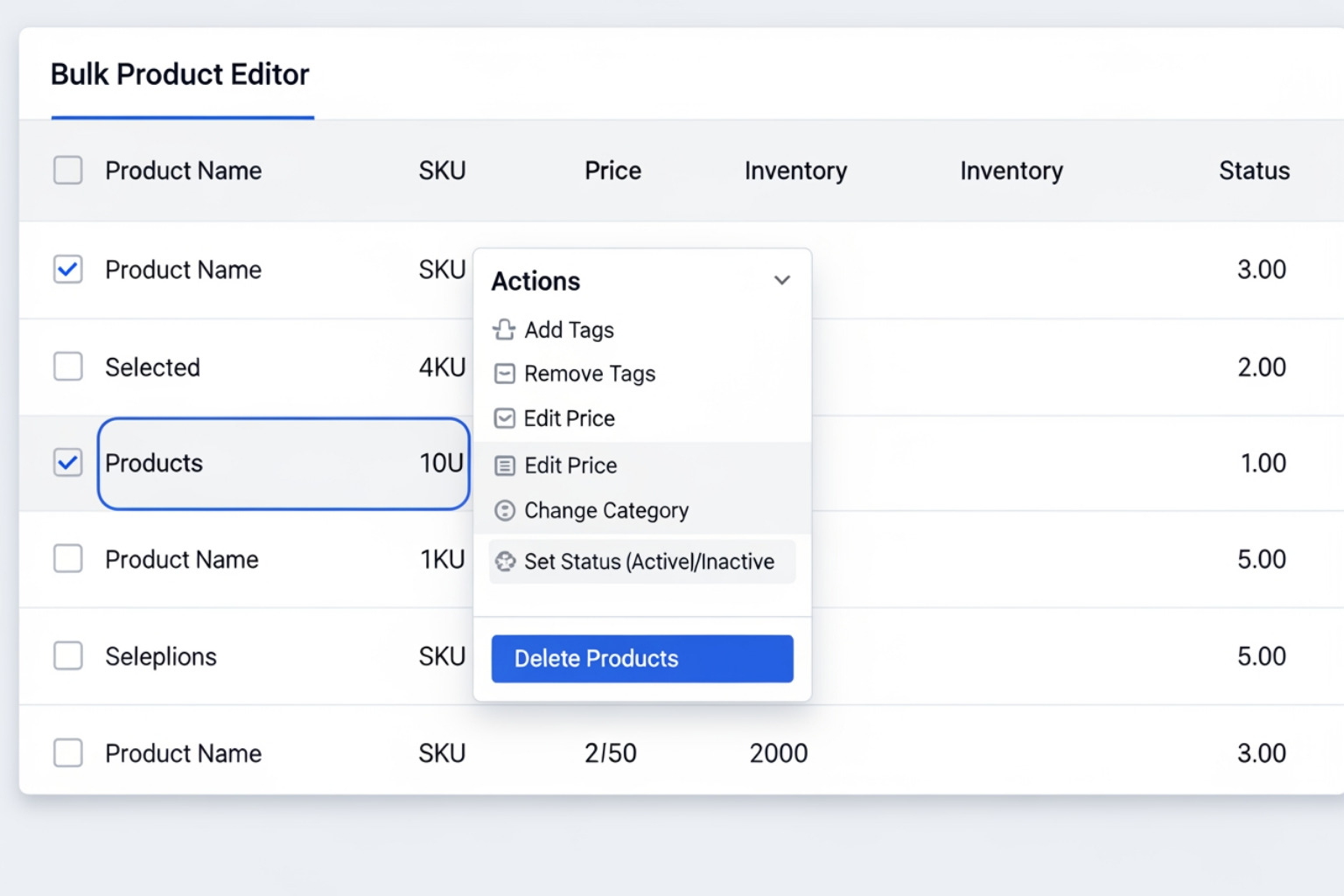
Here's how I manage tags in bulk:
- Steer to the relevant section in your Shopify admin (e.g., Products, Customers, Orders).
- Use the checkboxes to select all the items you want to edit. You can select all items on a page or use the "Select all 50+ items" option if you have more.
- An 'Add tags' or 'Remove tags' button will appear. Click on the appropriate action.
- A pop-up window will appear. You can then type in new tags to add to all selected items, or select existing tags to remove them.
- Click 'Apply changes' or 'Save' to complete the bulk action.
This method is invaluable for seasonal updates, promotional campaigns, or cleaning up old tags.
Searching and Filtering with Tags
Once implemented, tags become a useful tool for locating specific groups of items within your admin. This helps me quickly find what I need without scrolling through endless lists.
- Searching by Tag: You can find all items with a specific tag by typing the tag into the main search bar at the top of your Shopify admin. For example, if I type
summer-sale, Shopify will show me all products, orders, or blog posts with that tag. - Filtering by Tag: On list pages like Products, Customers, or Orders, I use the 'Filter' button. Clicking this allows me to select 'Tagged with' and then enter the tag name to narrow down the list. This is great for reviewing all
VIPcustomers or allfragileorders. For more complex searches, you can use a syntax in the search bar to filter by multiple tags (e.g.,tag:red AND tag:cotton).
Best Practices for an Effective Tagging Plan
A tagging system is only as good as the plan behind it. Inconsistency and a lack of planning can create more confusion than clarity. Following a few key best practices ensures your tags remain a valuable asset, not a burden.
Creating a Consistent Naming Convention
Consistency is the most important rule of tagging. A clear and predictable format prevents duplicate or confusing tags. I always tell my team: if you can't remember if it's red-dress or dress-red, you have a problem.
Here are my guidelines for Tag formats:
- Allowed Characters: Use only ordinary letters, numbers, and hyphens (-). Avoid accented characters and other symbols like
_,+, or&, as they might be ignored or treated as equivalent to a hyphen in searches and automated collection conditions. For example,red_newandred-newwould be treated the same. - Keep it Short and Simple: For ease of use, keep tags concise. Depending on your product variety, tags of 16 characters or less are ideal. Longer, complex tags defeat the purpose of quick organization.
- Case Insensitivity: Tags are not case-sensitive.
Blue,blue, andBLUEare all treated as the same tag. To maintain readability and a professional look if tags are displayed to customers, I recommend sticking to a consistent capitalization style (e.g., all lowercase or title case). - Clarity for Staff and Customers: If your online store theme displays tags to customers (e.g., in filter menus), ensure they are clear and understandable to them. For internal tags, clarity for your staff is key. Avoid internal jargon that others won't understand.
For example, instead of an internal tag like myfall19, I'd use a customer-friendly format like Fall-2019 if the tag might be displayed. For an herb and spice business, short, one-word tags for each ingredient (e.g., Basil, Parsley, Rosemary) work best.
Common Mistakes to Avoid When Using Tags in Shopify
Many merchants make preventable errors that undermine their tagging efforts. I've seen these mistakes cause headaches for store owners as their business grows.
- Over-tagging: Avoid adding too many irrelevant tags to a single product. This is sometimes called "keyword stuffing" and it clutters your backend without providing real organizational value. It also makes it harder to find the truly important tags.
- Inconsistency: As mentioned, using multiple variations for the same concept (e.g.,
T-shirt,tshirt,T_Shirt) creates fragmented data. Stick to one format. - Using Overly Broad or Unrelated Tags: Tags like
itemorproductare too generic to be useful. Ensure each tag serves a specific purpose. - Neglecting to Update Tags: Tags should reflect current stock, product status, and customer segmentation. If you have a
sale-itemtag, but the sale ended months ago, it's misleading. - Lack of Auditing: Make a habit of periodically reviewing and cleaning out old or unused tags. This keeps your system clean and manageable. This is a crucial step in Shopify Store Optimization Tips 2025.
Tags vs. Collections vs. Categories: Understanding the Difference
It's common to confuse these three organizational tools, but they each serve a distinct purpose within Shopify. Knowing their differences is key to building an organized and effective store.
| Feature | Primary Function | Visibility to Customers (Default) | Use Case |
|---|---|---|---|
| Tags | Flexible, internal labels for grouping and filtering. | No (unless configured by theme) | Organizing products by specific attributes (color, material), segmenting customers, streamlining orders. |
| Collections | Curated groups of products for display on your storefront. | Yes | Creating "New Arrivals," "Summer Sale," or "Men's T-Shirts" pages for customer browsing. |
| Categories | Shopify's standard product taxonomy for broad classification. | No (internal for Shopify's system) | Primarily for tax calculations and selling on external channels like Google Shopping or Facebook. |
Collections are what your customers see as product groupings, like "Dresses" or "Summer Collection." They can be manual, where you add products one by one, or automated, where products are added based on conditions like tags. Categories are different; they are part of Shopify's standard product taxonomy, according to Shopify’s product taxonomy. Their main purpose is internal, for calculating taxes and selling on external channels like Google Shopping or Facebook.
Tags for Automation, Filtering, and SEO
Beyond simple organization, tags help automate workflows, improve how customers find products, and support your SEO efforts. This is where using tags in Shopify becomes especially useful.
Creating Automated Collections with Tags
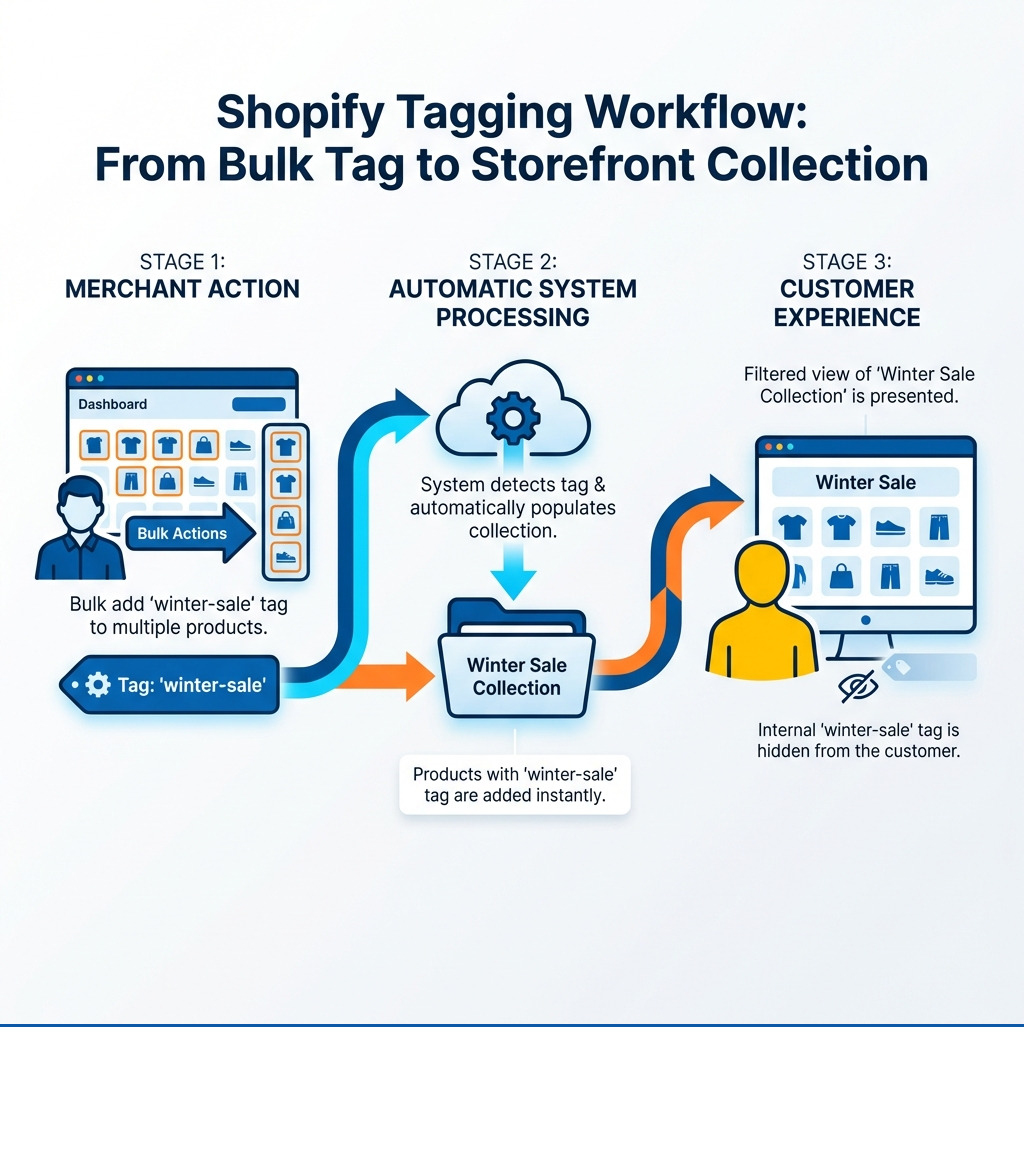
This is one of the most effective uses for product tags. Automated collections dynamically add or remove products based on conditions you set, such as specific tags. This means less manual work for me and more dynamic, up-to-date collections for my customers.
To create one:
- Go to
Products > Collectionsin your Shopify admin and click 'Create collection'. - Give your collection a title (e.g., "New Arrivals").
- Under 'Collection type', select 'Automated'.
- Set a condition. For example, choose "Product tag is equal to" and enter your desired tag (e.g.,
new-arrival). - Click 'Save'.
Now, every product you add the new-arrival tag to will automatically appear in this collection. When you remove the tag, the product leaves the collection. This is how brands like SIR. maintain highly curated seasonal collections without constant manual updates. It's a good example of using Shopify E-commerce Development to work more efficiently.
Using Tags for Customer-Facing Filters
Many Shopify themes can use product tags to create filter menus on collection pages. This allows customers to narrow down products by attributes like color, material, or style, dramatically improving their ability to find what they want.
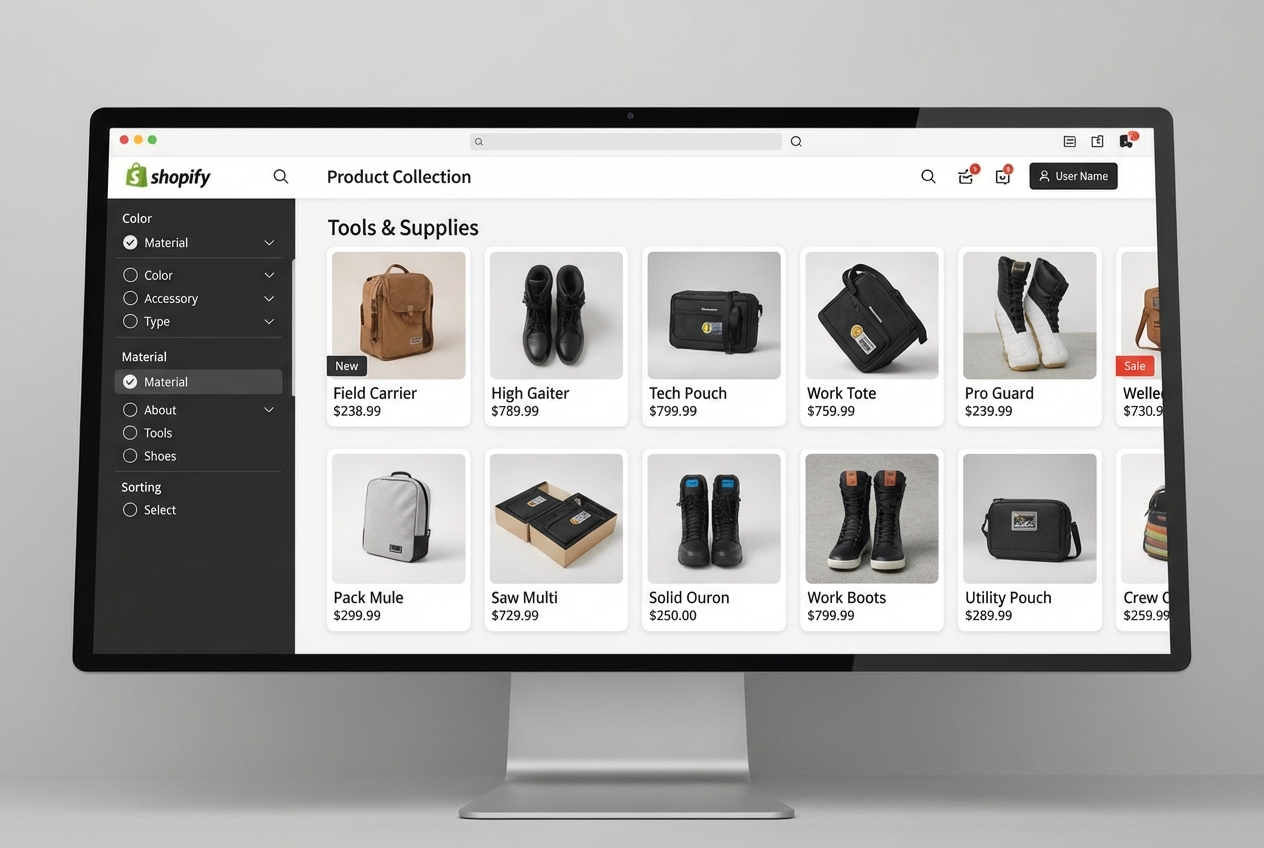
This directly impacts user experience and product findability. For example, the brand Lazy Oaf uses a robust filtering system based on tags across many of their collections to help shoppers filter by relevant colors, sizes, or product types. This improves navigation and the user experience. If your theme supports this, a well-planned tag plan makes it easier for customers to shop and find the products they want.
The Real Impact of Using Tags in Shopify for SEO
There is a common misconception that adding keywords as tags will directly boost your Google rankings. This is false. Tags aren't used by search engines, so don't use tags to try to improve search results for your online store. Search engines do not use Shopify tags as a ranking signal in the same way they use page content or meta descriptions.
However, tags have a notable indirect effect on SEO. By using them to create well-organized collections and filtered navigation, you improve the user experience. Shoppers who can easily find products are less likely to leave, which sends positive engagement signals to search engines. Moreover, using tags to create automated collections results in unique, well-structured URLs for those collections. These collection pages, with their relevant products and descriptions, can rank in search results.
The main pitfall to avoid is allowing your theme to create thousands of thin, indexable tag pages (e.g., a separate page for every product tag like /collections/dresses/red). These pages often have little unique content and can be seen as low-quality or duplicate content by algorithms like the Google Panda update. This can hurt your overall site authority. To prevent this, I ensure that tag-filtered pages either use rel="canonical" tags pointing back to the main collection page or are set to noindex so search engines don't waste crawl budget on them. This is a key part of effective Shopify SEO Basics.
Frequently Asked Questions about Shopify Tags
How many tags can I use on a Shopify product?
On standard Shopify plans, you can apply up to 250 tags to each product, customer, order, or other item. This provides plenty of room for detailed categorization. If you're a Shopify Plus user, the number of tags you can add per product is unlimited.
However, there's a practical consideration: Shopify's product tag suggestion feature has a limitation where it only displays your store's first 5,000 unique product tags. If you have more than that, some tags won't appear in the suggestion list when you're adding them. I manage this by regularly reviewing and combining similar tags to keep the list manageable.
Can customers see my Shopify tags?
By default, tags are an internal tool and are not visible to customers on product pages or in the URL. They are for your backend organization. However, many Shopify themes can be configured to use product tags to create customer-facing filters on collection and search pages. In this case, the tag names (e.g., 'Cotton', 'Blue', 'Sale') would be visible as filter options in a sidebar or dropdown menu. This is a design choice that impacts user experience, so I always consider how customers will perceive these visible tags.
Do tags help with Shopify's internal store search?
Yes, absolutely. Product tags are a key factor in Shopify's own search function. When a customer uses the search bar on your storefront, Shopify looks at product titles, descriptions, and tags to find relevant results. Tagging products with common synonyms or related terms (even intentional misspellings if you notice customers frequently make them) can significantly improve your on-site search accuracy. This means customers are more likely to find what they're looking for, which helps customer satisfaction and conversion rates.
To Sum Up
Mastering the use of Shopify tags is not a minor tweak; it's a foundational skill for running an efficient and growing e-commerce business. A thoughtful tagging plan streamlines your backend workflows, from inventory management to customer segmentation, and directly improves how shoppers interact with your store. By moving from haphazard labeling to a consistent system, you build a more manageable and profitable online business.
Here at First Pier, we specialize in building and improving Shopify stores. If you need help creating a plan that uses organizational tools like tags effectively, explore our Shopify Development services.




