


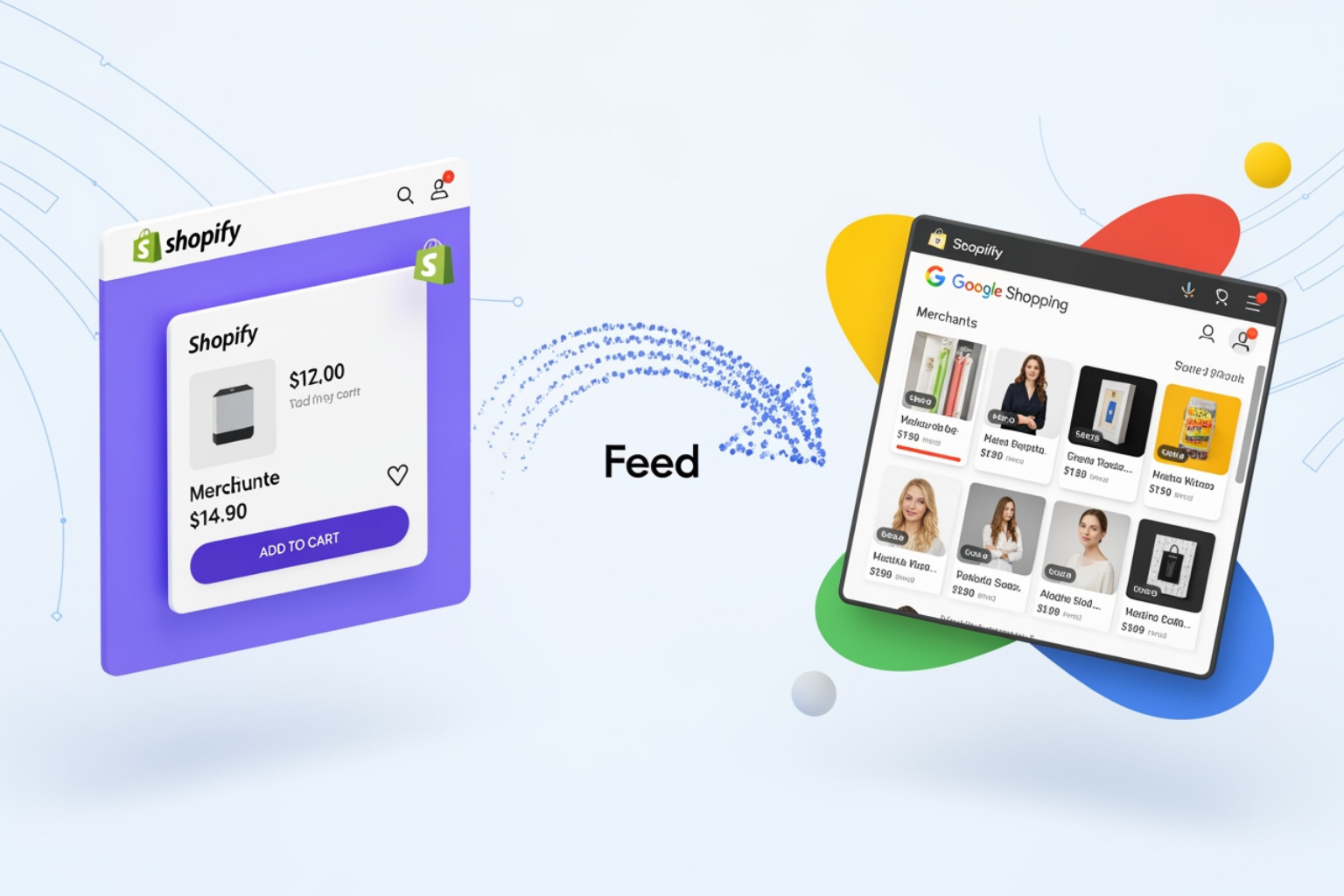

Why Your Google Shopping Feed Matters for Shopify Success
Summary
- A google shopping feed shopify connection is a structured product data file that links a Shopify catalog to Google Merchant Center so products can show on Google Shopping, free listings, and paid ads.
- Core product attributes include ID, title, description, URL, image, price, availability, brand, and GTIN; optional attributes and custom labels give more control over how products appear and are grouped.
- Merchants can build feeds with Shopify's Google & YouTube app, manual file uploads, or third-party feed apps that give more detailed control and automation.
- Google holds more than 79% of daily desktop search traffic, so the accuracy and depth of feed data has a direct effect on visibility and revenue from Shopping.
- Ongoing feed maintenance through Google Merchant Center's Diagnostics tab is needed to handle disapprovals, data mismatches, and policy issues.
A google shopping feed shopify integration is the bridge between your product catalog and the millions of shoppers searching Google every day. Here's what you need to know:
Quick Answer: How to Set Up Your Google Shopping Feed
- Create and verify a Google Merchant Center account
- Choose your feed method: Shopify's Google & YouTube app, manual file upload, or third-party app
- Ensure all required product attributes are complete (title, description, price, image, GTIN, brand)
- Submit your feed to Google Merchant Center
- Monitor the Diagnostics tab and fix any errors or disapprovals
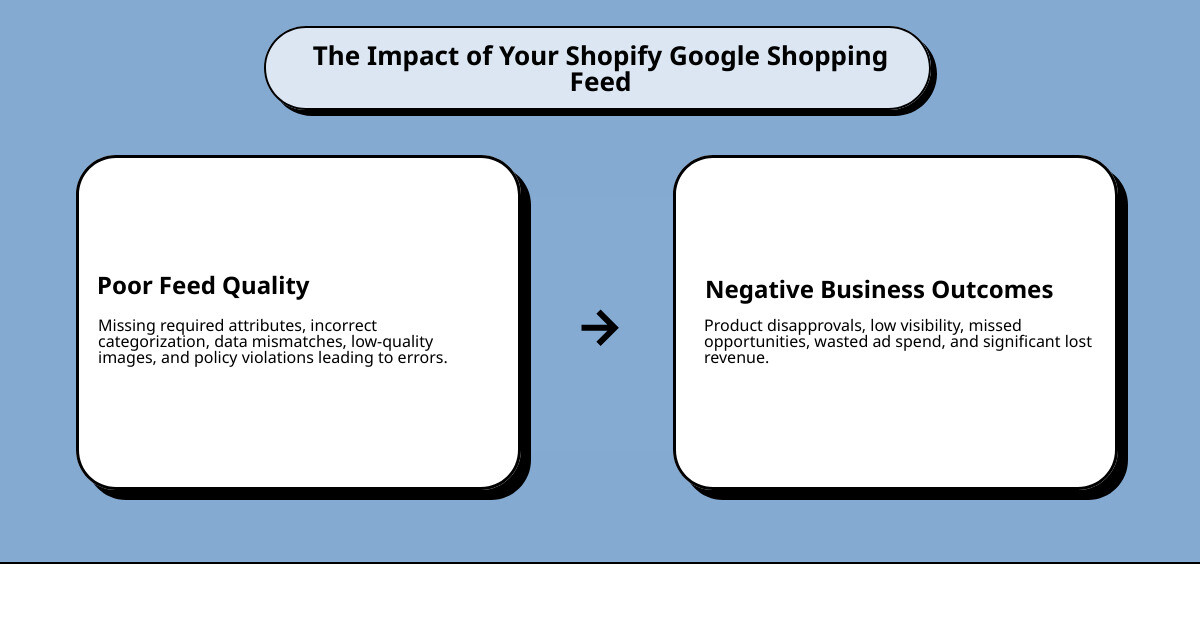
With Google commanding more than 79% of daily desktop search traffic, your product feed quality directly impacts whether your store appears when customers search for what you sell. A well-optimized feed leads to higher visibility and more sales, while a poorly maintained one means missed opportunities and wasted ad spend.
The challenge for most Shopify store owners isn't just creating a feed-it's creating one that performs. Missing attributes, incorrect categorization, poor image quality, and data mismatches can lead to product disapprovals and lost revenue. Even stores with thousands of products must maintain accurate, up-to-date information across every listing.
I'm Steve Pogson, and over the past two decades I've helped countless Shopify merchants build and optimize their google shopping feed shopify integrations to drive measurable growth. Here at First Pier, we've seen how a properly configured feed turns Google Shopping from a frustrating channel into a reliable revenue driver.
Simple google shopping feed shopify glossary:
Getting Started: Connecting Shopify to Google Merchant Center
When I talk to Shopify store owners, one of the first things I emphasize is the importance of Google Shopping. It's not just another advertising channel; it's where shoppers go with purchase intent. If someone searches for "women's running shoes," they're probably looking to buy. Google Shopping puts your products directly in front of these high-intent shoppers, offering both free visibility and paid ad opportunities. This is why a solid google shopping feed shopify connection is so important.
The journey begins with Google Merchant Center (GMC), a free tool from Google that helps you upload and manage your product data. It's the central hub for all your product listings across Google platforms. Since Google handles more than 79% of daily desktop search traffic (according to 2025 Statista data), getting your products listed here is a crucial step to reaching a vast audience.
To connect your Shopify store with Google's ecosystem, you'll need to set up your GMC account, verify your website, and link it to your Google Ads account if you plan to run paid campaigns. This integration allows your product information to flow smoothly from your Shopify store to Google, making your products findable.
What is a Google Shopping Feed and Why is it Important?
At its core, a Google Shopping feed is a structured file containing all the essential information about your products. This isn't just any file; it must follow Google's specific requirements for format and data attributes. When you provide this feed to Google Merchant Center, it uses the data to display your products across Google platforms, including the Shopping tab, Google Search results, and even YouTube.
Why is this so important for Shopify stores? It comes down to visibility and reaching the right people. When I help clients with their google shopping feed shopify setup, I explain that it's about putting your products where shoppers are actively looking. This means:
- Increased Visibility: Your products appear in prominent places on Google, often with images, prices, and store names, making them stand out.
- High-Intent Shoppers: People searching on Google Shopping are typically further down the purchase funnel. They know what they want and are comparing options, making them more likely to convert.
- Free Product Listings: Beyond paid ads, Google offers "free listings" through its Surfaces across Google program. This means your products can appear in unpaid search results, giving you organic traffic and sales.
- E-commerce Sales Channel: Google Shopping acts as a powerful sales channel, driving traffic directly to your Shopify product pages.
A well-maintained google shopping feed shopify is a necessary part of an effective e-commerce plan. For more on how these listings translate into sales, check out our guide on Google Shopping Ads.
Setting Up Your Google Merchant Center Account
Creating your Google Merchant Center account is the first step for any Shopify store looking to sell on Google. I guide my clients through this process, ensuring all the details are correct from the start.
Here's how I approach it:
- Create Your GMC Account: You'll begin by signing up for a Google Merchant Center account. This is a straightforward process where you'll use your Google account credentials.
- Provide Business Information: Google needs to know who you are. This involves entering your business name, address (for example, if you're based in Portland, ME, you'd enter your Portland address), website URL, and customer service contact details.
- Verify and Claim Your Shopify Store: This step is crucial to prove that you own the website you're submitting products for. I typically recommend using the HTML file upload method or adding an HTML tag to your Shopify theme. You can find more details on this in our resource on Verifying and claiming your Shopify store.
- Link to Google Ads: If you plan to run paid Shopping campaigns, you'll need to link your GMC account to your Google Ads account. This allows you to create campaigns that use the product data from your feed.
- Configure Tax and Shipping Settings: These settings are vital for accurate pricing information on your Shopping listings. You'll set up your sales tax rules and define your shipping services, including costs and delivery times. This ensures transparency for your customers and compliance with Google's policies.
Once these initial steps are complete, your Google Merchant Center account is ready to receive your product data, paving the way for your google shopping feed shopify integration.
Creating Your Google Shopping Feed Shopify: Three Core Methods
With your Google Merchant Center account set up, the next step is to populate it with your product data. This is where your google shopping feed shopify comes to life. There are a few ways to create and upload your product feed, each with its own advantages depending on your store's size and complexity. You can use primary feeds (your main data source), supplemental feeds (to add or override data), or connect directly via an API for real-time updates.
No matter which method you choose, the goal is to get accurate, up-to-date information from your Shopify store into Google Merchant Center. For a more comprehensive look at how these integrations work, you can refer to our Shopify Google Shopping Integration guide.
Here are the three core methods I typically recommend:
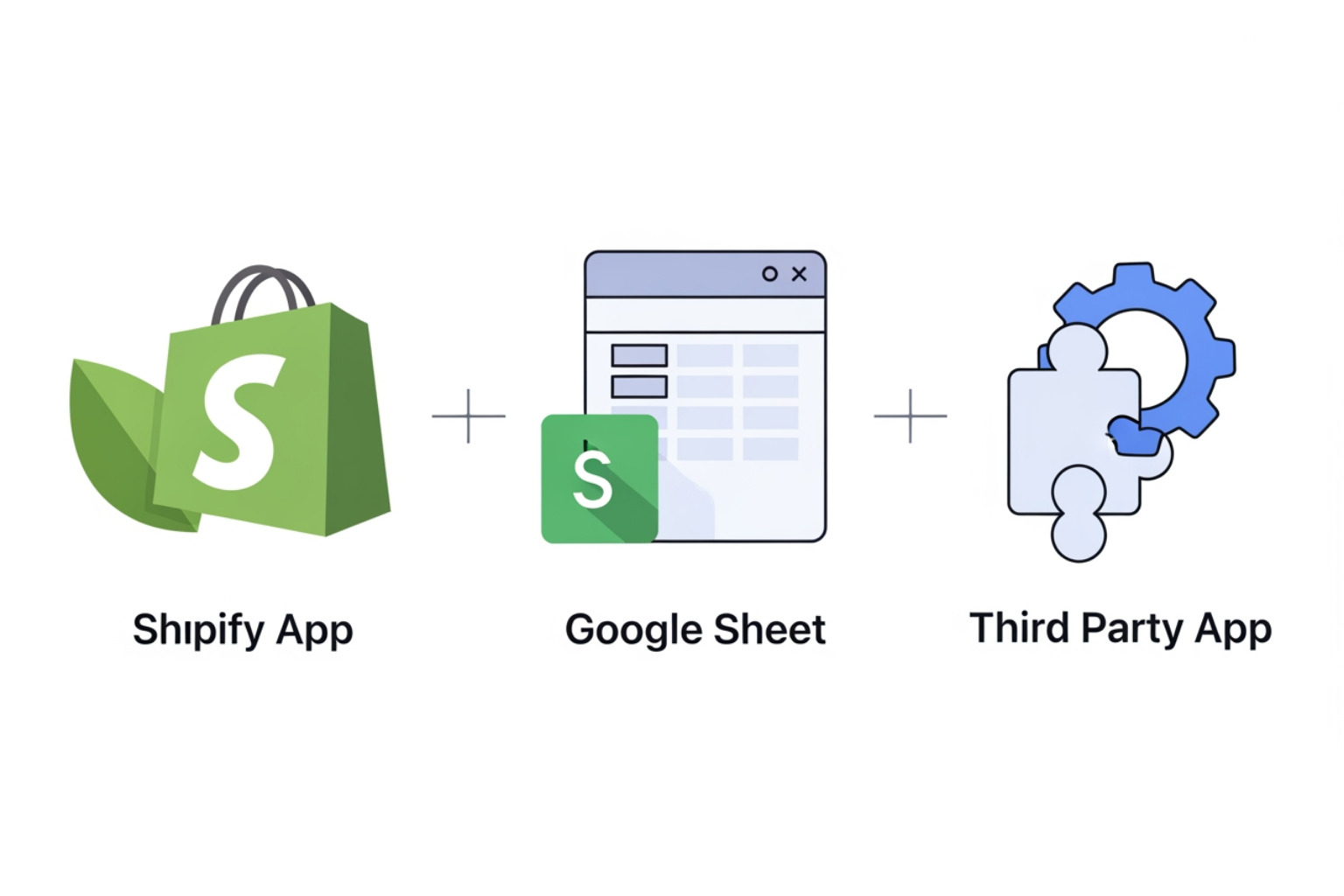
Method 1: Using Shopify's Native "Google & YouTube" App
For many Shopify merchants, the simplest way to get started is through Shopify's official Google & YouTube app. This app was designed to streamline the integration between your Shopify store and Google Merchant Center.
Here's why it's a popular choice:
- Automated Sync: The app automatically syncs your product data from Shopify to GMC. Changes you make to products in Shopify-like price updates or new product additions-are reflected in your Google feed, typically within 24 hours.
- Ease of Use: The app is built into your Shopify admin, making the setup process intuitive. It guides you through connecting your GMC account and configuring your product listings.
- Product Status Management: You can manage which products are visible on Google and set up free listings directly through the app.
- Performance Max Integration: The app also helps with the setup for Performance Max campaigns, Google's AI-driven campaign type that uses your product feed to show ads across all Google channels. This can be very effective for reaching a wider audience, and we have a detailed guide on Google Performance Max for Shopify.
While the Google & YouTube app is convenient, it has limitations. It might not offer the granular control that larger stores or those with complex product catalogs require. For most small to medium-sized Shopify businesses, however, it's an excellent starting point.
Method 2: Manual Feed Creation and Uploads
For merchants who need more control over their product data, manually creating and uploading your feed is a viable option. This method involves creating a file that follows Google's product data specifications and then uploading it to Google Merchant Center. Common formats include Google Sheets, CSV, TSV, or XML files.
Here's how this method generally works:
- Export Product Data: You'd export your product data from Shopify, usually in a CSV format.
- Format the Data: This is the critical step. You'll need to organize your data to match Google's required attributes, adding any missing information and ensuring correct formatting (e.g., price with currency).
- Upload to GMC: In Google Merchant Center, you can add products from a file. You can provide a link to your file (which Google will fetch regularly), use SFTP, or upload the file directly.
The main advantage of this method is full data control. However, it can be time-intensive, especially for stores with large inventories, and it carries a higher potential for formatting errors. I usually recommend this for smaller stores or those with static product sets. Google also provides a detailed help article on creating these feeds.
Method 3: Advanced Control with Third-Party Feed Management Apps
When the native Shopify app isn't enough and manual uploads are too cumbersome, third-party feed management apps are the solution. These apps offer the most advanced control and automation for your google shopping feed shopify integration. They are especially useful for stores with complex product variations, international sales, or those needing specific data manipulations.
Many of my clients at First Pier, particularly those with extensive catalogs, find these apps invaluable. Here are some of the benefits:
- Bulk Editing: Change attributes for thousands of products at once.
- Rule-Based Optimization: Set up "if-then" rules to automatically modify product data. For example, "if brand is 'X', then prepend 'X' to the product title." These rules help you meet Google's specifications and optimize your listings.
- Multi-Country and Multi-Language Support: Easily create separate feeds for different countries and languages.
- Custom Label Creation: Segment your products with custom labels for better campaign management in Google Ads.
- Error Reporting and Diagnostics: These apps often provide more detailed insights into feed errors and suggestions for fixes.
The Shopify App Store has several highly-rated options. For example, Simprosys Google Shopping Feed has a 4.9-star rating from nearly 4,000 reviews. Other popular choices include Casa Google Shopping Feed and Webrex Google Shopping Feed. These apps give you powerful tools to manipulate and optimize your data before sending it to Google Merchant Center.
For more on how these tools can help with your Shopify Feed Optimization, I recommend checking out our dedicated resources.
Optimizing Product Data: The Key to High-Performing Listings
Getting your products into Google Shopping is just the first step. To get results, you need to improve your product data. The quality of your data shapes how Google understands and shows your products, which directly affects your visibility, click-through rate (CTR), and conversion rate. This is similar to applying Product SEO Shopify principles to your shopping listings. High-quality, relevant data helps Google's systems match your products to the right searches.
Essential Product Attributes for your google shopping feed shopify
Google has a strict set of product data specifications that your feed must meet. I always stress to my clients that understanding these attributes is non-negotiable. They are divided into required attributes, without which your product will not be listed, and recommended attributes, which can improve performance.
Here's a comparison of the key attributes:
| Required Attributes | Recommended Attributes |
|---|---|
id (Unique SKU, max 50 chars) | google_product_category (Google's taxonomy) |
title (Product name, max 150 chars) | product_type (Your store's categories) |
description (Product details) | color |
link (Landing page URL) | size |
image_link (Main image URL) | sale_price |
availability (In stock, out of stock, preorder) | additional_image_link |
price (Numerical value with currency) | age_group (For apparel) |
brand (Manufacturer's brand name) | gender (For apparel) |
gtin (Global Trade Item Number) | material |
GTIN/MPN/Brand Requirements: For most new products, Google requires at least two of these three identifiers: brand, MPN (Manufacturer Part Number), and GTIN. If your product has a GTIN, you must provide it. If not, MPN and brand are essential. This helps Google accurately identify your product.
Apparel-Specific Attributes: If you sell clothing, Google requires additional attributes like gender, age_group, color, and size to help shoppers filter results.
Custom Attributes: Google Merchant Center lets you set up custom attributes for internal use or feed rules. For example, you could create a "seasonal" attribute and use a rule to add that word to product titles during certain times of the year.
For more specific guidance on how to categorize your products, you can refer to our guide on How to Add Google Product Category in Shopify.
Best Practices for Titles, Descriptions, and Images
Once you understand the attributes, you need to refine them. Your product titles, descriptions, and images are what capture a shopper's attention.
Product Titles: Your title is the most important element.
- Structure: I recommend a clear structure:
Brand + Product Type + Key Attributes (e.g., color, size, material). - Keywords: Think like a shopper and include the terms they would use to find your product, but do not overdo it.
- Front-Loading: Put the most important information first, as titles are often shortened on smaller screens. The first 70 characters are the most visible.
- Structure: I recommend a clear structure:
Product Descriptions: These provide more detail and help Google understand your product's relevance.
- Descriptive Language: Accurately describe the product's features and benefits.
- Keywords: Use relevant keywords naturally.
- Concise: Aim for descriptions between 160 and 500 characters. Cut the fluff.
- Unique: Avoid generic descriptions. Highlight what makes your product specific.
Images: High-quality images are crucial because they are often the first thing a shopper sees.
- High-Resolution: Use clear, well-lit images that show the product accurately.
- White Background: Google prefers a plain white background for the main image.
- No Overlays: Avoid text, watermarks, or promotional overlays on your main image.
- Lifestyle Photos: Use additional image links to show lifestyle shots, different angles, or close-ups. This helps shoppers understand the product.
Maintaining a Healthy Feed: Troubleshooting and Best Practices
A google shopping feed shopify integration isn't a "set it and forget it" task. To keep your products visible and performing well, you need to regularly monitor your feed's health. This involves ensuring data freshness and being proactive about any issues that arise. I've seen many Shopify stores lose sales because their feed wasn't properly maintained, which is an issue as important as fixing when your Shopify Google Ads Conversion Tracking Not Working.
Diagnosing and Fixing Common google shopping feed shopify Errors
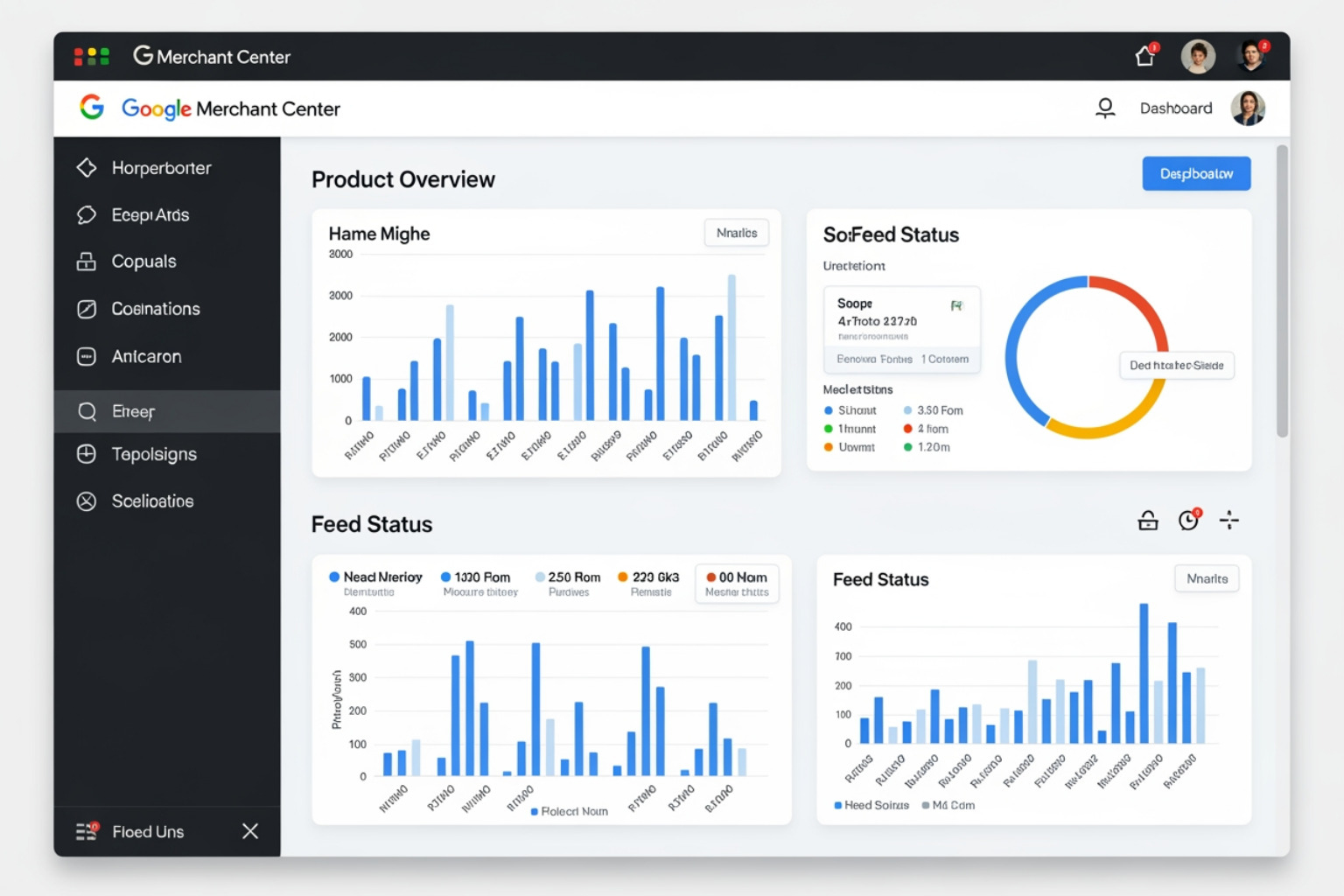
Google Merchant Center has a "Diagnostics" tab that acts as your feed's health report. This is where you'll find information about product disapprovals and other issues. I always tell my clients to check this tab regularly.
Here are some common issues and how to approach them:
- Product Disapprovals: This is the most serious issue, as it means your product isn't showing on Google. The Diagnostics tab will tell you why.
- Mismatched Price/Availability: If the price or stock status in your feed doesn't match your Shopify product page, Google will disapprove the item. Ensure your feed syncs frequently.
- Missing GTINs: For many branded products, a GTIN (like a UPC) is required. If it's missing or incorrect, your product might be disapproved.
- Low-Quality Images: Blurry images, images with text overlays, or those that don't meet size requirements can lead to disapprovals.
- Policy Violations: Google has strict policies on what can be advertised. Common violations include prohibited content, unsupported language, or misrepresentation.
- Landing Page Issues: If your product's landing page (the
linkattribute) is broken or doesn't match the product in the feed, it will cause issues.
When you find an error in the Diagnostics tab, address it promptly. Google categorizes issues as critical errors (red), warnings (yellow), and informational (blue). Critical errors must be fixed immediately. After fixing an issue, re-submit your feed or wait for the next scheduled sync, then verify that the issue is resolved in GMC.
A clean feed is essential for effective ads and accurate conversion tracking. If you're encountering issues with your tracking, our guide on How to Add Google Ads Conversion Tracking to Shopify might help.
Frequently Asked Questions about Google Shopping Feeds
I often get questions from Shopify merchants about managing their Google Shopping feeds. Here are some of the most common ones:
How often does the Shopify Google Shopping feed update?
The update frequency depends on your feed method:
- Shopify's Native "Google & YouTube" App: This app typically syncs automatically after product changes are made in Shopify, usually within 24 hours.
- Manual Uploads (Google Sheets, CSV/XML): With Google Sheets, changes usually sync automatically every 24 hours. For direct file uploads, you must manually re-upload the file to update your data.
- Third-Party Apps: These apps often offer more frequent updates, including scheduled syncs (e.g., hourly) or real-time updates via Google's Content API.
Google recommends updating your feed at least every 24 hours to reflect changes in price and availability.
Can I list products on Google Shopping for free?
Yes. By setting up Google Merchant Center and opting into "Surfaces across Google," your products can appear in free, unpaid listings. These listings show up on the Shopping tab, Google Search, Google Images, and YouTube. This is a great way to gain organic visibility and drive traffic to your Shopify store without direct advertising costs. You still need a high-quality product feed to be eligible and perform well in these free listings.
What is the difference between a primary feed and a supplemental feed?
Think of it this way:
- Primary Feed: This is your main data source. It contains your entire product inventory and all the core required attributes (ID, title, description, price, etc.). Every product you want to list on Google must be in a primary feed.
- Supplemental Feed: This feed is used to add or override specific attributes in your primary feed without altering the main file. For example, you might use a supplemental feed to add sale prices for a promotion, apply custom labels for ad campaigns, or provide regional availability information.
Supplemental feeds make feed management more flexible by letting you add or change data for specific purposes without editing your entire primary feed.
Take Your Shopify Store to the Next Level
A high-quality, optimized google shopping feed shopify is a key part of an effective ecommerce marketing strategy. It directly impacts your product visibility, ad performance, and sales. While the initial setup requires attention to detail, maintaining a healthy feed ensures you are reaching customers who are actively searching for what you sell.
Here at First Pier, based in Portland, Maine, we specialize in comprehensive ecommerce services to help Shopify stores grow. From paid search SEM strategies to driving customer acquisition, we partner with brands to build high-performance online businesses. If you want to get better results from your Google Shopping efforts, consider working with an experienced agency. We are an award-winning Shopify e-commerce agency ready to help your business grow.





.png)
.png)

