




What Shopify Template Development Actually Controls (And Why It Matters)
Summary
- Shopify template development controls how every page in a store looks and functions, using Liquid, HTML, CSS, JavaScript, and JSON.
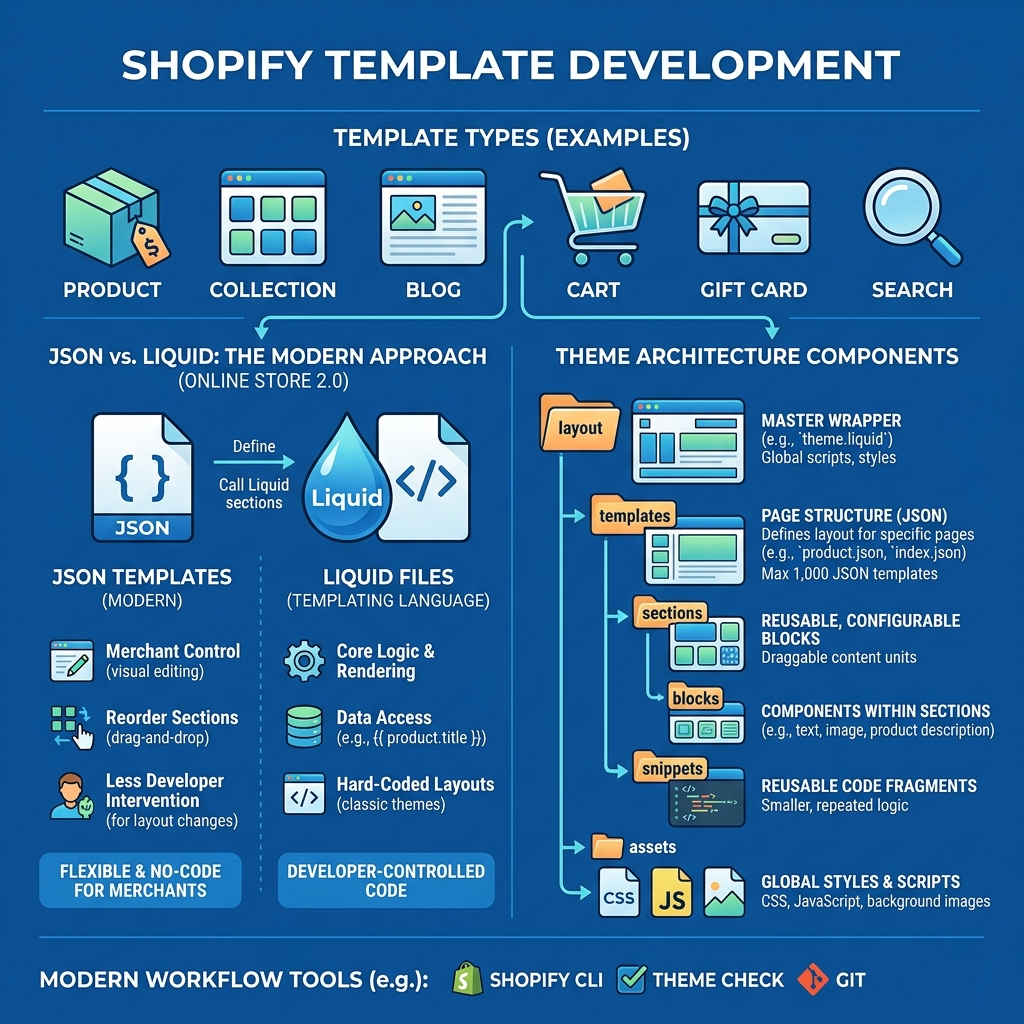
- Themes follow a strict directory structure with templates, sections, snippets, layouts, and assets.
- Modern Shopify themes use JSON templates, which let merchants add, remove, and reorder sections without touching code.
- A theme can hold a maximum of 1,000 JSON templates across all template types.
- Shopify CLI, Theme Check, and Git are the core tools for building and deploying themes efficiently.
Shopify template development is the process of building and managing the files that control what every page in your store displays and how it behaves. Every page type — products, collections, blogs, search results, gift cards — is driven by a template file.
Here is what the template system does at a glance:
| Component | What It Does |
|---|---|
| Templates | Define which sections appear on each page type |
| Sections | Reusable, configurable content blocks merchants can move |
| Blocks | Sub-components inside sections |
| Snippets | Reusable Liquid code fragments |
| Layouts | Wraps all pages (header, footer, global scripts) |
| Assets | CSS, JavaScript, and image files |
Shopify themes are built with five core technologies: Liquid (Shopify's templating language), HTML, CSS, JavaScript, and JSON. Since the launch of Online Store 2.0, JSON templates have become the standard — they define page structure in a way that lets merchants rearrange content visually, without any code changes from a developer.
This shift matters. Before Online Store 2.0, layouts were largely hard-coded. Now, a well-built theme gives merchants real control while keeping the codebase clean and maintainable for developers.
With nearly 5 million websites running on Shopify, the quality of your theme is a direct competitive factor — not just aesthetically, but in performance, accessibility, and how well it converts visitors.
Understanding the Core of Shopify Template Development
To build a great theme, you have to understand the directory structure. Shopify is very strict about where files live. If you try to create a custom folder for your CSS or scripts, the platform simply won't recognize it. Everything must sit within the standard folders: assets, config, layout, locales, sections, snippets, and templates.
The layout folder is the foundation. It contains theme.liquid, the master file that wraps around every other template. This is where you put your global header, footer, and tracking scripts. When a customer visits a page, Shopify renders the layout first, then plugs the specific template content into the middle.
Modern Shopify template development relies heavily on Online Store 2.0 (OS 2.0) standards. The biggest change in OS 2.0 was the move to JSON templates. Previously, templates were .liquid files that contained hard-coded HTML and Liquid logic. Now, we use Shopify JSON template files. These files don't actually contain HTML; they contain a list of sections and their settings. This data-driven approach is what allows the Shopify theme editor to show a live preview of section reordering.
When I plan a project, I always refer back to a Shopify template design guide to ensure we are balancing merchant ease-of-use with high-performance code.
Choosing Between JSON and Liquid for Shopify Template Development
One of the first questions I get from developers transitioning to Shopify is: "Should I use JSON or Liquid for my templates?"
In 2025, the answer is almost always JSON. Here is why:
- Merchant Flexibility: JSON templates allow merchants to add, remove, and reorder sections directly in the Shopify admin. If you use a Liquid template, the layout is fixed unless you go back into the code.
- Data Storage: JSON templates store their own configuration data. This keeps the
settings_data.jsonfile smaller and makes the theme editor faster. - Section Groups: JSON allows for section groups, which let merchants manage areas like headers and footers across multiple pages easily.
The only time you must use Liquid for a template is for the gift_card.liquid and robots.txt.liquid files. Everything else — products, collections, pages — should be JSON to provide the best experience for the store owner. When building these, I pay close attention to the Shopify section schema to define exactly which settings (like colors, text, or images) a merchant can change.
Available Template Types and Their Roles
Every theme comes with a set of default templates. Understanding what each one is responsible for is key to a smooth build:
- index.json: The homepage. This is usually the most section-heavy page in the store.
- product.json: Displays individual product details. It must include the product object and a product form so customers can actually buy something.
- collection.json: Shows a list of products within a specific category.
- search.json: Renders the results of a storefront search functionality.
- 404.json: The "page not found" screen. I like to use this page to suggest popular collections or products to keep the customer on the site.
- blog.json and article.json: These handle the blog listing and individual blog posts.
You can also create "alternate" templates. For example, if a brand sells both clothing and digital downloads, you might want a standard product.json for shirts and a specialized product.digital.json for the downloads that includes a different layout or technical specs.
Essential Tools and Environment Setup
You can't build a modern Shopify theme using only the web-based code editor. It’s too slow and doesn't support version control. To do this professionally, you need a local development environment.
The most important tool in my kit is the Shopify CLI (Command Line Interface). It allows you to initialize new projects, sync changes to a live store in real-time, and package themes for upload. Along with the CLI, I use Theme Check, a linter that scans your Liquid and JSON code for errors and performance issues.
Before you start, you need a development store. You can create these for free through a Shopify Partner account. You will also need staff account permissions or owner access to the store to use the CLI. Once your environment is ready, you can learn How to upload a theme to Shopify to see your local work live on the web.

Initializing Your First Shopify Template Development Project
When I start a new project here at First Pier, I don't usually start with a completely blank folder. I use a reference theme.
- Dawn: This is Shopify's flagship reference theme. It is built for performance and uses all the latest OS 2.0 features. It is a great starting point if you want a feature-rich foundation.
- Skeleton: If you want a "blank slate" that still follows best practices, use the Skeleton theme repository. It is a minimal, modular starting point designed for developers who want to write their own CSS and JS from scratch.
To start, I run shopify theme init in my terminal. This clones the reference theme into a new directory. From there, I immediately initialize a Git repository. Version control is non-negotiable; it allows us to track every change and collaborate as a team here in Portland.
Using Shopify CLI for Real-Time Previews
The "magic" of the Shopify CLI is the shopify theme dev command. When you run this, the CLI creates a "development theme" on your store. It then provides a local URL (usually http://127.0.0.1:9292) where you can see your changes.
This setup supports hot reloading. If I change a CSS file or a Liquid section in my code editor, the browser refreshes automatically to show the change. This saves hours of manual refreshing over the course of a project.
You can also generate sharing theme previews for clients or team members. This creates a link that allows others to view your work-in-progress theme even if they don't have access to your local machine.
Building Modular Layouts with Sections and Blocks
The goal of modern Shopify template development is modularity. We want to build components once and use them everywhere. This is achieved through sections and blocks.
| Feature | Sections | Blocks |
|---|---|---|
| Scope | Template or Section Group level | Inside a specific Section |
| Movement | Can be reordered on the page | Can be reordered within the section |
| Limit | Up to 25 per template | Up to 50 per section |
| Usage | Hero banners, product grids | Individual slides, text blocks, buttons |
Sections are the building blocks of a page. Each section has a {% schema %} tag that defines its settings. By using the Shopify settings schema, I can create inputs for text, images, products, and colors.
If you are wondering How to create a new theme template in Shopify, it usually involves creating a new JSON file in the templates directory and defining which sections should appear by default.
Creating Custom Templates for Specific Products
One of the most common requests we handle is creating unique layouts for different types of products. For example, a "Hero" product might need a video background and a large image gallery, while a "Standard" product just needs a simple description and price.
To do this, I create an alternate template, such as product.hero.json. Once this file is pushed to the store, the merchant can go to the managing products page in the admin and select the "Hero" template from the dropdown menu.
You can also bulk apply these templates. If you have 50 products that all need to switch to a new layout, you can use the Shopify Bulk Editor to change the "Template" column for all of them at once.
Integrating Metafields and Metaobjects
Sometimes, the standard Shopify fields (Title, Description, Price) aren't enough. You might need to display a "Care Guide," a "Size Chart," or a "Material List." This is where metafields come in.
Metafields allow us to store custom data for products, collections, or even orders. In the theme, we connect these metafields to sections using "dynamic sources." This means the section stays the same, but the content changes based on which product is being viewed.
Metaobjects take this a step further. They allow you to create entirely custom data structures, like a "Brand Ambassador" profile or a "Store Location." You can even create metaobject templates that generate their own unique pages on the site. When building these, understanding the various Shopify schema types is vital for ensuring the data is formatted correctly for the merchant.
Performance and Accessibility Standards
A beautiful store that takes 10 seconds to load is a failed store. Performance is a core pillar of our work here at First Pier. We aim for high scores in Core Web Vitals, specifically focusing on Largest Contentful Paint (LCP) and Cumulative Layout Shift (CLS).
When developing custom templates, I always prioritize Minimal Shopify templates that don't load unnecessary libraries. For example, many older themes load jQuery for simple tasks that can be done with modern, native JavaScript. Removing these dependencies significantly reduces the "JavaScript overhead" and speeds up the page.
Accessibility is just as important. It’s not just about compliance; it’s about making sure everyone can shop at your store. We follow Shopify accessibility standards to ensure that every template we build is keyboard-navigable and screen-reader friendly.
Improving Load Times in Custom Templates
To keep templates fast, I follow a few strict rules:
- Image Optimization: Always use the
image_tagLiquid filter. It automatically handles lazy loading and provides responsive image sizes (srcset) so mobile users aren't downloading desktop-sized images. - Liquid Logic: Keep complex logic out of the templates. If you find yourself doing a lot of math or complex filtering in Liquid, try to move that logic to a pre-calculated metafield or handle it more efficiently.
- Asset Minification: Use tools like Vite to bundle and minify your CSS and JS. Shopify also offers some built-in minification, but a custom build step gives you more control.
For more advanced techniques, I recommend checking the Shopify performance best practices documentation, which is the gold standard for theme speed.
Ensuring Inclusive Design for All Users
Inclusive design means your store works for everyone, regardless of how they interact with the web. When we build Shopify beauty templates or high-fashion storefronts, it's easy to get carried away with visual flourishes, but we never sacrifice usability.
Key steps we take include:
- Semantic HTML: Using
<nav>,<main>,<header>, and<footer>tags correctly so screen readers can understand the page structure. - Color Contrast: Ensuring that text is easy to read against its background.
- ARIA Attributes: Adding roles and labels to interactive elements like sliders or modal popups that might not be inherently clear to assistive technology.
Frequently Asked Questions about Shopify Templates
What is the maximum number of templates allowed in a theme?
A Shopify theme can have a maximum of 1,000 JSON templates across all template types. While most stores will never come close to this limit, it's important to keep your theme organized. If you find yourself creating hundreds of templates, you might want to see if you can use metafields and dynamic sections to handle the variations instead. This keeps the theme easier to maintain and prevents the theme editor from becoming cluttered.
How do I apply a new template to multiple products at once?
The fastest way to do this is through the Shopify Admin's bulk editor. Go to the managing products section, select the products you want to change, and click "Bulk edit." Add the "Template" column to the view. You can then select the new template for one product and drag the corner of the cell down to apply it to the rest, just like in a spreadsheet. You can do the same when managing collections.
Are legacy customer account templates still required?
No. Shopify has moved to "New Customer Accounts," which operate independently of the theme. The old .liquid templates for login, registration, and addresses are now considered deprecated for new builds. Instead of building these pages manually, you now add the <shopify-account> component to your theme header. This provides a more secure and consistent experience for customers. You can Learn more about customer accounts through the official Shopify documentation.
To Sum Up
Shopify template development has come a long way from the days of rigid, hard-coded Liquid files. By embracing JSON templates, modular sections, and the power of the Shopify CLI, you can build storefronts that are both incredibly flexible for merchants and lightning-fast for customers.
Building a custom theme is an investment in your brand's future. It allows you to move away from cookie-cutter designs and create a shopping experience that truly reflects your values and speaks to your audience. Whether you are a developer looking to master the platform or a business owner ready for a unique look, understanding these core principles is the first step toward success.
If you find the technical side of theme development a bit overwhelming, we are here to help. Here at First Pier in Portland, Maine, we live and breathe this stuff every day. As an Award-winning Shopify agency, we specialize in taking complex requirements and turning them into high-performance, beautiful online stores.
Your store's template is the bridge between your products and your customers. Make sure it's built to last.





.png)
.png)

