



Why Klaviyo Abandoned Cart Flow Setup Is One of the Highest-ROI Moves in Ecommerce
Summary
- Trigger Strategy: Use "Started Checkout" to target high-intent shoppers, and "Added to Cart" to capture early-stage browsers.
- Exclusion Logic: Apply flow filters checking if a user has "Placed Order zero times since starting this flow" to prevent sending emails to completed buyers.
- Optimal Timing: Deploy a three-message sequence timed at 1 hour, 24 hours, and 72 hours to achieve the highest recovery rate.
- Margin Protection: Reserve discount codes for the final email or restrict them to first-time buyers to avoid training repeat customers to wait for coupons.
- Compliance Rules: Maintain strict compliance by using double opt-in for SMS and limiting text messages to one per sequence within 48 hours.
klaviyo abandoned cart flow setup is the process of building an automated email (and SMS) sequence that triggers when a shopper adds items to their cart but leaves without buying.
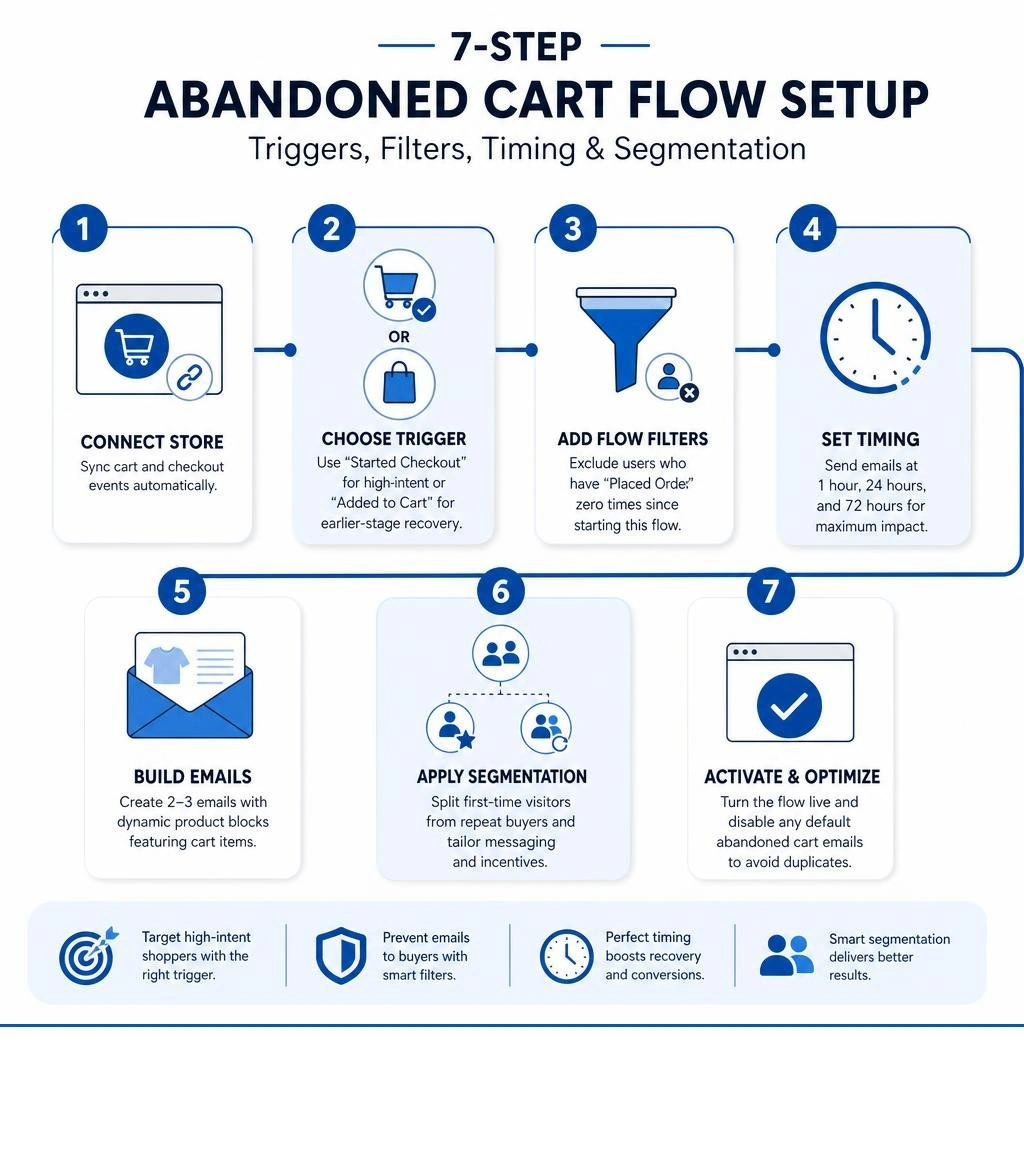
Here's the quick version of how it works:
- Connect Klaviyo to your Shopify store so cart and checkout events sync automatically.
- Choose a trigger — either "Started Checkout" (recommended) or "Added to Cart" for earlier-stage recovery.
- Add flow filters to exclude anyone who has already purchased since entering the flow.
- Set time delays — typically 1–4 hours for the first email, 24 hours for the second, and 48–72 hours for the third.
- Build 2–3 emails using dynamic product blocks that pull in the shopper's actual cart items.
- Apply conditional splits to separate first-time visitors from repeat buyers, and adjust incentives accordingly.
- Turn the flow live and disable any default abandoned cart emails from Shopify to avoid duplicate sends.
Nearly 70% of online shopping carts are abandoned before checkout is completed. For most Shopify stores, that represents a significant chunk of recoverable revenue sitting untouched. Here at First Pier, we find that abandoned cart flows consistently outperform every other automated flow in Klaviyo — averaging $3.65 revenue per recipient and a 3.33% conversion rate across the platform.
The good news: the setup is more straightforward than most merchants expect. The details — trigger choice, filter logic, discount timing, and segmentation — are where the real performance differences are made.
klaviyo abandoned cart flow setup further reading:
Technical Requirements for a Klaviyo Abandoned Cart Flow Setup
Before building your recovery sequence, you must ensure your data pipeline is configured correctly. Klaviyo relies on real-time event tracking to trigger messages at the exact moment a shopper walks away.
To establish this connection, you need to link your ecommerce platform with Klaviyo. If you are using Shopify, this requires installing the Klaviyo app and enabling the app embed within your Shopify theme settings. This app embed automatically injects the necessary JavaScript tracking snippets into your store, allowing Klaviyo to view active profiles and track when items are placed in a cart.
For custom storefronts or other platforms, you may need to manually add API keys and paste tracking scripts into your site's header files. You can verify that your integration is active by navigating to the Analytics tab in Klaviyo, selecting "Metrics," and looking for active data streams for events like "Active on Site," "Added to Cart," and "Started Checkout."
To review the full technical requirements, refer to the official guides on How to create an abandoned cart flow and managing your Klaviyo and Shopify integration.
Step 1: Choose Your Trigger for Klaviyo Abandoned Cart Flow Setup
The trigger is the specific user action that starts the automation. In cart recovery, you have two primary options: "Added to Cart" and "Started Checkout."
- Started Checkout: This is the standard trigger for checkout abandonment. It fires when a customer enters the checkout funnel and inputs their email address or logs into their account. Because these users have already initiated checkout, they show the highest purchase intent. Sequences triggered by "Started Checkout" recover three times more revenue per recipient than earlier-stage flows.
- Added to Cart: This trigger fires earlier in the journey, the moment a logged-in or tracked visitor clicks the add-to-cart button on a product page. This captures casual browsers who may never reach the actual checkout page.
Here at First Pier, we recommend running separate flows for both triggers. This lets you tailor your messaging. A shopper who only added an item to their cart needs a soft, helpful reminder, while a shopper who walked away mid-checkout is ready for direct assistance or a clear call to action. To manage these paths effectively, you can learn more about structuring automated sequences in this guide to Klaviyo Flows.
Step 2: Configure Filters for Klaviyo Abandoned Cart Flow Setup
Without proper exclusion logic, your automated emails will annoy your customers. If a shopper abandons their cart, receives your email, and then completes their purchase, they must be removed from the flow immediately so they do not receive subsequent reminders.
To achieve this, you must apply flow-level filters. These filters check the customer's status before sending every single message in the sequence.
If you are running an "Added to Cart" flow alongside a "Started Checkout" flow, you must add an extra filter to the "Added to Cart" sequence to prevent duplicate messaging:
This filter ensures that as soon as a shopper moves from simply adding an item to starting the checkout process, they exit the low-intent cart flow and enter your high-intent checkout abandonment flow. To prevent coupon hunting, you should also add a filter that restricts users from entering the flow more than once every 15 to 30 days. For step-by-step instructions on setting up this logic, read about How to Set Up Klaviyo Flows.
Step 3: Establish Timing and Delays
Timing determines whether your recovery message feels like a helpful nudge or an intrusive sales pitch. If you send the first email too quickly, you risk emailing shoppers who were simply looking for their credit card or got briefly distracted. If you wait too long, they may buy from a competitor.
The optimal timing for a three-email recovery sequence is:
- Email 1 (The Reminder): Send 1 to 4 hours after abandonment. For impulse purchases and lower-priced items, 1 hour works best. For expensive, high-consideration goods, 4 hours gives the buyer adequate space to think.
- Email 2 (The Incentive): Send 24 hours after abandonment. This delivers the message at the exact time of day the shopper was already browsing your site, increasing the likelihood they are free to complete the purchase.
- Email 3 (The Final Push): Send 48 to 72 hours after abandonment. This serves as a last call before the cart is cleared.
Always use fixed time delays rather than smart send-time features for the first email. Urgency is critical in the hours immediately following abandonment, and waiting for an AI-calculated send window can cause you to miss the conversion window entirely. To refine your timing strategy, consult the Klaviyo Best Practices documentation.
Designing and Customizing Your Recovery Emails
Once your structure, triggers, and filters are set, you must design emails that encourage action. Your emails should feel like an extension of your website, using consistent typography, colors, and brand voice.
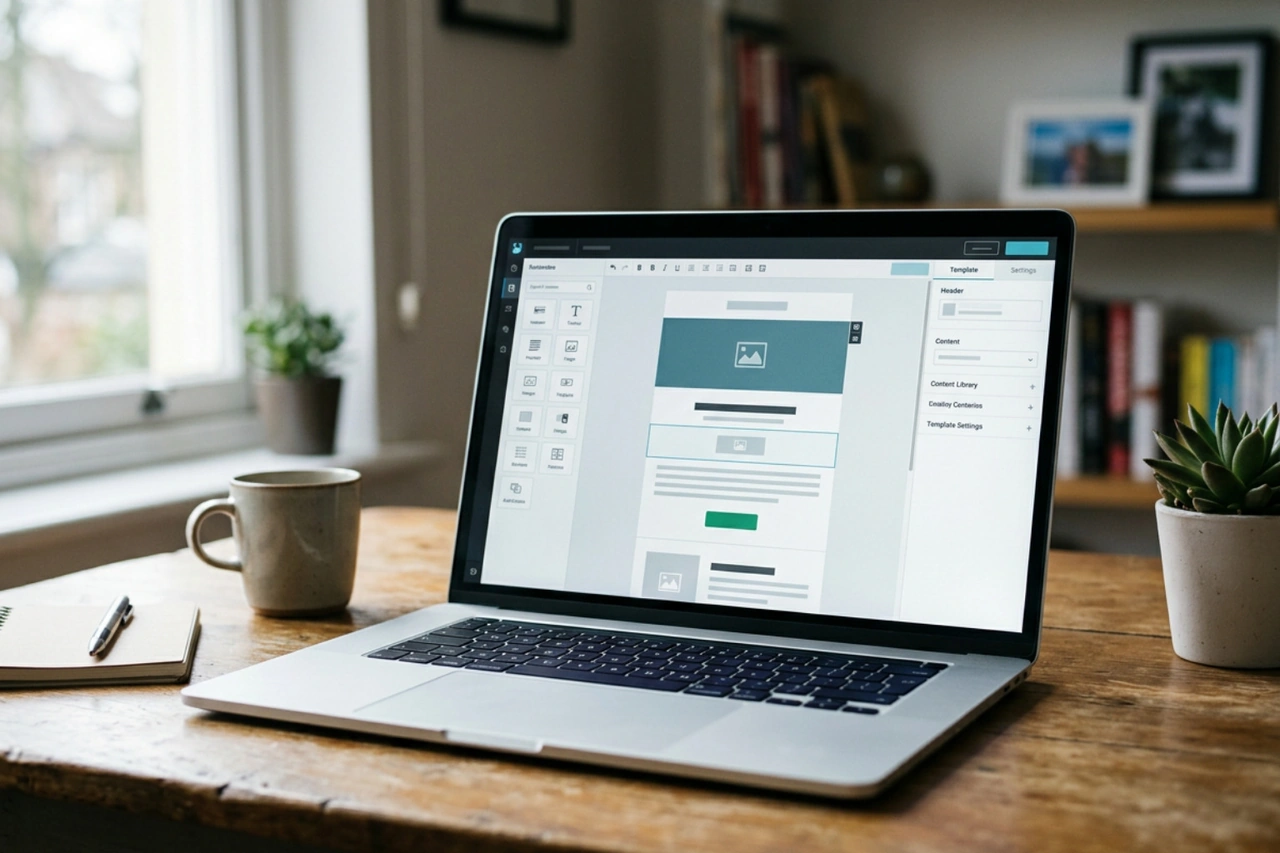
A successful recovery email relies on simplicity. Keep the layout clean, the copy brief, and the focus entirely on the items left behind. Avoid adding heavy cross-sells or alternative product recommendations in your first message, as these options distract the shopper and lower conversion rates. Review your layouts using the advice in the Klaviyo Email Design guide to ensure your messages are structured for mobile screens, where over 60% of emails are opened.
Step 4: Select a Template or Build from Scratch
You do not need to design your layout from the ground up. Klaviyo's flow library contains pre-built templates that come pre-configured with the correct triggers, filters, and dynamic placeholders.
To use a pre-built option:
- Navigate to the Flows tab in your Klaviyo dashboard.
- Click Create Flow in the top right corner.
- Search for "Abandoned Cart" or filter by the "Prevent lost sales" goal.
- Select the standard platform template (such as the Shopify Abandoned Cart Reminder).
If you require advanced layout customization, you can build a custom flow from scratch. When building from scratch, choose the metric trigger "Started Checkout" and manually assemble your email templates using the drag-and-drop editor. For a quick visual walkthrough of this process, check out the How to Create an Abandoned Cart Flow in Klaviyo: 1-Min Guide.
Step 5: Insert Dynamic Product Blocks
The most critical element of an abandoned cart email is the dynamic product block. This block uses event metadata to automatically pull the product image, title, price, and quantity of the abandoned items directly into the email template.
To configure a dynamic block:
- Drag a table block into your email template.
- Set the block's content source to dynamic.
- Set the row collection to pull from your integration's event data (e.g.,
event.extra.line_itemsfor Shopify). - Use template variables to map the image URL, product title, and price.
Additionally, you must configure your call-to-action button with a cart rebuild URL. This link bypasses the standard homepage and sends the shopper directly back to their pre-loaded cart or checkout page with their items already saved. For a detailed breakdown of mapping these variables, read the Klaviyo Email Marketing Complete Guide.
Step 6: Implement Discounts and Incentives Safely
Offering discounts too early hurts your profit margins and trains your customers to abandon their carts deliberately to receive a coupon code.
To protect your profits, follow these guidelines:
- Email 1: Here at First Pier, we recommend never including a discount in this first touchpoint. Treat this message as a customer service check-in. Ask if they had technical issues or if they have questions about sizing, shipping, or returns.
- Email 2: Introduce soft incentives. Highlight social proof, star ratings, customer reviews, or your return policy.
- Email 3: Offer a discount or free shipping code as a final incentive.
When you do offer discounts, use dynamic, single-use coupon codes generated through Klaviyo rather than static codes like "WELCOME10." Static codes are quickly shared on coupon-aggregator sites, leading to unauthorized use. To set up unique, expiring coupon codes that sync automatically with your Shopify store, refer to Klaviyo Coupon Codes.
Advanced Segmentation and Multi-Channel Integration
Once your basic sequence is running, you can split your flow to deliver highly personalized messages to different subscriber groups.
Here at First Pier, we use conditional splits to branch flows based on user history or cart attributes. This allows you to send premium offers to high-value carts while keeping your standard messaging for lower-value carts. For a deeper look at list segmentation, review the Klaviyo Segmentation Strategy.
Step 7: Split by Customer Value and Add SMS
To build a highly effective recovery sequence, use a conditional split to separate first-time visitors from repeat, loyal customers.
- First-Time Visitors: These users have never purchased from you and require trust-building. Focus your copy on your brand story, customer reviews, and risk-free return policies. You can offer a small discount in the final email to convert them into paying customers.
- Repeat Customers: These users already trust your brand. Do not offer them discounts, as they are highly likely to buy anyway. Instead, send simple reminders, highlight loyalty program points, or suggest complementary products.
You can also split your flow by cart value:
For carts over $100, you can offer a flat dollar-off discount (which feels more substantial on high-value orders) or free shipping. For carts under $100, stick to percentage-based discounts or simple reminders.
Finally, integrate SMS into your flow. SMS boasts open rates over 90% and is highly effective for time-sensitive reminders. Add an SMS step after your second email, but only send texts to subscribers who have explicitly opted into SMS marketing. Keep your text copy under 160 characters, include a direct link back to their cart, and respect quiet hours. For more details on incorporating text messaging, see Klaviyo SMS.
Compliance and Data Privacy Rules
Because abandoned cart messages rely on tracking user behavior, you must follow regional data privacy and anti-spam regulations, such as GDPR and TCPA.
Key compliance requirements include:
- Explicit Consent: You must collect explicit consent before sending marketing messages. For SMS, this requires a double opt-in process where users confirm their subscription via text.
- Unsubscribe Options: Every email must include a visible unsubscribe link, and every SMS must include instructions on how to opt out (such as "Reply STOP to opt out").
- Frequency Limits: Limit your sequence to a maximum of three emails and one SMS within a 48-hour window to avoid spam complaints.
- Quiet Hours: Ensure your SMS messages are configured to hold delivery during late-night hours (typically 8:00 PM to 8:00 AM in the recipient's local time zone) to avoid TCPA violations.
To ensure your automations remain safe and compliant, review the guidelines in the Anatomy of a flow: Abandoned cart | Klaviyo Academy.
Testing and Refining Your Live Flow
Before setting your flow to "Live," you must test every step to ensure your triggers, filters, and dynamic blocks are working correctly.
Start by sending preview emails to your inbox. Verify that your images load correctly, the links point to the right landing pages, and the pricing variables display the correct currency formatting. Here at First Pier, we always run a live test by adding an item to the cart on the storefront, entering an email address at checkout, and walking away. Confirm that the "Started Checkout" metric appears in your Klaviyo profile and that you receive the first recovery email at the scheduled time. To learn more about setting up these experiments, read about Klaviyo AB Testing.
Troubleshooting Common Tracking Issues
If your tracking isn't firing, the issue is usually a broken integration or a theme conflict.
Follow these steps to troubleshoot:
- Check the App Embed: In Shopify, go to Online Store > Themes > Customize. Open the App embeds menu and confirm that the Klaviyo tracking script is turned on.
- Inspect the Button ID: If your "Added to Cart" metric is not tracking, open your website in a browser, right-click your add-to-cart button, and select Inspect. Verify that the button's ID matches the ID specified in your custom Klaviyo tracking script.
- Review Browser Console Errors: Open your browser's developer tools and check the Console tab for JavaScript errors. If another app is blocking the Klaviyo script from loading, you will see error messages here.
For a complete troubleshooting guide, refer to the Klaviyo Shopify Integration documentation.
A/B Testing and Key Performance Metrics
Once your flow is live, review your analytics weekly to identify areas for improvement.
Monitor these key metrics:
- Open Rate: Target 40% to 50%. If your open rates are low, test new subject lines and preview text.
- Click-Through Rate (CTR): Target 10% to 15%. If your clicks are low, make your CTA button larger, place it above the fold, or simplify your email layout.
- Unsubscribe Rate: Keep this below 0.5%. If your unsubscribes spike, increase the delay before your first email or reduce the total number of messages in your sequence.
- Revenue Per Recipient (RPR): This is the primary measure of your flow's performance. A well-structured sequence should generate an average of $3.00 to $5.00 per recipient.
Use Klaviyo's built-in testing tools to run A/B tests on your subject lines, delay times, and discount offers. Run your tests until they reach statistical significance before implementing the winning variations permanently. For more performance benchmarks, consult Klaviyo Email Marketer Best Practices.
Frequently Asked Questions About Cart Abandonment
How do I prevent customers from receiving both cart and checkout flows?
To prevent duplicate messaging, add a flow filter to your "Added to Cart" sequence that excludes anyone who has started checkout since entering the flow. Use the "AND" connector to combine this with your standard purchase exclusion filter. This ensures that as soon as a shopper moves to the checkout page, they exit the cart abandonment flow and enter the checkout abandonment flow. You can learn more about managing these exclusions in the Klaviyo Email Flows guide.
When should I offer a discount in my recovery sequence?
Here at First Pier, we recommend treating the first message as a customer service follow-up to assist with any technical issues without offering discounts. You should offer a discount or incentive only in the final email of your recovery sequence, typically 48 to 72 hours after abandonment. If the shopper does not convert, you can introduce a discount or free shipping offer in your third and final email to convert hesitant buyers. For instructions on setting up these incentives, read about Klaviyo Discount Code generation.
How do I set up an abandoned cart flow for Amazon Buy with Prime?
To recover carts abandoned through Amazon Buy with Prime, you must link your Buy with Prime account to Klaviyo. Once connected, build a separate flow triggered by the "Checkout Started (Buy with Prime)" metric. You must add flow filters to exclude users who completed their purchase through either Buy with Prime or your standard checkout. For a complete setup guide, read the official instructions on How to create an abandoned cart flow for Amazon Buy with Prime | Klaviyo Help Center.
Bottom Line
Setting up an automated cart recovery flow is one of the most reliable ways to capture lost revenue and build stronger relationships with your shoppers. By selecting the right triggers, implementing smart filters, protecting your margins, and testing your sequences, you can turn abandoned carts into consistent sales.
If you would like help setting up or refining your automated recovery flows, get in touch with our team here at First Pier.




.png)
.png)

