




What This Shopify Analytics Reporting Guide Covers
This shopify analytics reporting guide walks you through every layer of Shopify's built-in reporting — from the overview dashboard to custom data explorations — and shows where native tools end and third-party solutions begin.
Quick answer for experienced Shopify operators:
- Access reports at Analytics > Reports in your Shopify admin (staff need Analytics permissions)
- Six core report types: Sales, Customer, Marketing, Behavior, Finance, and Inventory
- Key metrics to track: total sales, AOV, conversion rate, sessions by source, returning customer rate, and gross margin
- Plan matters: Custom reports, profit reports, and cohort analysis are locked to Advanced and Plus tiers
- Native limits: Last-click attribution only, no ad spend pull from Meta/Google/TikTok, and detailed data retained for roughly 13 months
- When to add tools: Stores running paid ads or crossing ~$50K/month typically need GA4, Triple Whale, or a data warehouse alongside native Shopify reporting
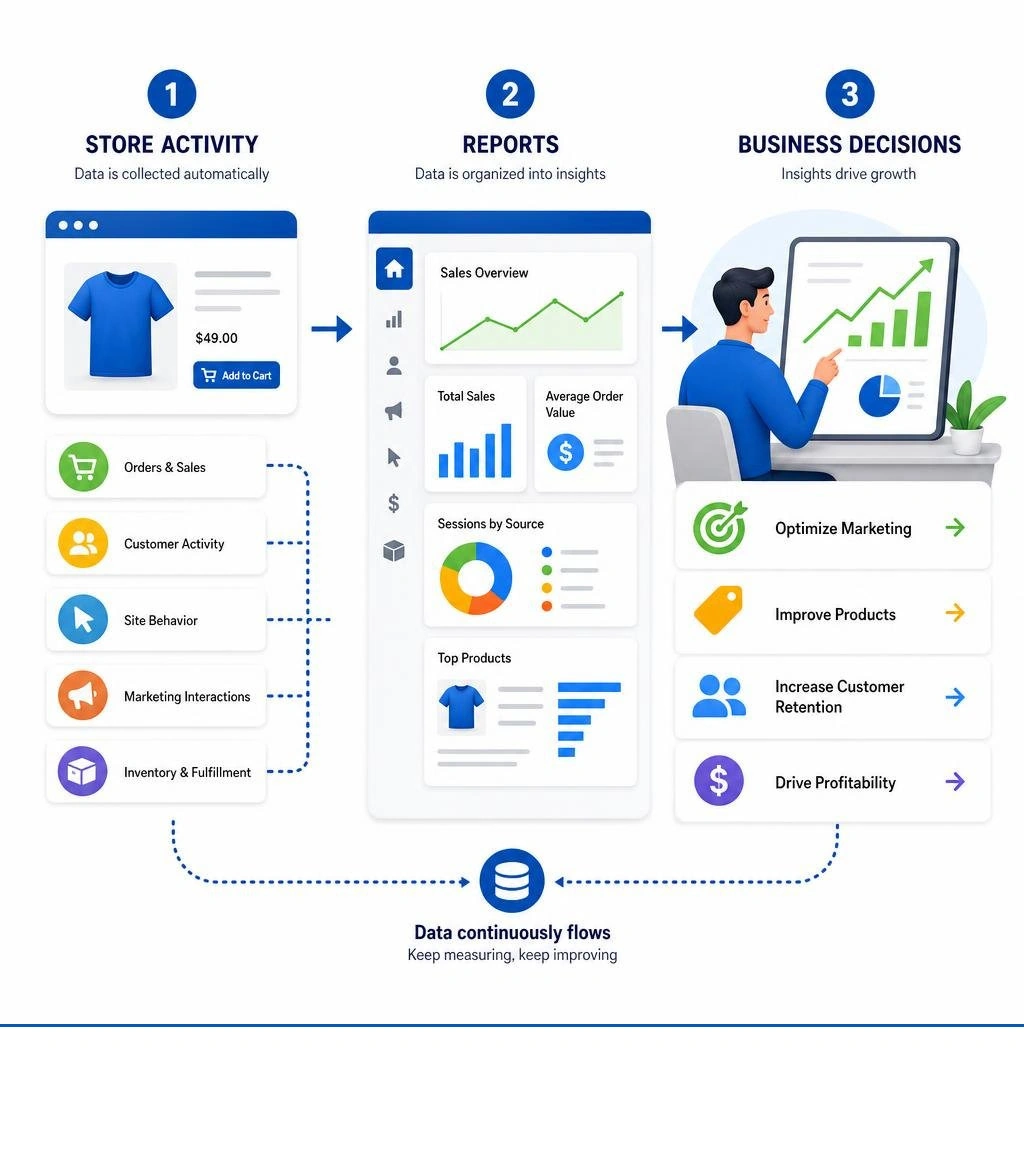
Shopify's analytics suite is included on every plan and requires no setup to start collecting data. It tracks sales, sessions, customer behavior, and marketing performance from day one. For many merchants, that's enough to answer the basic questions: what sold, where traffic came from, and which products are carrying the store.
But the built-in reports have real constraints — particularly around attribution, profitability, and cross-channel visibility. As one operator put it after using Shopify's analytics to identify bestsellers and seasonal trends, the data was enough to drive 50% year-over-year revenue growth at Christmas. That's the ceiling for most native reporting: strong on what happened, limited on why and what to do about it.
This guide covers everything from reading your first dashboard card to knowing when you've outgrown Shopify's native tools entirely.
Key terms for shopify analytics reporting guide:
Summary
- Shopify analytics provides built-in tracking for sales, customer behavior, marketing campaigns, and inventory levels without requiring initial setup.
- Report access and customization capabilities vary significantly by subscription tier, with custom reports and cohort analysis restricted to Advanced and Plus plans.
- Native Shopify tracking relies on last-click attribution and lacks direct ad spend integration, meaning merchants must use external tools for true profitability and multi-channel attribution.
- Combining Shopify data with Google Analytics 4 (GA4) or dedicated data warehouses helps merchants overcome the platform's 13-month detailed data retention limit.
Understanding the Shopify Analytics Dashboard
The Shopify Analytics dashboard is the main control center for your store. When you log in, the dashboard displays a series of metric cards that offer quick summaries of key business indicators. These cards show immediate health checks, displaying values like net sales by channel, conversion rates, and session counts.
Each metric card acts as a gateway. Clicking on a card takes you directly to a deeper, pre-built report where you can filter, group, and analyze the underlying data.
For real-time monitoring, Shopify provides the Live View page. This feature displays active store traffic, checkout behavior, and geographic locations of visitors as they interact with your online store. It is particularly useful during high-volume events like product drops, flash sales, or Black Friday Cyber Monday (BFCM).
For more detailed information on how Shopify structures these systems, read the Shopify Help Center | Shopify analytics.
Accessing Your Shopify Analytics Reporting Guide
To access your analytics and reports on a desktop web browser, follow these steps:
- Log in to your Shopify admin dashboard.
- Click on Analytics in the left-hand sidebar menu.
- To view specific reports, click on Reports under the Analytics dropdown, or use the keyboard shortcut G then A.
If you are managing your store on the go, the Shopify mobile app provides an Analytics tab that displays the same core metric cards and summaries.
Access to these reports is controlled by staff permissions. If your team members cannot see certain data cards, an administrator must grant them specific Analytics permissions in the Shopify settings. To see how we set up these permissions and default interfaces for our clients here at First Pier, read our guide on Shopify Analytics Reports.
Core Types of Shopify Reports and Key Metrics
Shopify organizes its standard reports into six core categories. Each category answers specific operational and strategic questions.
1. Sales Reports
Sales reports track the value of customer orders over time, filtered by product, channel, currency, billing location, and referral source. It is critical to note that sales reports track order value at the time of purchase, not the actual timing of payment receipt.
These reports include pending, unpaid, and canceled orders, but exclude chargebacks. Additionally, they reflect "sales reversals" (returns, cancellations, and refunds) to show net business value. For technical details on how Shopify handles edge cases like gift cards and edits, read the Shopify Help Center | Sales reports.
2. Customer Reports
Customer reports group your audience to help you understand purchasing patterns. They show first-time versus returning customer sales, customer counts over time, and geographic distribution. On higher plans, these reports identify loyal customers, one-time buyers, and "at-risk" customers who have not purchased within their typical buying cycle.
3. Marketing Reports
Marketing reports show how your marketing efforts drive traffic and sales. They track sessions and conversions attributed to marketing campaigns, comparing first-interaction and last-interaction attribution models. Data in these reports can take up to 24 hours to populate after a campaign ends.
4. Behavior Reports
Behavior reports focus on how visitors interact with your website. They include your online store conversion funnel, store speed scores, top search terms, product recommendation conversions, and cart analysis (which shows which products are most frequently purchased together).
5. Finance Reports
Finance reports track your tax liabilities, payments, shipping costs, and gift card balances. Unlike sales reports, finance reports reconcile directly with your bank payouts, making them the primary tool for your bookkeeping and accounting teams.
6. Inventory Reports
Inventory reports provide operational visibility into your stock. They offer month-end inventory snapshots, average quantity sold per day, and sell-through rates. They also include ABC analysis, which classifies your products based on their contribution to your total revenue (A-grade products drive 80% of revenue, B-grade drive 15%, and C-grade drive 5%).
Essential Metrics in Your Shopify Analytics Reporting Guide
To avoid data overload, we advise focusing on a core set of commerce metrics here at First Pier. Understanding these numbers is the first step toward effective Ecommerce Analytics:
- Average Order Value (AOV): Calculated as
(Gross Sales - Discounts) / Total Orders. Increasing AOV through upselling, cross-selling, and product bundling is often more cost-effective than acquiring new customers. - Online Store Conversion Rate: The percentage of sessions that result in a completed transaction. A healthy baseline conversion rate typically ranges between 1.5% and 3.5%.
- Sessions: A session is a group of user interactions on your website. A session ends after 30 minutes of inactivity or at midnight UTC.
- Returning Customer Rate: The percentage of customers who have made more than one purchase. Returning customers typically spend 67% more and convert at 3x to 5x higher rates than first-time buyers. A healthy target for established brands is 20% to 40%.
Shopify Plan Differences and Report Availability
The reports you can access depend directly on your Shopify subscription tier. As your store grows, upgrading your plan is often necessary to get advanced data modeling.
| Feature / Report Type | Basic Plan | Shopify Plan | Advanced Plan | Shopify Plus |
|---|---|---|---|---|
| Overview Dashboard & Live View | Yes | Yes | Yes | Yes |
| Finance Reports | Yes | Yes | Yes | Yes |
| Standard Sales & Customer Reports | Limited | Yes | Yes | Yes |
| Custom Report Builder (Explorations) | No | No | Yes | Yes |
| Cohort & Profit Analytics | No | No | Yes | Yes |
| ShopifyQL & Sidekick AI Integration | No | No | Yes | Yes |
Customizing and Filtering Reports in Shopify
While pre-built reports cover standard business needs, you will often need to customize them to answer highly specific questions. Shopify allows you to filter and edit default reports, saving your modifications as new "custom reports" or "data explorations."
To customize an existing report, you can apply filters using a simple three-part structure: Name > Operator > Values (for example, Sales Channel > is > Online Store). You can also add or remove columns to display different dimensions (like referrer site) or metrics (like net quantity).
When we build custom setups for clients here at First Pier, we often use metafields as dimensions or filters in reports. To do this, you must turn on "Use in analytics" in your metafield settings.
To build a report from scratch or modify an existing template, read these guides:
- Shopify Help Center | Create a new data exploration
- Shopify Help Center | Filtering and editing your reports
For a step-by-step walkthrough on building custom views, see our guide on Shopify Custom Reports.
Limitations of Native Shopify Analytics and When to Scale
While Shopify's native analytics platform is a strong starting point, growing stores eventually run into limits that require external tools.

1. Last-Click Attribution Limits
Shopify's native marketing reports rely heavily on last-click attribution. If a customer first finds your brand through a Meta ad, returns via a Google Search ad, and finally purchases after clicking an email campaign, Shopify often attributes 100% of the sale to the email. This makes it difficult to measure the true return on top-of-funnel ad spend.
2. No Ad Spend or ROAS Integration
Shopify does not pull ad spend data directly from platforms like Meta, Google Ads, or TikTok. Because cost data is missing, Shopify cannot calculate your actual Return on Ad Spend (ROAS) or Customer Acquisition Cost (CAC) within its native dashboard.
3. No True Daily Profitability (Contribution Margin)
Because Shopify does not automatically reconcile real-time shipping costs, payment processing fees, returns, and variable marketing expenses, it cannot show your true daily contribution margin.
4. 13-Month Detailed Data Retention
Shopify retains detailed session and visitor data for roughly 13 months. While your basic transaction and sales history is preserved for the lifetime of your store, running granular year-over-year behavioral comparisons is difficult without exporting your data to an external warehouse.
To understand how to handle these attribution gaps, read our breakdown of Marketing Attribution Reporting.
Comparing Shopify with GA4 and Third-Party Tools
To get past native limits, most established merchants pair Shopify with external analytics platforms:
- Google Analytics 4 (GA4): GA4 uses an event-driven model that tracks complete cross-device user journeys, engagement metrics, and organic search performance. It is the industry standard for traffic analysis but lacks transactional precision. Learn how to set up this system in our guide on Ecommerce GA4.
- Triple Whale / Northbeam: These platforms focus on multi-touch attribution, pulling ad spend directly from your marketing channels to calculate blended ROAS, CAC, and true daily profitability.
- Niblin / Lifetimely: These tools focus on customer lifetime value (LTV) and cohort analysis, helping you understand the long-term value of customers acquired from different marketing channels.
- Data Warehouses (BigQuery / Snowflake): Large merchants use ELT (Extract, Load, Transform) pipelines to pipe raw Shopify data into a data warehouse, combining it with ERP, CRM, and marketing data for custom SQL analysis.
How to Use a Shopify Analytics Reporting Guide to Drive Growth
To turn raw data into business growth, you must set up a routine for reviewing and acting on your reports. Here at First Pier, we help merchants establish these habits to keep their stores on track.
Improve Marketing Spend
Do not rely solely on ad manager dashboards, which often over-report conversions. Cross-reference your ad manager data with Shopify's Sales by Referrer and Sessions Attributed to Marketing reports. Look for channels that drive high-quality sessions with low bounce rates and high conversion rates, and move your budget accordingly.
Improve Customer Retention
Use customer cohort analysis to track repurchase rates over 30, 60, and 90 days. If your 90-day retention rate is dropping, use customer grouping reports to identify "at-risk" buyers who haven't purchased recently. Target this group with automated email flows or special offers.
Protect Your Margins with Inventory Analytics
Use ABC inventory analysis to identify your slow-moving, low-margin products (C-grade). These items tie up working capital that could be better spent on your high-margin bestsellers (A-grade). Combine this with sell-through rates to change your manufacturing or purchasing schedules.
For deeper planning frameworks, read Shopify's Sales Analytics Guide: Metrics and Tips to Analyze Sales Data (2026) - Shopify and read our guides on Shopify Reporting.
Frequently Asked Questions about Shopify Analytics
How far back does Shopify analytics data go?
Shopify retains detailed visitor, session, and behavioral analytics data for approximately 13 months. However, your basic order, transaction, and sales history is stored for the lifetime of your store, allowing you to run high-level historical sales reports from the day your store was created.
What is the difference between Shopify analytics and Google Analytics?
Shopify analytics is transaction-first, focusing on precise sales tracking, order values, product performance, and inventory metrics. Google Analytics (GA4) is behavior-first, tracking detailed user interactions, traffic sources, bounce rates, and cross-device journeys. Most merchants use both to get a complete view of their business.
Do basic Shopify plans include custom reports?
No. The custom report builder, custom data explorations, and advanced filtering options are restricted to the Advanced Shopify and Shopify Plus plans. Merchants on Basic or standard Shopify plans must rely on pre-built default reports or export their data to external tools for custom analysis.
Bottom Line
Shopify's native analytics and reporting tools are highly effective for tracking daily operations, monitoring sales trends, and managing inventory. However, as your store grows, relying solely on last-click attribution and basic dashboards can lead to inefficient marketing spend and hidden margin leaks. By setting up a consistent reporting routine, customizing your reports, and moving to third-party tools when necessary, you can make clear, data-driven decisions that protect your profitability.
If you need help setting up your tracking, building custom dashboards, or connecting third-party tools, check out our Shopify Analytics and Reporting Services to see how we can help here at First Pier.





.png)
.png)

